
Do you know Facebook gives you the option to make your photos private? Want to learn how to make photos private on Facebook? In this post, I’ll teach you how to hide photos on Facebook. Let’s get started!
Millions of users post their photos or ideas on Facebook every day and they have the option to decide who can see their photos before uploading. However, sometimes users may forget to adjust the privacy settings. How to make all photos private on Facebook? Keep reading! (Need to make a Facebook slideshow? Try MiniTool MovieMaker)
How to Make Photos Private on Facebook (Desktop)
This part is about how to make photos private on Facebook’s desktop version.
Make a Photo Private on Facebook
Here’s how to make a photo private on Facebook.
Step 1. Open your browser and go to the Facebook website.
Step 2. Log into your Facebook account and tap on your name below the search box in the top-left corner of the page.
Step 3. When you get your profile page, click on Photos to list all your photos.
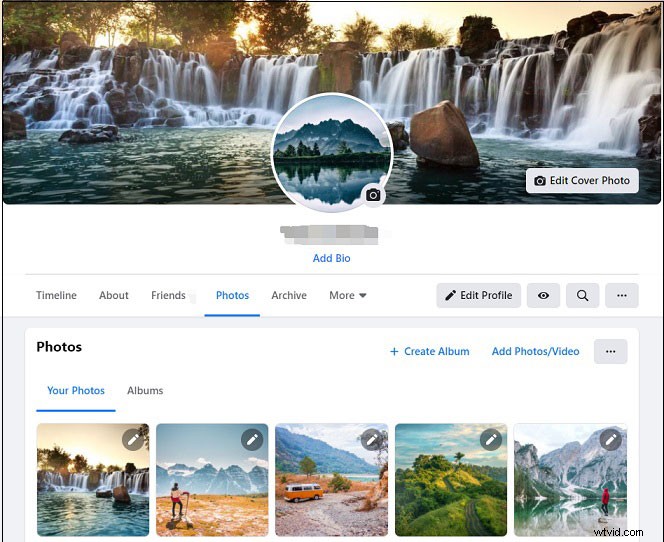
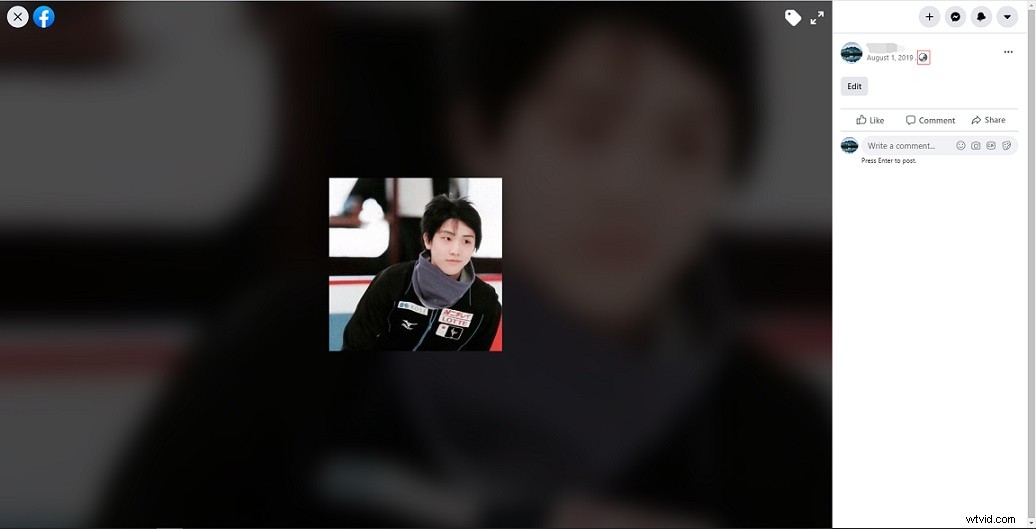
Step 4. Tap on the photo you want to make private, click the Public icon and select the Only me option from the Select Privacy window.
Related article: Solved - Facebook Videos Not Playing on Phone/Chrome
Make an Album Private on Facebook
Below is the guide on how to make an album private on Facebook.
Step 1. Go to Facebook and get your profile page.
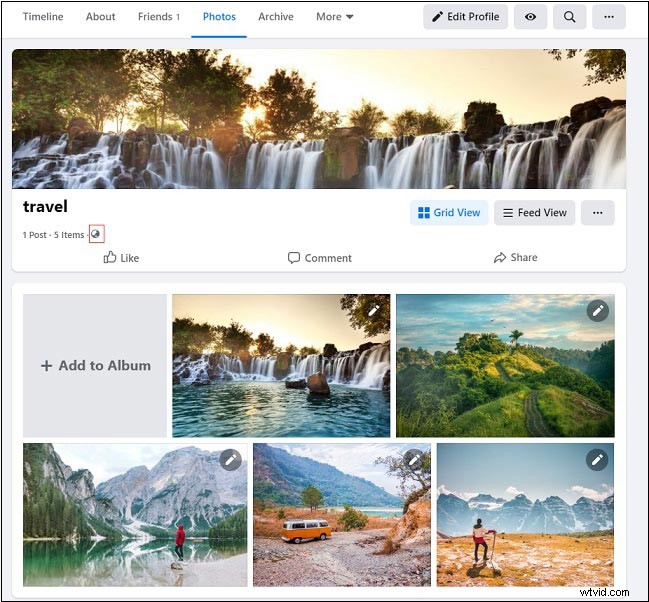
Step 2. Navigate to Photos > Albums.
Step 3. Click the album that you want to change the privacy settings of, find the public icon, and click on it. Then select the Only me option or other option from the drop-down list.
How to Make Photos Private on Facebook (Mobile)
For mobile phone users, this part will tell you how to hide photos on Facebook.
Make a Photo Private on Facebook
Follow the steps below to learn how to make a single Facebook photo private on mobile.
Step 1. Open the Facebook app and log into your account.
Step 2. Go to your profile page, find the uploaded photo you’d like to make private, and tap on it.
Step 3. Then click on the three dots in the top-right corner and choose the Edit post privacy option from the drop-down menu.
Step 4. Choose See more > Only me. This post is successfully made private.
Make an Album Private on Facebook
Here’s how to make a Facebook album private on mobile.
Step 1. Launch the Facebook app, click the menu icon in the top-right corner and tap on your name.
Step 2. Go to Photos > Albums.
Step 3. Choose the target album and click the three dots.
Step 4. Then choose the Edit option and select the Only me option.
Step 5. Afterward, click on Edit Privacy > Done to apply the change.
You might be interested in this post: How to Post a GIF on Facebook – 4 Ways.
Conclusion
That’s all about how to make photos private on Facebook. Now, it’s your turn!