
Want to make your Facebook private? In this guide, you will know how to make friends list and posts private, how to remove your Facebook profile from search engine searches and how to lock your Facebook profile.
There are four different ways of how to make Facebook private. Let’s have a look.
If you are looking for a video editor or slideshow maker for Facebook, try MiniTool MovieMaker.
How to Make Facebook Posts Private
To make your profile private on Facebook, you should limit the audience for your previous or future posts on the timeline.
Here’s how to change the visibility of your Facebook posts on the computer.
Step 1. Open the Facebook website and sign in to your account.
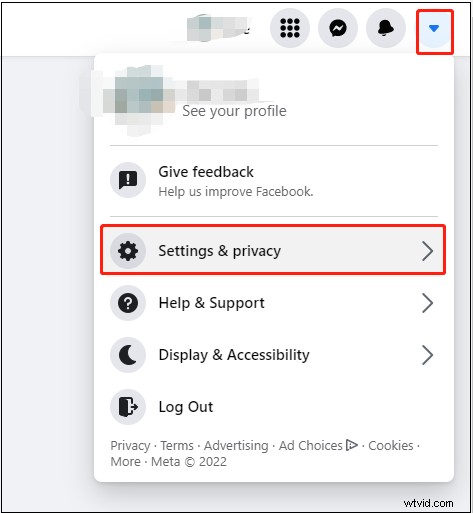
Step 2. Click the down arrow icon in the top right corner of the window and go to Settings & privacy > Settings.
Step 3. Under the Settings, click on Privacy.
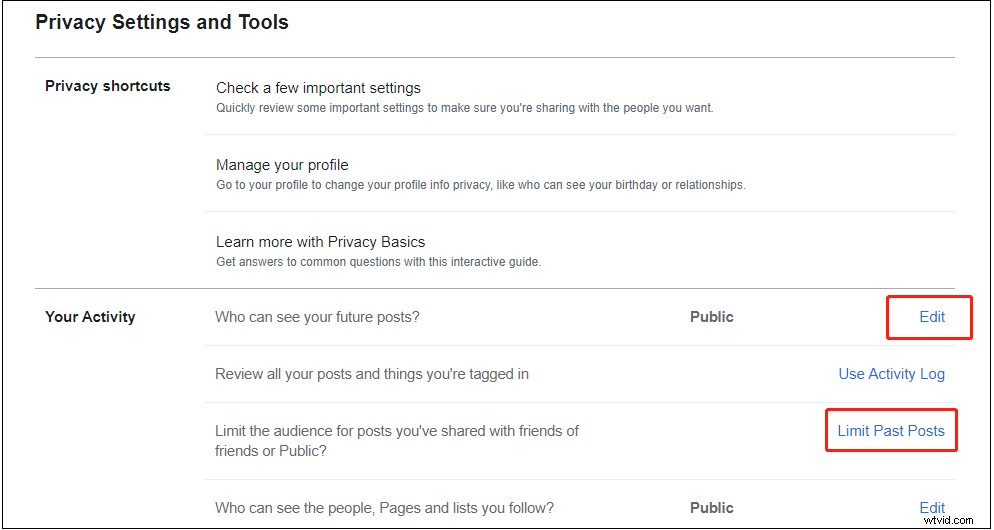
Step 4. In Your Activity section, click Edit to decide who can see your future posts. To make your previous posts private, you can click Limit Past Posts to make your pasts posts invisible to strangers.
Related article: How to Quickly Delete All Facebook Posts
How to Hide Your Facebook Profile from Search Engines
If you don’t want people to find your Facebook profile, you can prevent your profile from displaying in search engines.
Here’s how:
Step 1. Click the down arrow icon and choose Settings & privacy > Settings.
Step 2. In the left panel, choose Privacy.
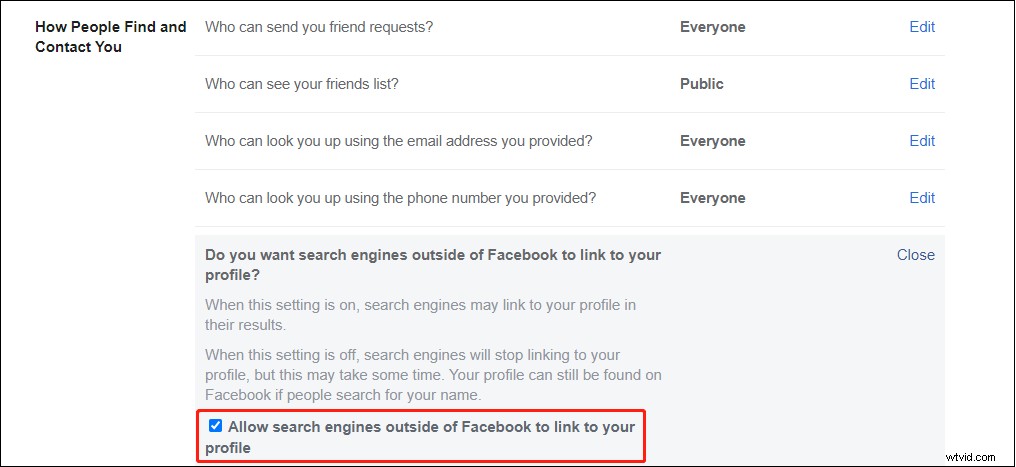
Step 3. Find the section How to People Find and Contact You. Next to Do you want search engines outside of Facebook to link to your profile, click Edit and uncheck the option Allow search engines outside of Facebook to link to your profile. Confirm by clicking the Turn Off button.
How to Make Friends List Private On Facebook
The friends list is set to public by default. How to make friends list private on Facebook?
Here’s how:
Step 1. Go to Settings & privacy > Settings.
Step 2. Click Privacy.
Step 3. In the How People Find and Contact You section, find the option Who can see your friends list. Click Edit and select the desired option.
Step 4. To quickly make your friends list private, you can go to your profile and click Friends. Then click the three dots next to Find friends and choose Edit privacy.
How to Lock Your Facebook Profile
Another way to make profile private on Facebook is to lock your profile. Once you lock your Facebook profile, your Facebook content will not be visible to the public. Only your friends can see your Facebook posts.
Note: This feature is only available in certain countries.
Here’s how to lock your Facebook profile.
Step 1. Open your profile.
Step 2. Next to Edit Profile, you will see the three dots. Click it and select the Lock profile option.
Step 3. Click Lock Your Profile and click OK.
Conclusion
That’s all about how to make Facebook private. Follow the above methods to make your profile private on Facebook.