
Are you tired of using those default fonts in Word? If yes, you can follow this post and learn how to add fonts to Word in different ways. Besides, this post also teaches you how to use a new font in a video with MiniTool software - MiniTool MovieMaker.
Do you want to install cool fonts in Word? This post shows you how to install and uninstall fonts in Word.
How to Add a New Font to Word
There are two methods to add fonts to Word. One is adding the downloaded fonts to Word using Installer. Another is adding free fonts to Word through Microsoft Store. Additionally, both of them are applicable to Windows 10.
Add Fonts to Word using Installer
There are lots of cool fonts available on the web. If you downloaded Star Wars fonts and want to install them in Word, then you should read this guide carefully.
Here’s how to add fonts to Word.
Step 1. Download the desired font from the font website such as Dafont, Fontspace, Font Squirrel and MyFonts.
Step 2. Find the downloaded font and double click on the font to open it.
Step 3. Press the Install button.
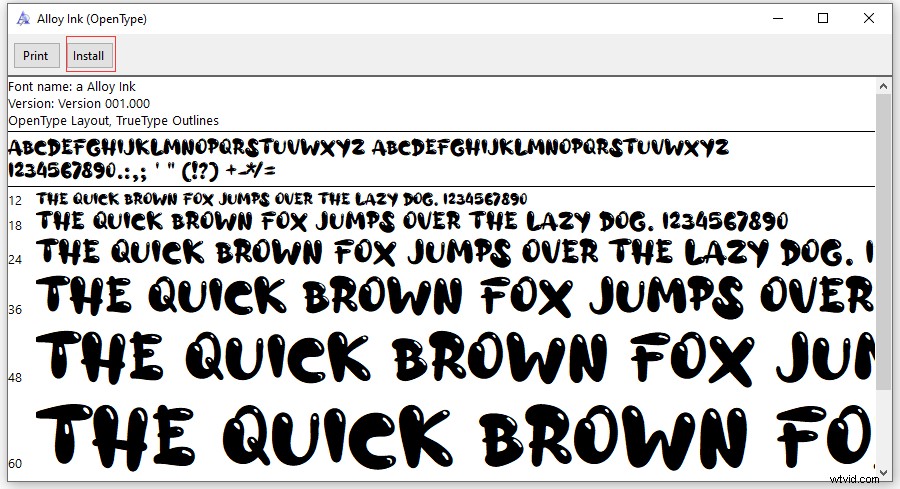
Step 4. Then open Word and you can find the new font in the Font box.
Tip: If the font is packed into a zip file, you need to unzip it first.Add Fonts to Word through Microsoft Store
Except for font websites, you can also find amazing fonts in Microsoft Store. This guide shows you how to install fonts in Word through Microsoft Store.
Step 1. Click the search box in the bottom left corner of the screen.
Step 2. Type “font settings” and hit the Enter key.
Step 3. Click on Get more fonts in Microsoft Store.
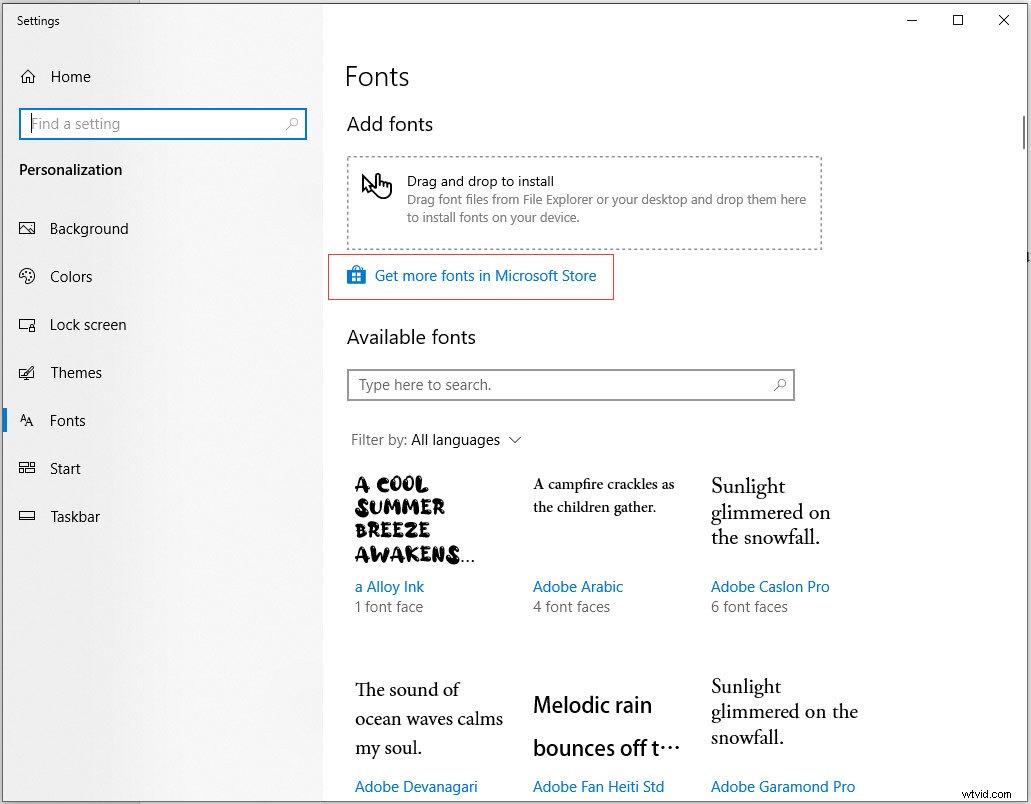
Step 4. Browse the fonts, find your favorite and then click the Get button to install it in Word.
How to Uninstall Fonts
If you don’t want to use some fonts anymore, you can delete them from Windows.
Follow the detailed steps to uninstall fonts on Windows.
Step 1. Open the Control Panel and choose Appearance and Personalization.
Step 2. Click the Fonts folder to show all the fonts installed on Windows.
Step 3. Choose the font you want to remove and tap on Delete in the toolbar to get rid of it.
Related article: Subtitle Font – Which Font Is Best for Movie Subtitles.
How to Use a New Font in Your Video
Now, you must know how to install fonts on Windows 10. After installing the new font on Windows, you may use it in your video.
Let’s see how it works.
Step 1. Follow the steps above to install a new font on Windows.
Step 2. Download and install MiniTool MovieMaker.
Step 3. Close the pop-ups and import the video you’d like to add captions using the new font.
Step 4. Click on Text and add the caption you like to the text track.
Step 5. Enter the text and find the installed new font from the Font box.
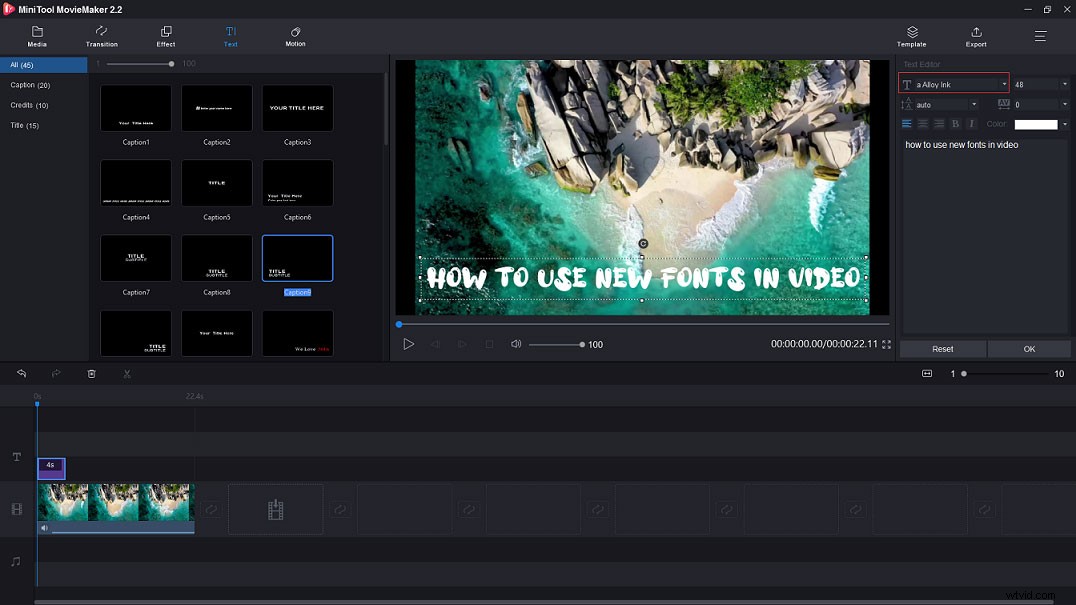
Step 6. Tap on OK to save changes.
Step 7. Then export the video.
Conclusion
This post tells you how to add fonts to word and use a new font in your video. Hope this post is helpful to all of you. If you have any questions about MiniTool MovieMaker, please leave a comment and let us know!