
Today we’re going to show you exactly how to make YouTube Shorts.
Shorts are YouTube’s answer to the super popular short-form content we’ve been seeing on TikTok videos and Instagram Reels.
They’re also an incredible way to reach viewers – both subscribers AND non-subscribers.
In this ultimate guide we’ll cover everything from how to use YouTube Shorts to YouTube Shorts monetization.
Here’s everything we’ll cover in our YouTube Shorts tutorial:
- What Are Youtube Shorts
- How To Watch Youtube Shorts
- How To Interact On Youtube Shorts
- How To Create Youtube Shorts
- How To Align Your Shot On Youtube Shorts
- How To Add Music To Youtube Shorts
- How To Add Text To Youtube Shorts
- How To Upload Youtube Shorts
- How To Sample Audio On Youtube Shorts
- How To Create Youtube Shorts Without The App
- How To Upload Youtube Shorts On Desktop
- Youtube Shorts Monetization
- Youtube Shorts Analytics
Let’s dive in.
What Are YouTube Shorts?
YouTube Shorts are vertical videos that are less than 60 seconds in length.
These are a totally different style of content to regular YouTube videos. This also means people engage with them differently. Because Shorts are so much shorter, they require much less commitment from viewers. They need to be easy to consume on-the-go.
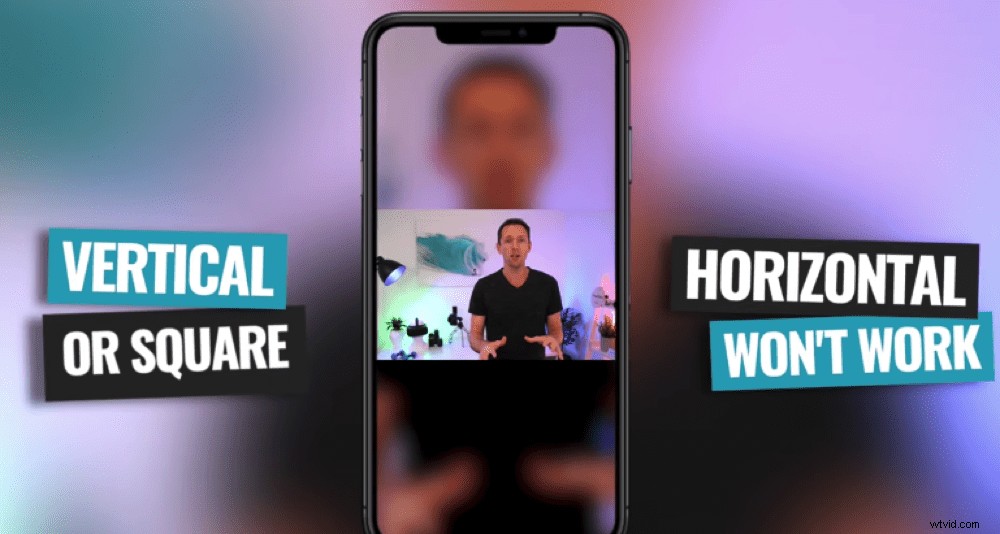
YouTube Shorts must be vertical or square – horizontal videos will not work
Shorts are optimized for mobile devices but they can also be viewed on desktop and TV.
Best of all, there are no requirements for who can create and upload Shorts. So even if you’ve got a brand new channel with very few subscribers, you can harness the power of Shorts.
How to Watch YouTube Shorts
To watch Shorts, jump onto the app. There’s no individual YouTube Shorts app so just open your regular YouTube app. Scroll down to the Shorts section on the main screen.
Eventually you’ll see the Shorts beta section. Here you can swipe through all the different Shorts that YouTube’s algorithm has recommended for you.
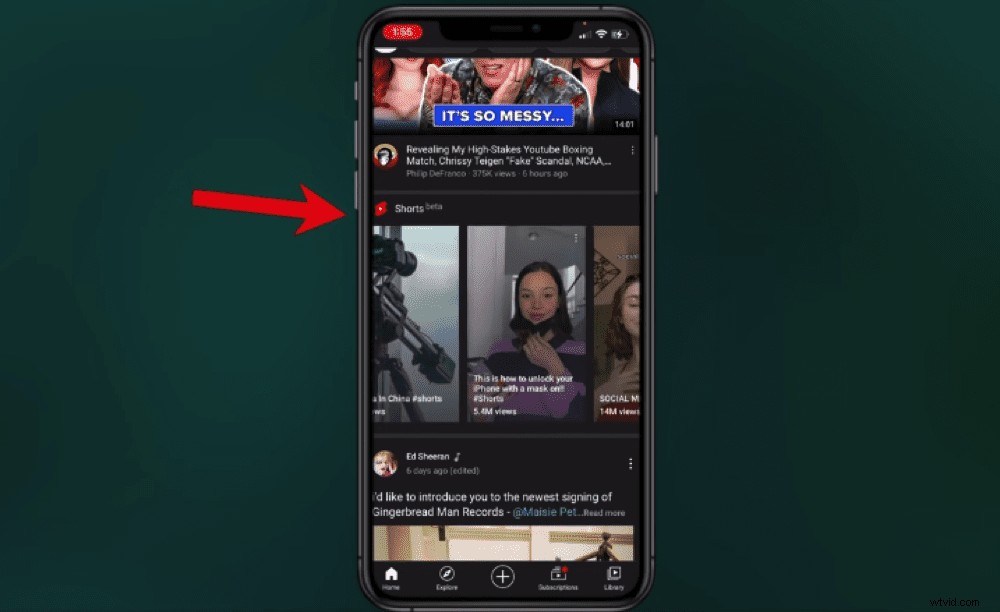
Scroll down until you reach the Shorts beta section in the YouTube app
Some YouTube channel pages also have this Shorts beta feature enabled so you’ll be able to see Shorts on certain channel pages as well.
But because the Shorts feature is so new and YouTube is still building it out, it’s very likely that this will be tweaked and refined over time.
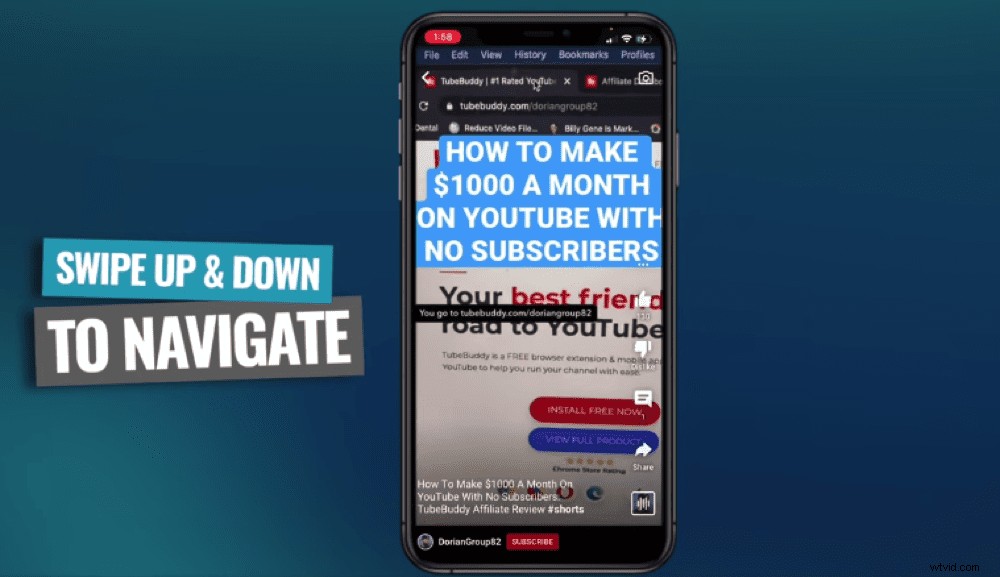
To navigate through Shorts in the app, simply swipe up and down
At the moment, you might have a dedicated Shorts button on the bottom menu. When you select this button, a Shorts video will autoplay on loop until you swipe up for the next one.
Swiping up and down will let you move back and forth between the Shorts.
How To Interact On YouTube Shorts
On the right menu bar you’ll see the three dots icon. This is where you can:
- View the video’s description
- Turn captions on or off
- Report the video
- Send feedback to YouTube
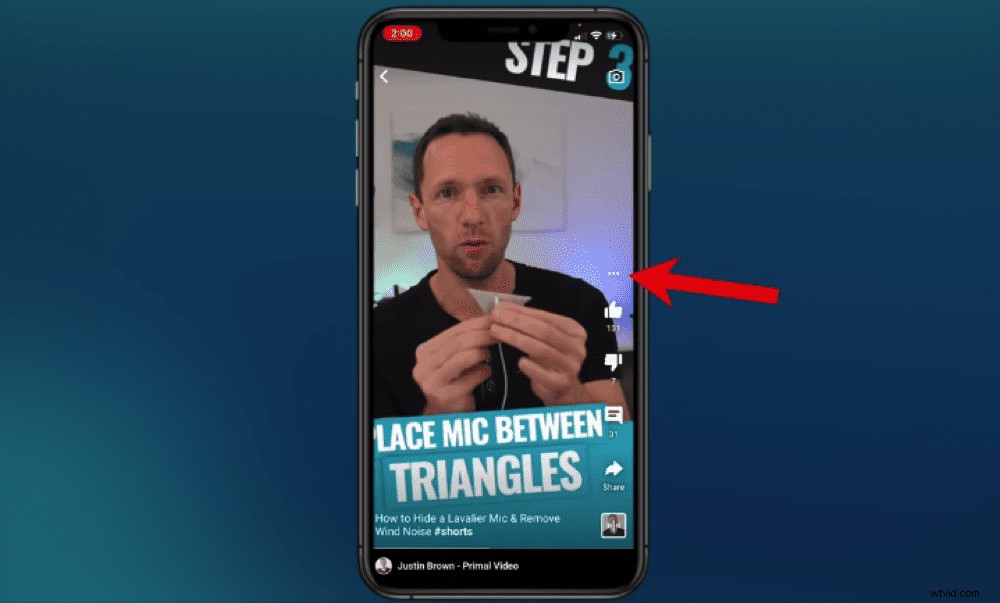
Press the three dots icon to view the Shorts description and access other settings
Back on the right menu bar, you can:
- Thumbs up
- Thumbs down
- View comments and leave your own comment
- Share
- Sample 15 seconds of audio (more on this later!)
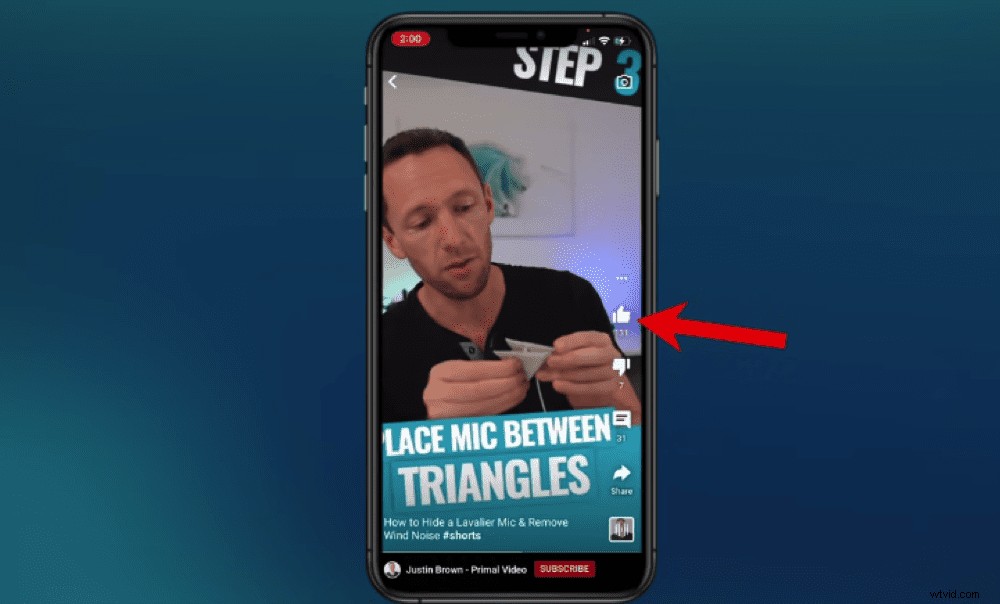
If you enjoy a Shorts video make sure you show some love and give it a thumbs up!
Right down the bottom there’s also a Subscribe button, making it super easy for people who enjoy your Shorts video to subscribe to your channel. This is really powerful in terms of growing subscribers.
If you tap on the YouTube channel name on the bottom of your screen, you will see all of the Shorts that channel has uploaded. You can select the channel name again if you want to be taken to their actual YouTube channel.
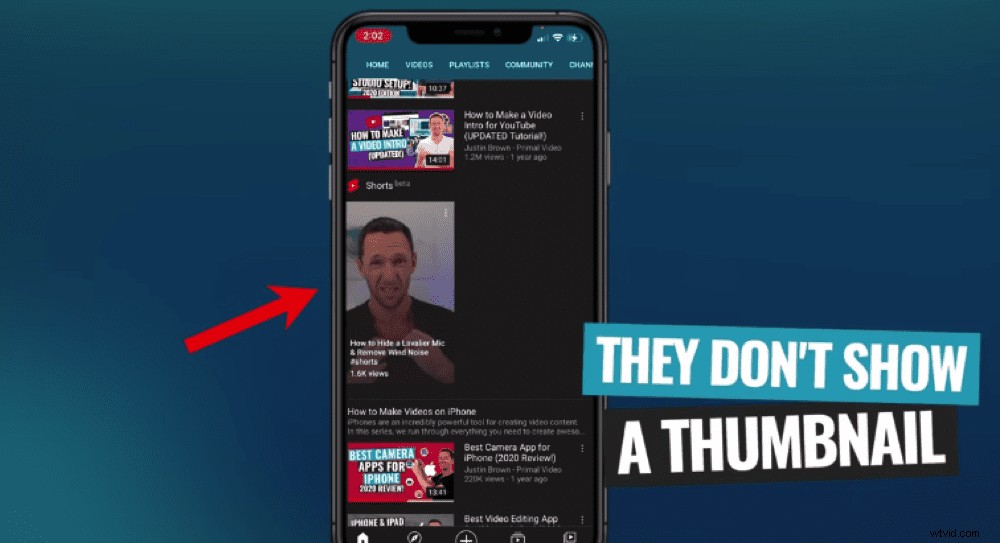
Currently you can not view or upload custom Shorts thumbnails on the app
Unfortunately in the app, custom thumbnails aren’t visible. They are visible on desktop and on your YouTube channel page though – we’ll run through how to upload these on desktop shortly.
How To Create YouTube Shorts
Now that you’ve got the rundown on Shorts, let’s get into how to make YouTube shorts.
There are some Shorts creation tools on YouTube. But you don’t need to use these specific tools to create and upload your Shorts.
There are Shorts creation tools in the app but you can also use any tools you like for Shorts creation
Any vertical video that’s under 60 seconds can be uploaded as a YouTube Short. So you can create that 60 second video however you please. We’ll run through how to create Shorts with the YouTube app and how you can create them using other more advanced apps as well!
PRO TIP: You don’t need to include ‘#Shorts’ in your title or description anymore. But our YouTube Partner Manager does still recommend using the hashtag so it’s best to keep it in there.
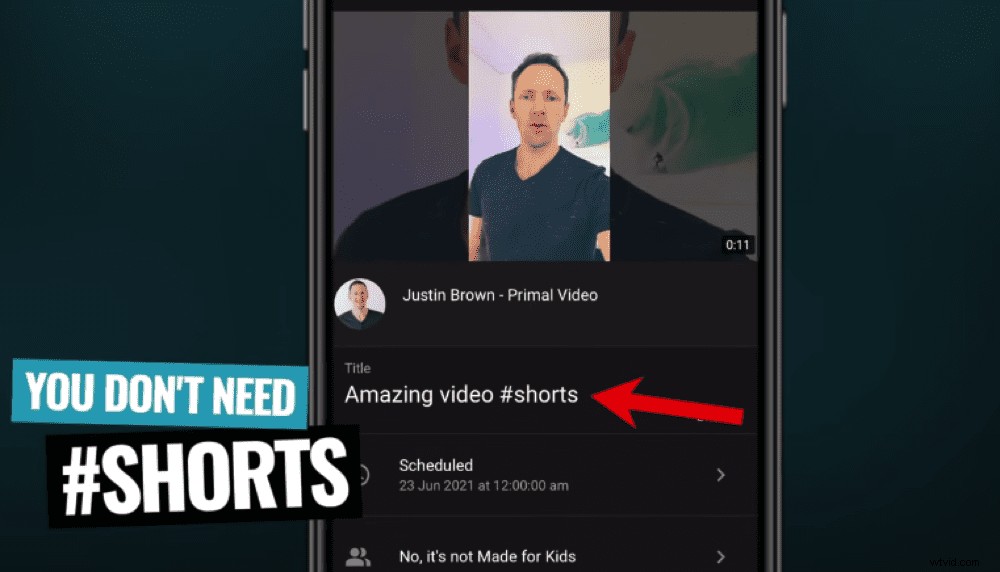
You no longer need to include #shorts in your title but we still recommend including it
YouTube Shorts Creation Tools
There are two main YouTube Shorts creation tools:
- Shorts Camera: Record your videos
- Shorts Editor: Edit footage, add text & filters and adjust playback speed
To access these tools in the YouTube app, go to the Create button on the bottom of your screen. Select Create a Short and the Shorts camera will open.
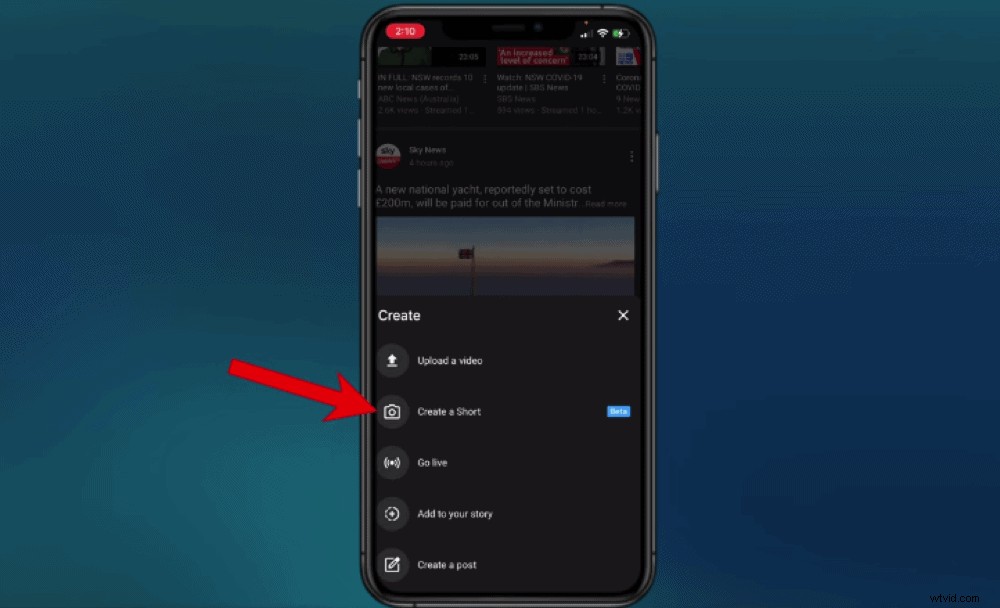
Press the + button and select Create a Short to use the YouTube Shorts creation tools
On that screen you can:
- Add music
- Flip the camera
- Adjust recording speed
- Set a countdown timer
- Add filters
- Adjust video length (15 seconds is the default)
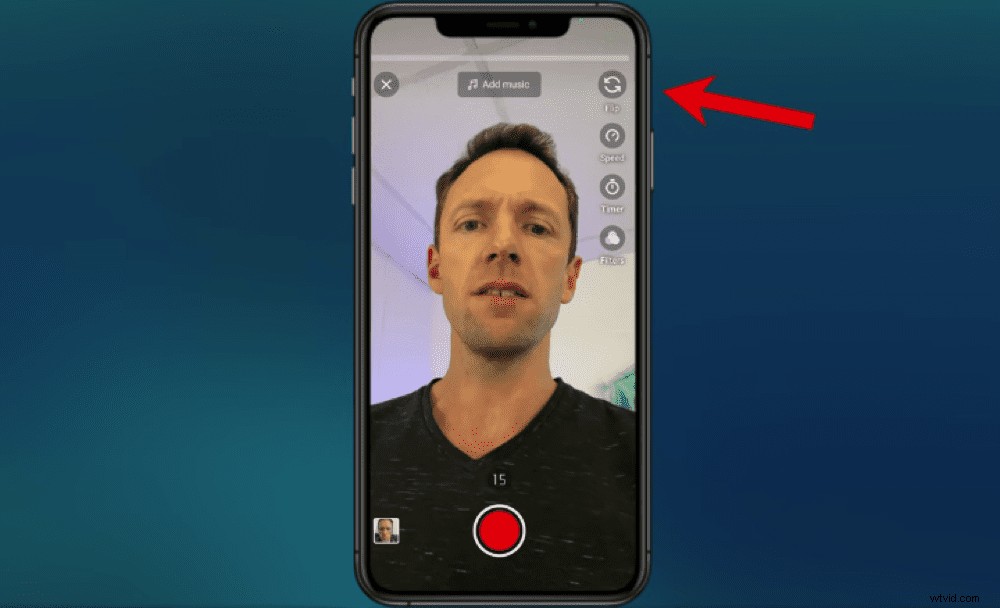
You can flip the camera, change speed, set timer and add filters in the right side menu
When you’re ready to record, press and hold the Record button. When you release the button, it will stop recording. To continue recording up to your video length, you can just press and hold again.
This allows you to string multiple video clips together.
At the top of the screen is the progress bar that tells you how much recording time you have left.
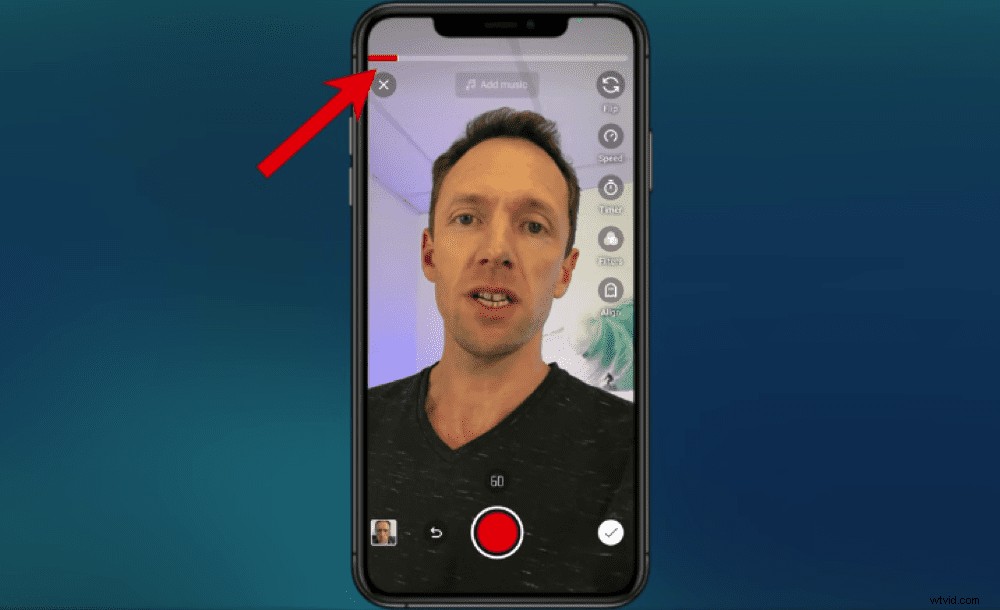
The progress bar shows you how much recording time you have left for your Shorts video
To remove your take, press the Undo button on the left of the record button. To bring back a take that you’ve deleted, press the Redo button on the right of the record button.
You can also import footage from your camera roll by pressing the Gallery button on the bottom left. This footage can be trimmed to any length that’s less than 60 seconds, so don’t worry if your original video is longer than a minute. Simply drag the sides to trim your footage.
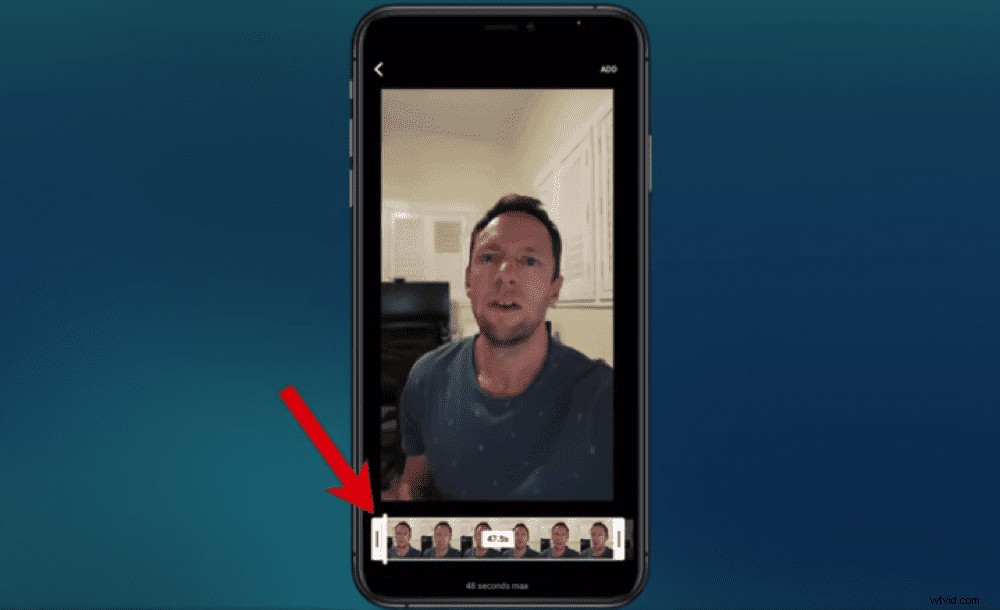
You can upload footage that you have already filmed and trim this to your desired length
But arguably the best tool for creating Shorts on the app, is the Align feature.
How To Align Your Shot On Youtube Shorts
This is a really cool feature that allows you to align your next shot with the previous shot that you just filmed. You can make your shot look seamless by doing this.
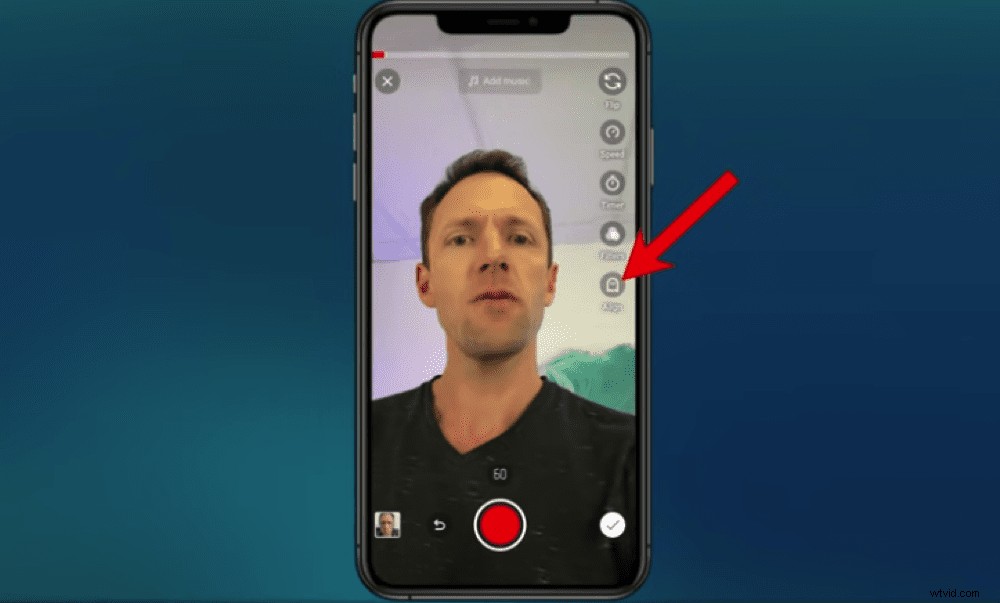
Press the Align button on the right side menu
So film your first shot and stop recording. Then press the Align button on the right menu. YouTube will then overlay the last frame from your previous shot on the screen so you can line it up as closely as possible. Then hit Record once you’re in position.
This allows you to get really creative with your shots. You could change your shirt or put something on your face – let those creative juices flow.
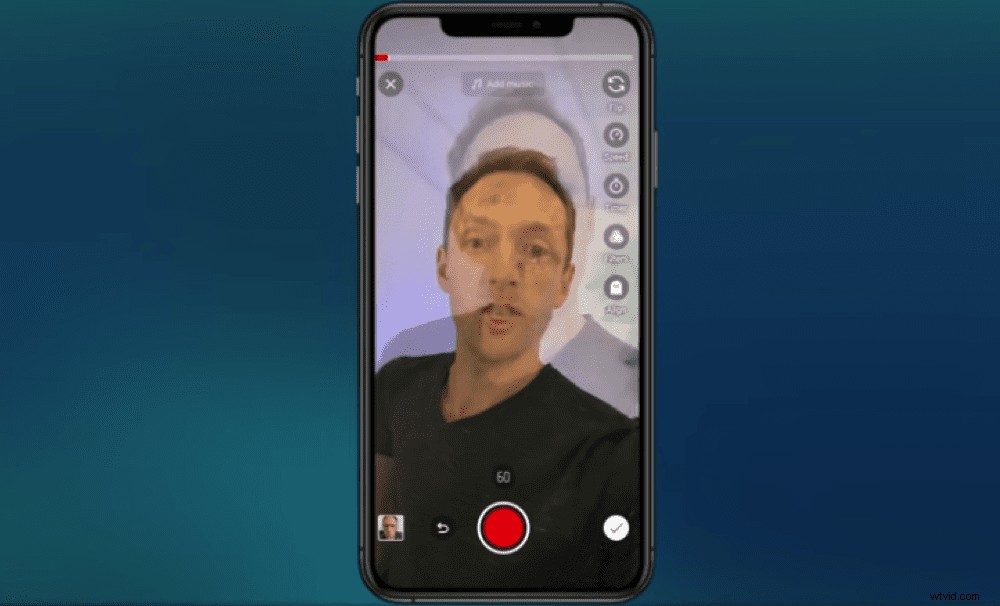
Try and line up your next shot with the overlay from your previous shot for a seamless Shorts video
Once you’ve finished with the recording aspect of your Short creation, hit the Tick on the bottom right.
And now we can add music to the Shorts video.
How To Add Music To Youtube Shorts
Press the Music button on the bottom left. There’s good and bad news when it comes to the YouTube Shorts music feature.
The good news: The YouTube music library is packed full of copyrighted music.
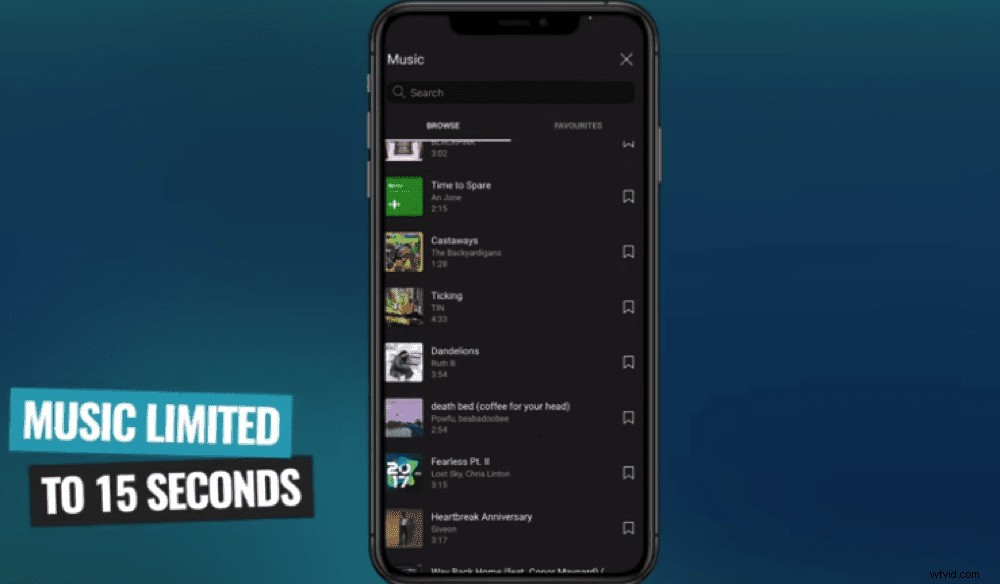
You can only use 15 seconds of audio when using the YouTube music library
The bad news: You’re limited to using 15 seconds in your video and you can’t decide where those 15 seconds are placed. If your video is longer than 15 seconds, the music will only play for the FIRST 15 seconds.
You do get to choose the specific section of the audio track you want to use in your video though. So once you’ve selected a song, you can drag the button to that section of audio and then press Done.
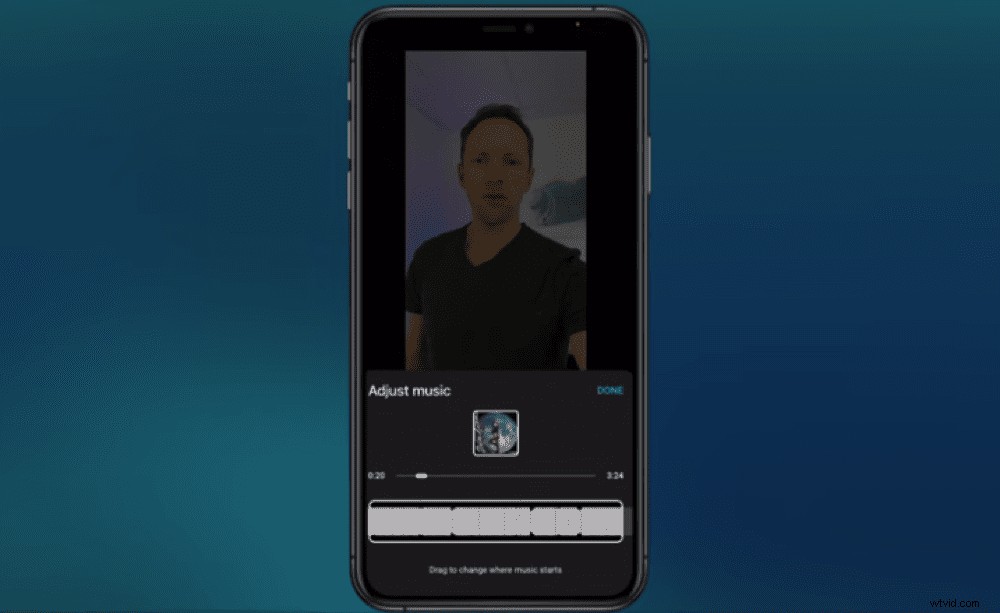
Select the chunk of audio you’d like to use in your video
To adjust the volume level of your original video versus the volume level of your audio track, press the Volume button. Slide the button until you find the right balance.
Now let’s add some text.
How To Add Text To YouTube Shorts
Press the Text button or tap anywhere on screen to bring up the text options.
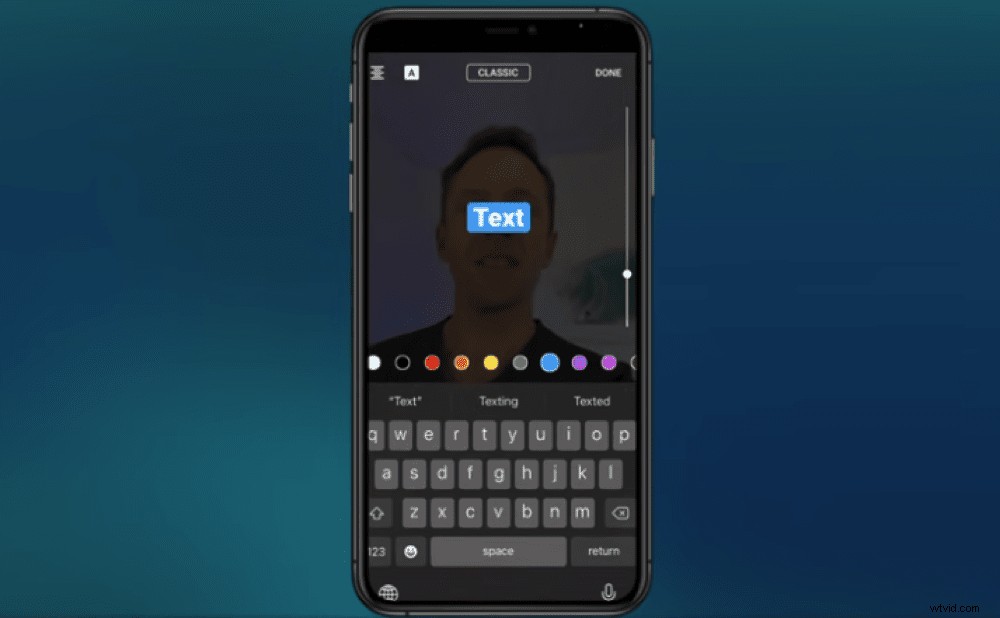
Adding text in the YouTube app is very similar to adding text in Instagram and TikTok
Type in your text. You can adjust the:
- Color by pressing the different colored circles
- Text style by tapping the style type button at the top of the screen
- Size by dragging the slide bar
- Background color by pressing the A button
- Alignment by pressing the Alignment button
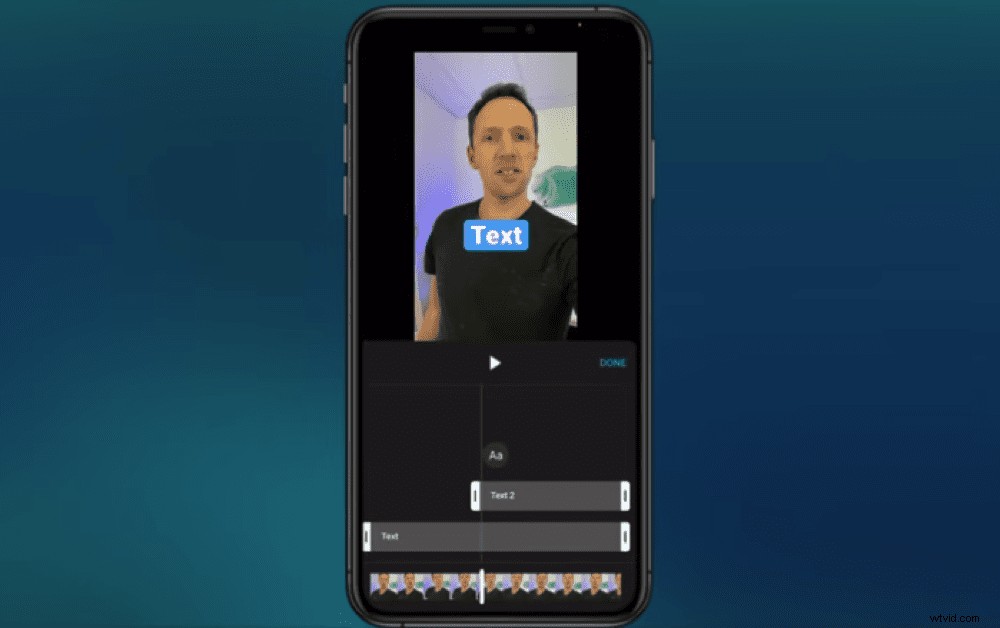
Move text boxes in the Timeline section to make them appear on-screen at specific times
You can even decide when different text boxes come onto the screen by going to Timeline. Click and drag the text length and position to determine when it will appear.
And now your editing should be all done! Let’s upload.
How To Upload YouTube Shorts
Once you’re all done with editing, hit the Next button.
You’ll need to give your Short a title. Again, we recommend including ‘#Shorts’ in the title.
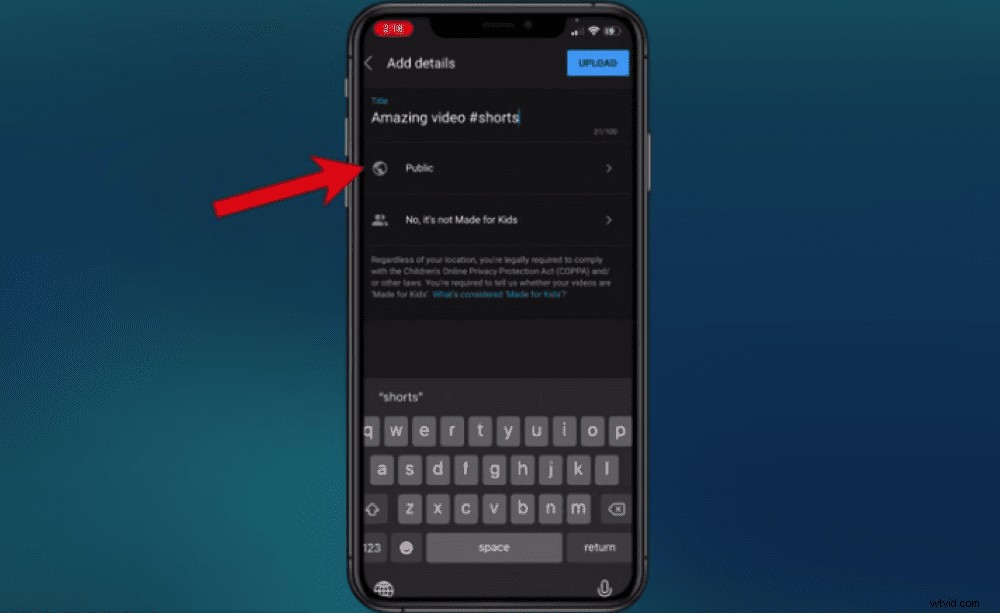
Enter a catchy Shorts title including the #shorts and set your video to public, unlisted or private
Decide whether you’d like the video to go out publicly to your channel, have it unlisted or private. You can also schedule it for release at a later date and time if you don’t want it to be published immediately.
You need to specify if this content is made for children. In this section you have the option to restrict your content to over 18 years old only.
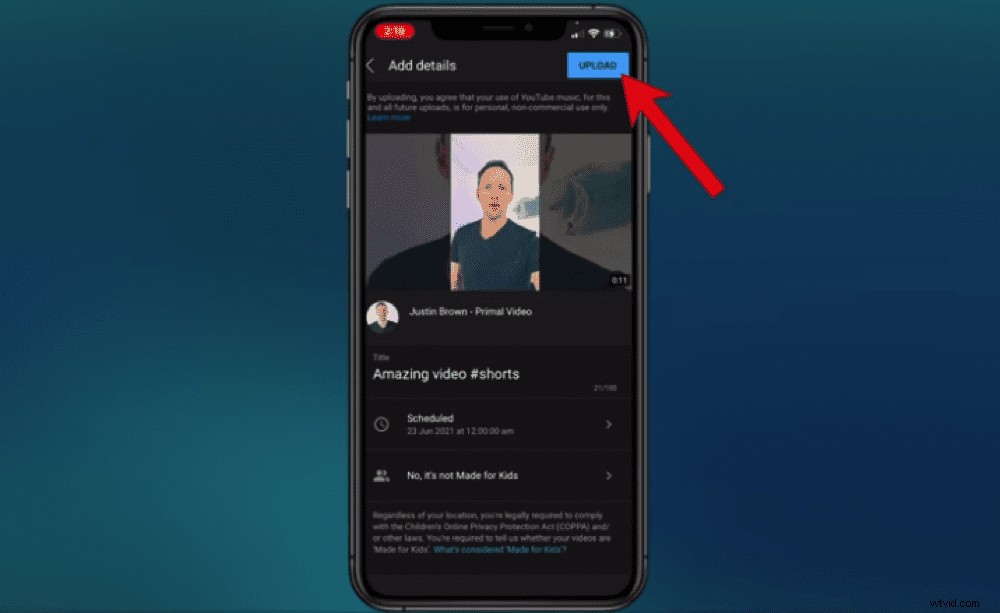
When you’re finished making those final adjustments you can hit the Upload button
Once you’ve set all those specifications, hit Upload.
Nice work! You’ve just uploaded a YouTube Shorts video. Now, let’s talk about sampling audio.
How To Sample Audio On YouTube Shorts
We mentioned earlier that we’d explain how to sample audio from other people’s YouTube Shorts. So, let’s get into it.
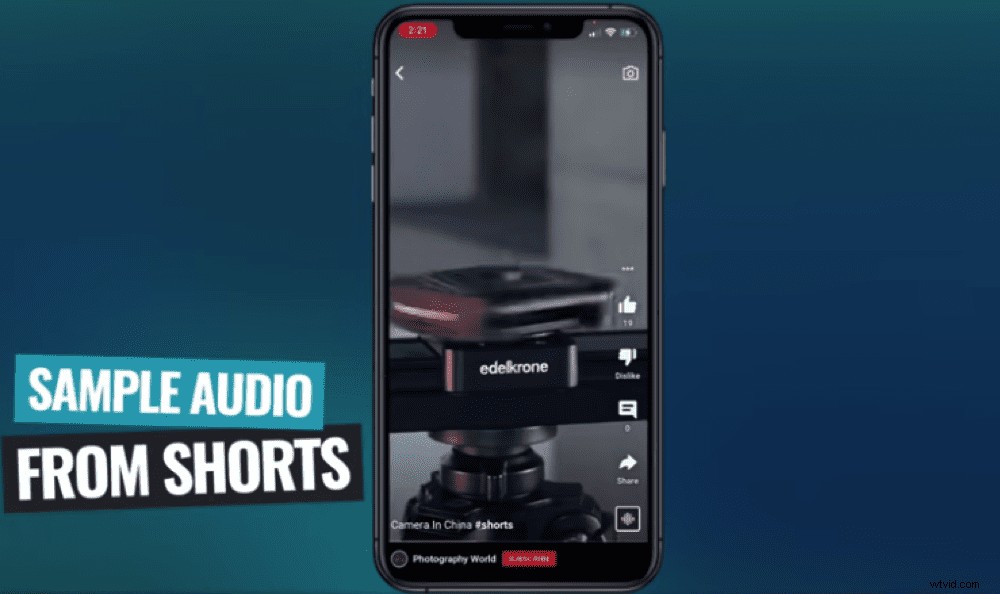
It’s possible to sample audio from other creator’s Shorts
When you’re watching another person’s Short, you might see an Audio icon on the bottom right. Not every Short will have this because the creator has the option to disable this feature.
If it’s visible, tap the Audio button and then tap Use This Sound. The Shorts camera will then automatically open with that audio track already selected.
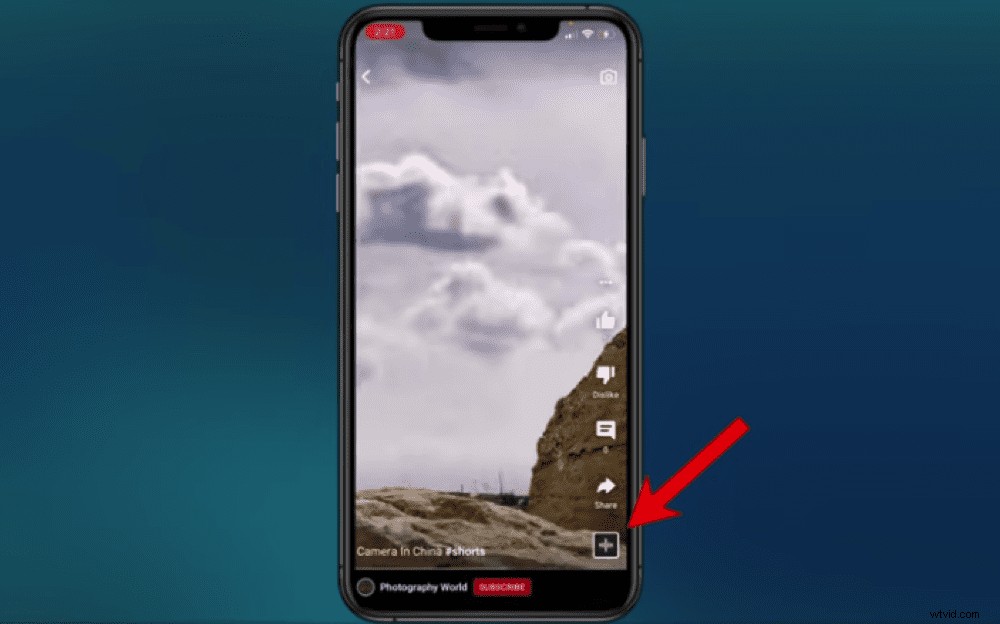
Press the audio button on the bottom right to sample audio from a Shorts video
The audio link will take viewers back to the original content creator if clicked on.
PRO TIP: This feature is also available on regular videos.
You can disable this feature from your entire channel or you can just enable it on specific videos. To do this, head to the Upload section of your YouTube profile.
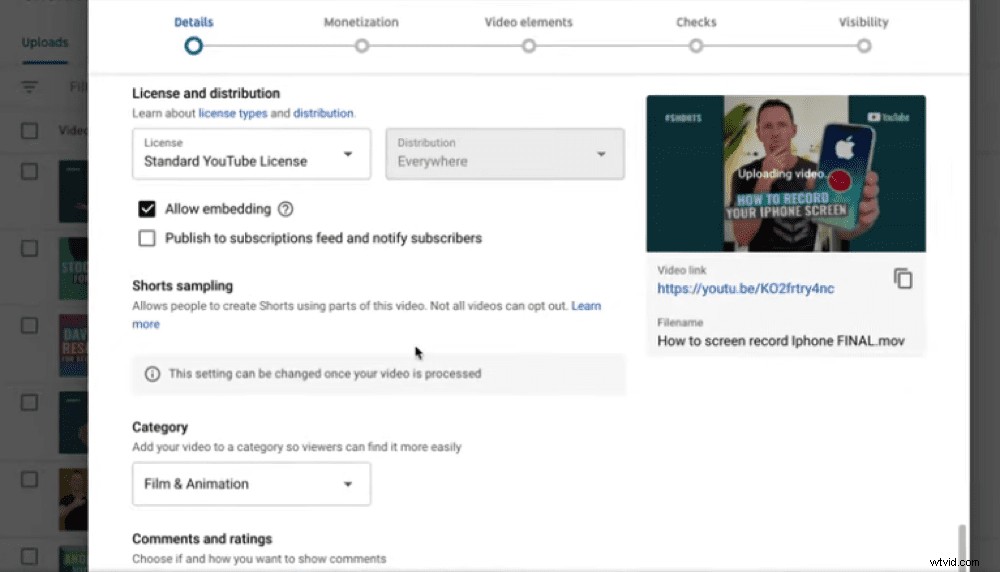
You can disable audio sampling on all your videos or just some by heading to your profile on desktop
But remember it does create a clickable link back to your original content so it could be worth leaving this feature on!
One thing to note is that if you’re sampling audio from another video and that video gets taken down, that audio will no longer work in your video. Your video will still work but those 15 seconds of audio will be muted.
So, that’s everything you need to know to make shorts on YouTube using the app. BUT, you don’t need to use the YouTube creation tools (especially if you don’t have access to them yet!).
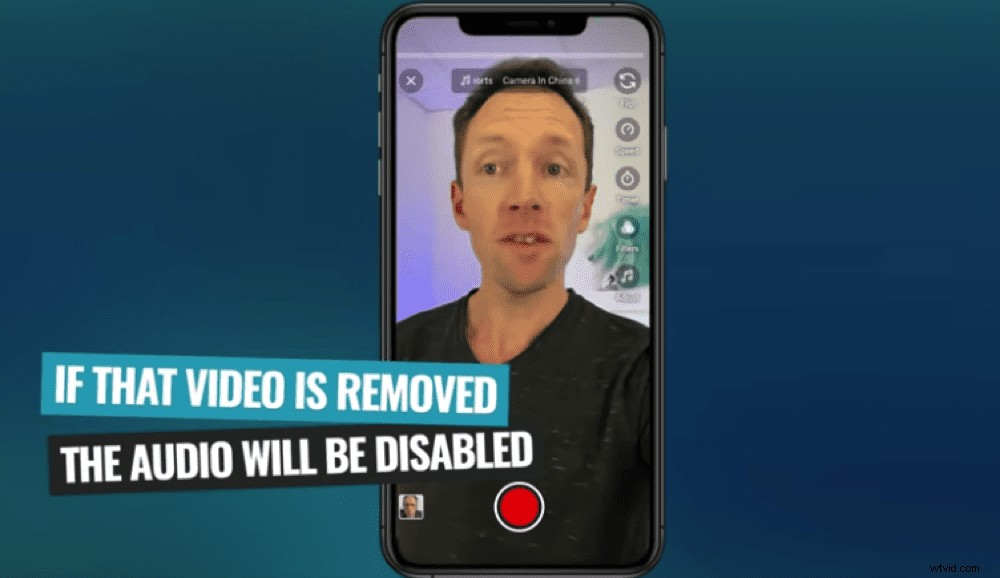
Be aware that your audio will be disabled if the video you sampled from is removed
There’s another option that will allow you to create much more professional Shorts…
How To Create YouTube Shorts Without The App
You have heaps of options when it comes to creating Shorts.
When it comes to filming your Shorts you can:
- Use advanced camera apps like FiLMiC Pro to give you more control over filming
- Use the built-in camera app on your phone
- Use your regular camera on its side so it records in portrait

FiLMiC Pro is an awesome option for filming outside of the YouTube app
When it comes to editing your Shorts you can:
- Edit with advanced video editing apps like VN Video Editor, KineMaster or LumaFusion
- Edit on your desktop using advanced software like Final Cut Pro and Adobe Premiere
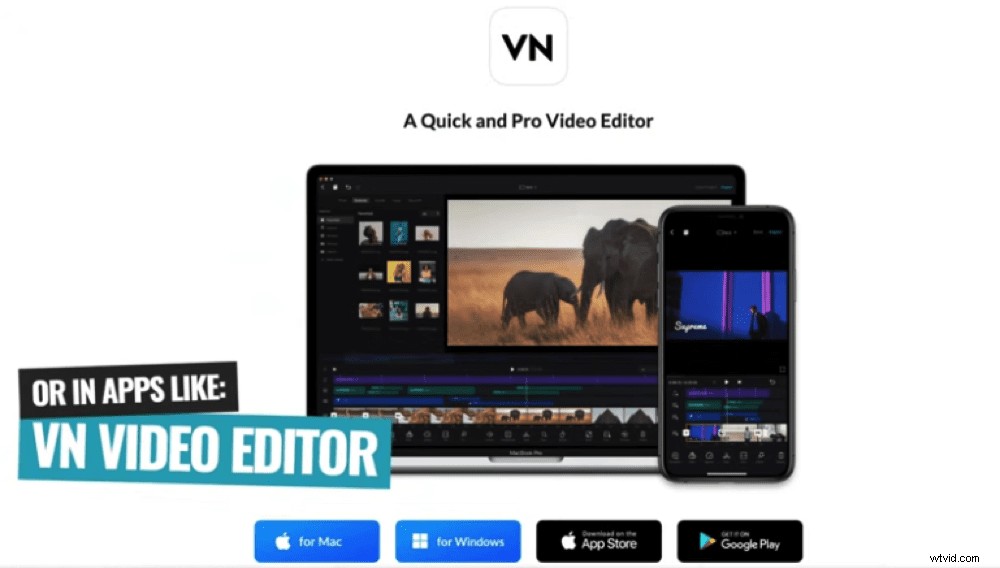
For way more customizability options you can edit your videos on your professional software like VN Video Editor
If you decide to edit Shorts on your desktop, you can then upload them to YouTube on your computer as well.
How To Upload YouTube Shorts On Desktop
Shorts can be uploaded on desktop in exactly the same way you’d upload regular videos to YouTube.
Go to YouTube. Select Create and then Upload videos. Select your video file and enter all the same settings we covered earlier (title, description and if the video is made for kids).
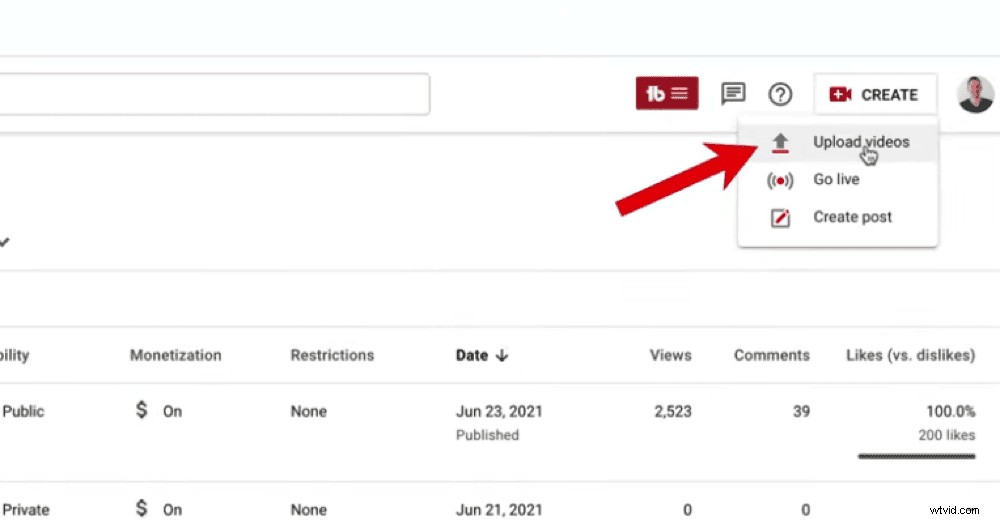
Go to your YouTube profile, select Create and then Upload videos
But there’s also a few extra settings you have access to when uploading on desktop. You can:
- Upload custom thumbnails
- Select whether you want to publish to your subscription feed & notify subscribers
So there is a benefit to uploading on desktop instead of the app!
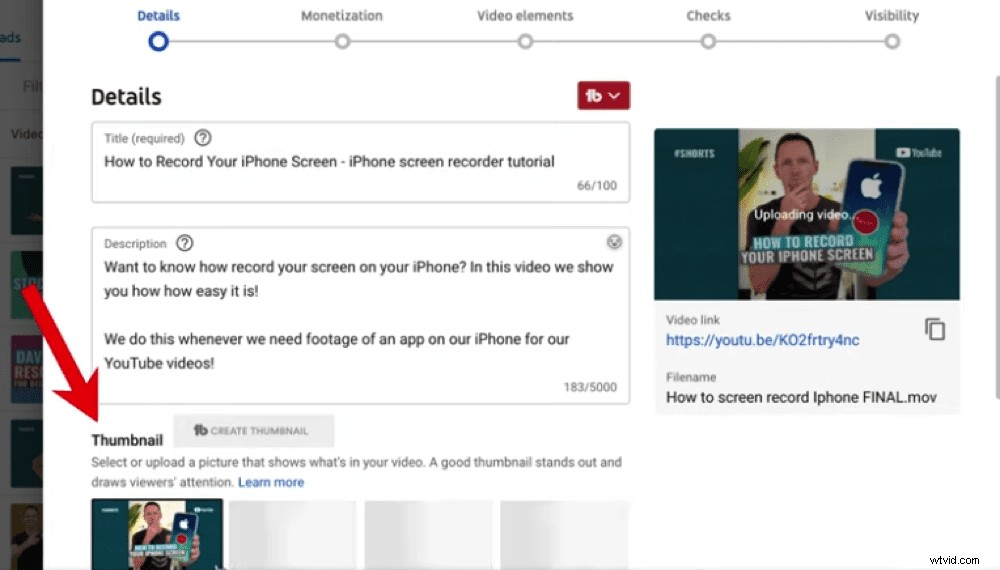
You can include custom thumbnails when you upload Shorts on desktop
But, if you want to upload your Shorts via phone and still access these extra upload settings – there is a way to get around this. On the mobile app, you can upload your Short as Unlisted or Private. Then you can jump over to the desktop, add a custom thumbnail, change the settings and publish the video publicly.
This is something that YouTube is still building out so hopefully there will be an update soon that makes the upload process easier on the mobile.
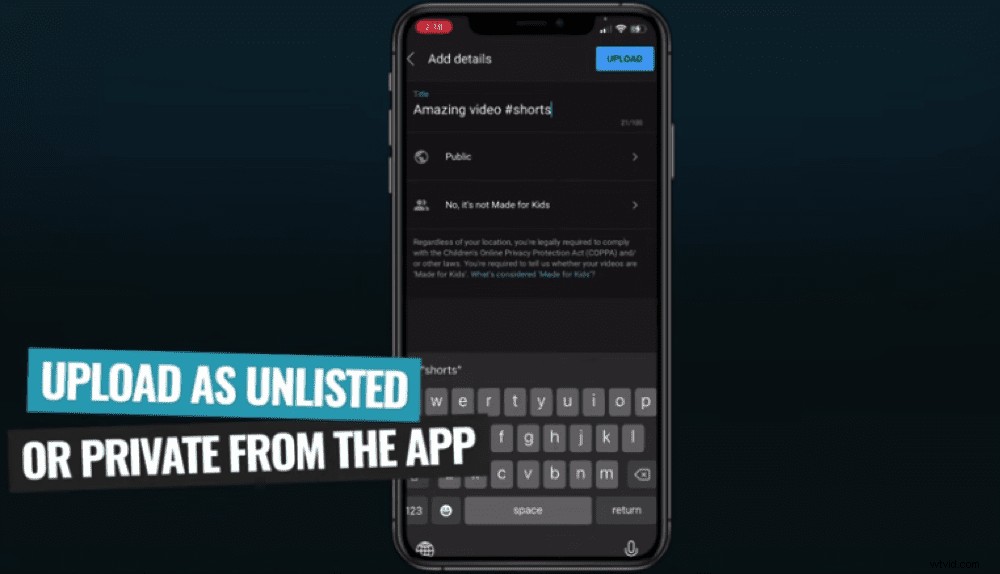
Upload your Short as unlisted or private in the app and then upload a thumbnail on desktop
Now, let’s get into the money side of things.
YouTube Shorts Monetization
Given that Shorts are relatively new, this is another area that YouTube is still building out.
YouTube has said that they will be testing ads inside the Shorts section on the mobile app. So it could be that when you’re swiping you see an ad every three or four Shorts.
There are a couple of ways you can monetize from YouTube Shorts!
So if your channel is monetized (meaning you’ve reached 1000 subscribers and 4,000 watch hours), Shorts could be another revenue stream for you.
But even right now, if your channel is monetized you can make money from ads being run on your Shorts when they’re viewed on desktop.
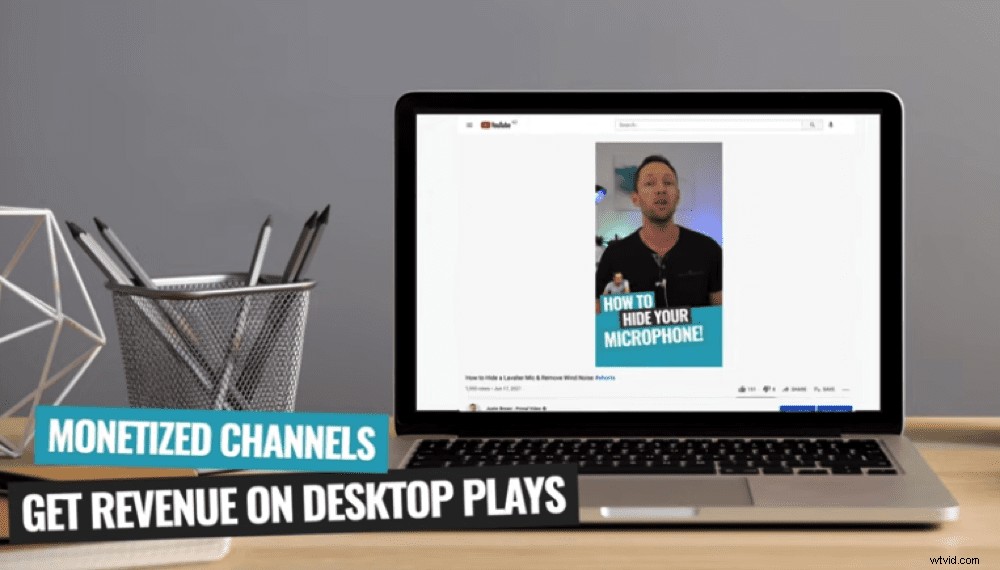
Monetized channels will get ad revenue from Shorts that are played on desktop
This is because Shorts are essentially being treated as regular YouTube videos on desktop. Just remember, you’ll get a lot less revenue on Shorts than on regular videos.
Since they’re so much shorter than regular videos, it’s less likely that companies will want to run ads on them AND it’s less likely that viewers will want to engage with the ads because they’re after that short-form content.
YouTube Shorts Creative Fund
YouTube has also announced a $100 million creative fund to reward the top YouTube Shorts creators for 2021 and 2022.
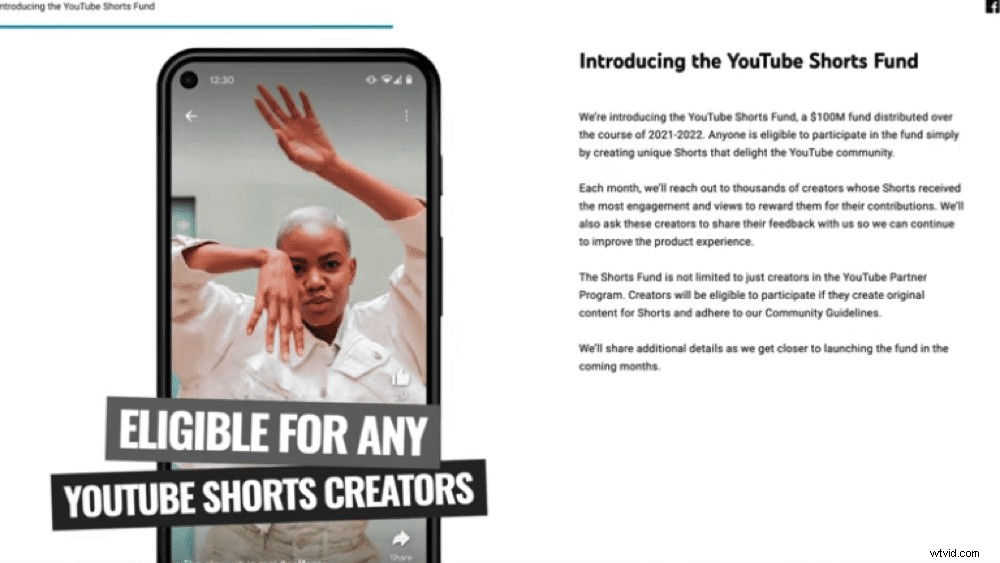
The YouTube Shorts Fund is available to ALL YouTube Shorts creators
This money is up for grabs for anyone who’s creating Shorts content. So this is an awesome thing YouTube is doing to support creators. You can make money even if your channel isn’t monetized!
YouTube Shorts Analytics
When you first start using Shorts, you might find that your overall channel analytics are a little skewed. This is because you’re now creating much shorter videos. So people might be watching those for longer but your overall minutes watched could be less.
Basically, don’t be worried if you find some averages dropping and others increasing. We don’t think it will be detrimental to your channel in any way.
Your YouTube analytics may change due to the new, shorter content on your channel
Hopefully soon we’ll see separate analytics sections for Shorts and regular videos!
YouTube Shorts Tips
Now let’s get into our top YouTube Shorts tips that will help increase engagement and get more views!
A good ‘hook’ to capture your viewer’s attention is always vital for a good video. But with Shorts, it’s more important than ever. It’s so easy for viewers to just swipe to the next video, that you need to make an impression right away.
If you don’t spark the viewers interest, your video will be out of there with a quick swipe of the thumb.
Make sure you keep viewers engaged so they don’t give your video the swipe
And this is true for the entirety of your video. If at any point the viewer gets bored, they’ll simply swipe to the next video.
So think about ways you can get creative and make your videos more engaging. How can you break up your content? Can you include quick cuts, titles, movement, B-roll or overlay? Do whatever you can to keep your viewers engaged!
Now You Know How To Use YouTube Shorts
There you have it, the complete guide to YouTube Shorts.
We covered everything you need to know from how you can create Shorts using the YouTube app to uploading Shorts on desktop.
We hope you enjoyed our YouTube Shorts tutorial. If you found it useful, please give it a share on social media or with someone you know who would love to learn more about Shorts too.