
There are lots of different reasons you might want to screen mirror your iPhone. There are also lots of different ways you can screen mirror your iPhone!
Whether you’re live streaming, recording tutorials, gaming, watching movies or just want to work with a bigger screen – there are plenty of different options and tools that could work for you.
In this complete guide to iPhone screen mirroring, we’ll cover the best tools out there that will help you share your iPhone screen. If you’re iPhone screen mirroring to laptop, Mac, PC or TV, we have some great options for you.
Each screen sharing method has its own advantages and disadvantages. So make sure you stick around until the end to find out which tool will suit your needs!
Here’s exactly what we’ll cover:
- How To Screen Mirror With QuickTime
- How To Screen Mirror With Reflector
- How To Screen Mirror With Airplay
- How To Screen Mirror With Live Streaming Software
- How To Screen Mirror With A HDMI Adapter
Let’s dive in.
How To Screen Mirror With QuickTime
If you want to screen mirror from iPhone to Mac, QuickTime is an awesome option.
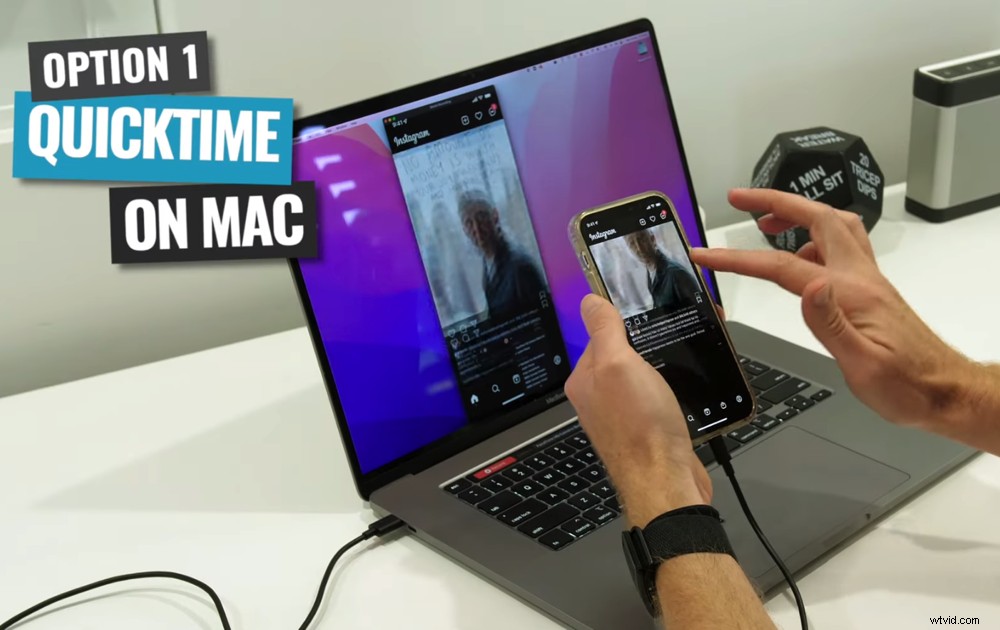
QuickTime is an awesome option for iPhone screen mirroring Mac
Start by plugging your phone into the computer using a lightning cable.
Open QuickTime and go to File then select New Movie Recording. A mirror of your iPhone screen will then appear. Press the Down arrow next to the Record button and make sure your iPhone is selected.
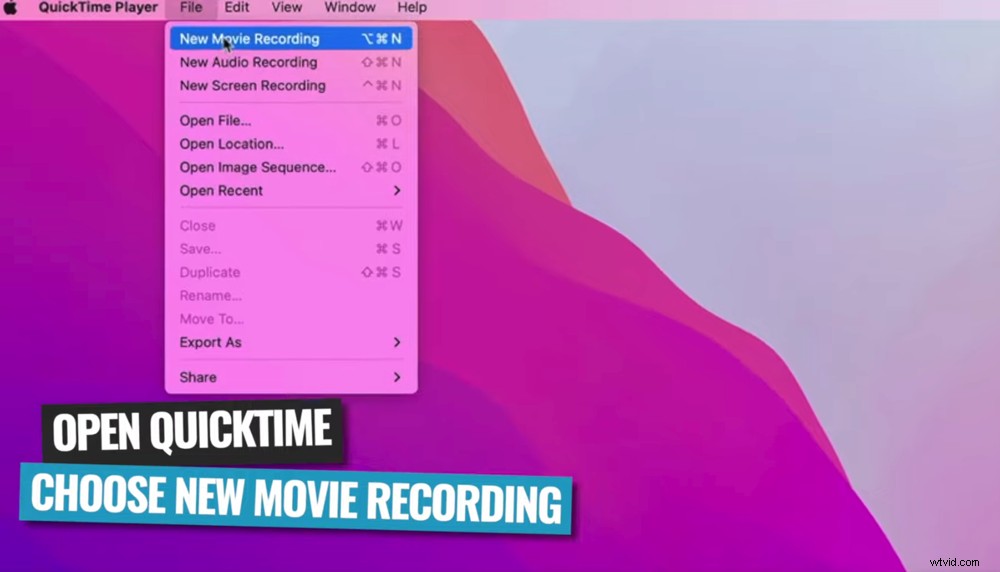
Select New Movie Recording inside QuickTime
Your screen is now mirrored to your Mac.
You can hit Record to create videos of your screen mirror.
QuickTime can even be used with live streaming software. The way to do this will depend on the software you’re using. But open your live stream software of choice (Ecamm, OBS, etc.) and add a screen share.

You can use QuickTime with your favorite livestreaming software
Then select QuickTime and your iPhone screen will appear on the live streaming screen.
So this is a great tool not just for viewing your iPhone on a Mac or Macbook, but also for recording and live streaming.
Because you’re connecting via a cable and not via Wi-Fi, there’s next to no delay and it gives you a really high quality image.
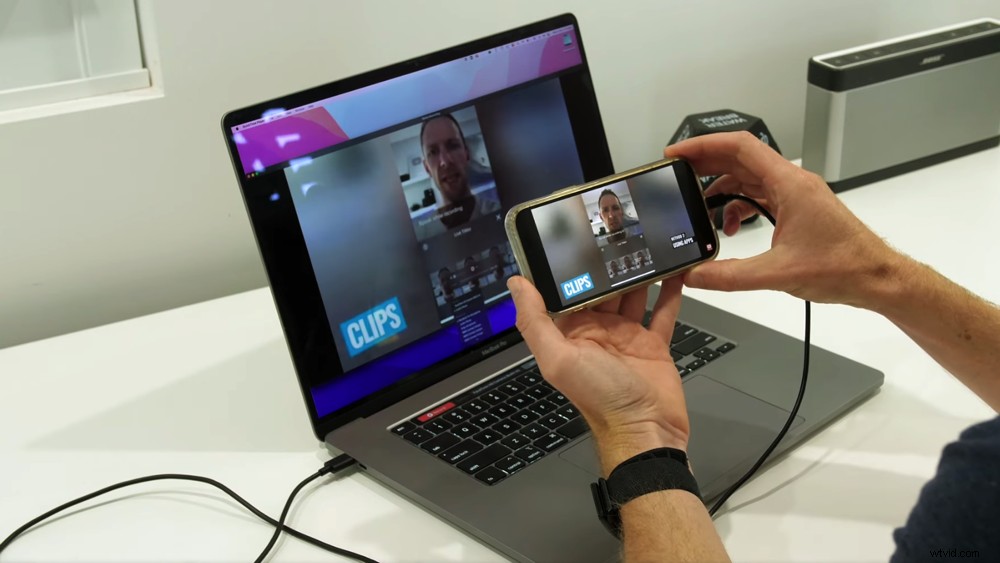
If you’re wondering how to mirror iPhone to Mac, QuickTime could be the answer
One thing to note is there are a couple of situations where you’ll need to be aware of changing the orientation between portrait and landscape. They are:
- When recording a screen share
- When filming on iPhone during screen share (if using the built-in camera app)
In these cases, you can switch the orientation between portrait and landscape but only before you begin recording or filming.
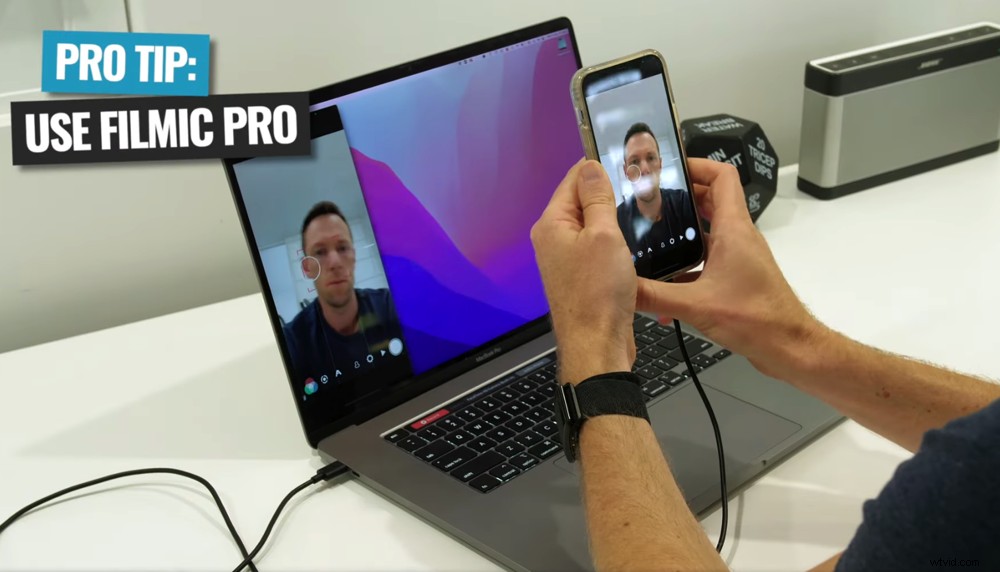
Using a third party app like FiLMiC Pro will allows you to change orientation while filming
If you change the orientation while recording a screen share, the recording will stop. If you try to change the orientation while filming, it simply won’t work. So make sure you set the orientation first.
Alternatively, using a third party filming app like FiLMiC Pro will allow you to have more control and you’ll be able to change your orientation while filming.
How To Screen Mirror With Reflector
Reflector is a software that you can download and install on your Mac or PC. It allows you to wirelessly share your iPhone screen to a computer.
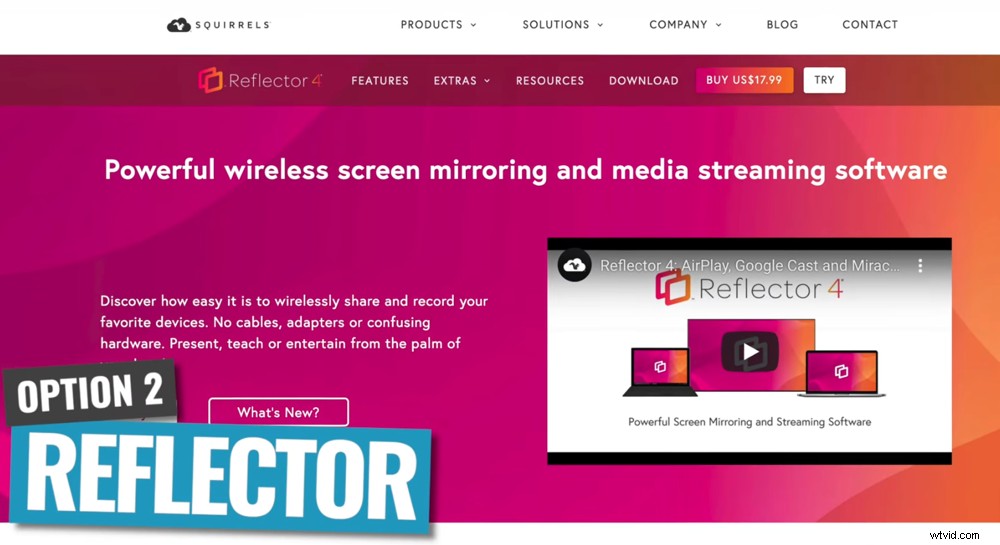
Reflector is an incredible wireless screen mirroring software
Once you’ve got Reflector installed, make sure both your computer and iPhone are connected to the same Wi-Fi network.
Swipe down on your iPhone screen and select the Record icon. Select your computer and you may be prompted to enter a 4-digit pin number as a security measure.
Then your iPhone screen will show up on your computer screen!
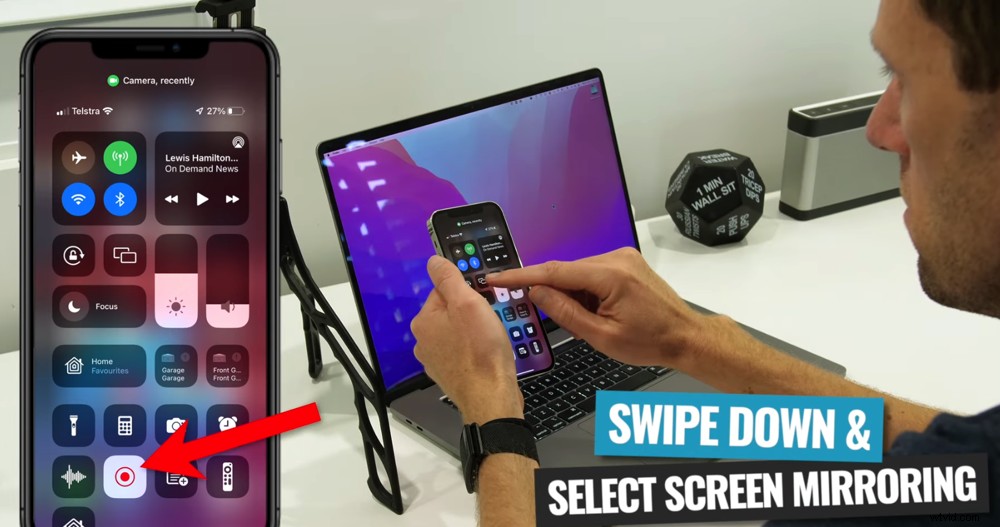
Swipe down on your iPhone and select the Record button
Just like with QuickTime, you can share this window with your live streaming software. So it’s a great option if you want to screen mirror for live streaming purposes.
Reflector has recording capabilities so you can use it to create videos as well. You’ve also got a lot more options when it comes to quality and frame rate.
Plus, it will automatically rotate your phone screen, even while you’re recording and using the built-in camera app.
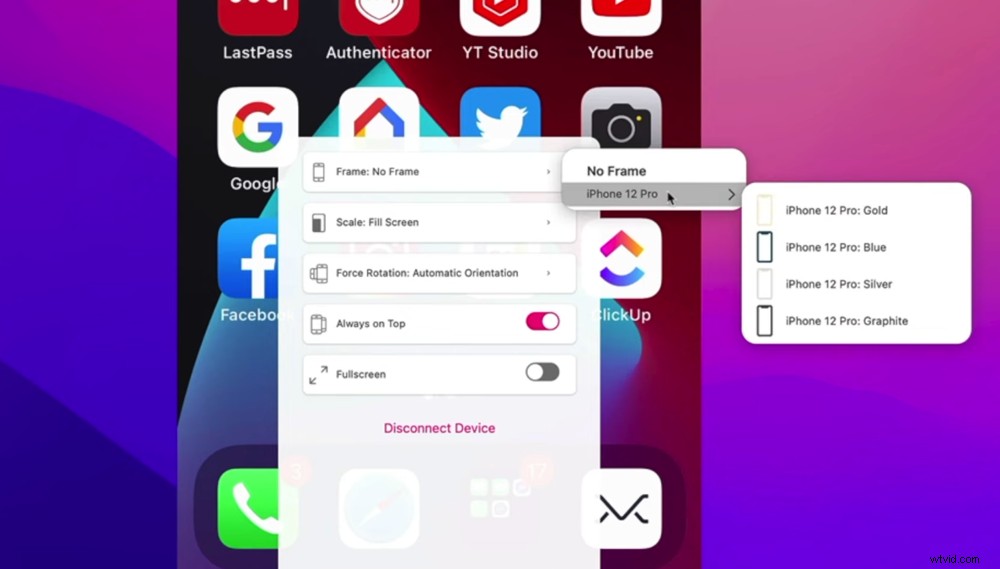
Reflector has lots of customizability options for quality, frame rate and even iPhone borders
Reflector has lots of other features that make it a really powerful tool. You can:
- Bring in multiple device screens onto the computer at once
- Overlay an iPhone or iPad border around your image for a more polished look
- A ton more (jump on and check them out!)
The biggest downside with Reflector (and any of these apps or solutions that run using Wi-Fi) is that they can be unreliable.
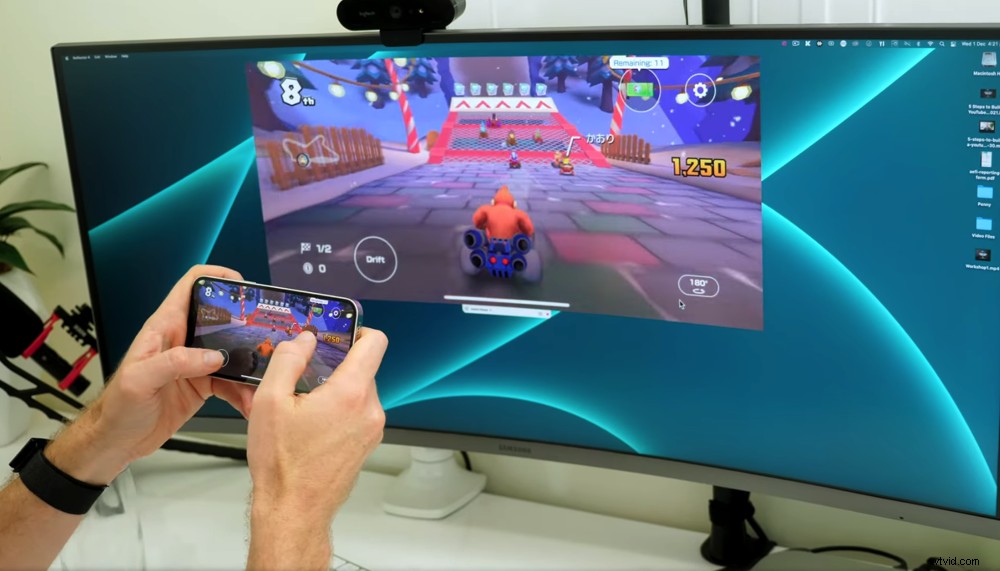
Just like all apps that run on Wi-Fi, Reflector won’t be a good option if you don’t have good internet
Of course, it’s incredible if your Wi-Fi strength and reception is really good. But if you’ve got a patchy connection or the Wi-Fi router is old and the transfer speeds aren’t that good – this can give you a bad experience. You might end up with low quality, choppy video or even drop outs on your screen mirroring.
So, Reflector is still one our top picks when it comes to screen mirroring but just be mindful of your personal Wi-Fi situation as to whether this is a fit for you.
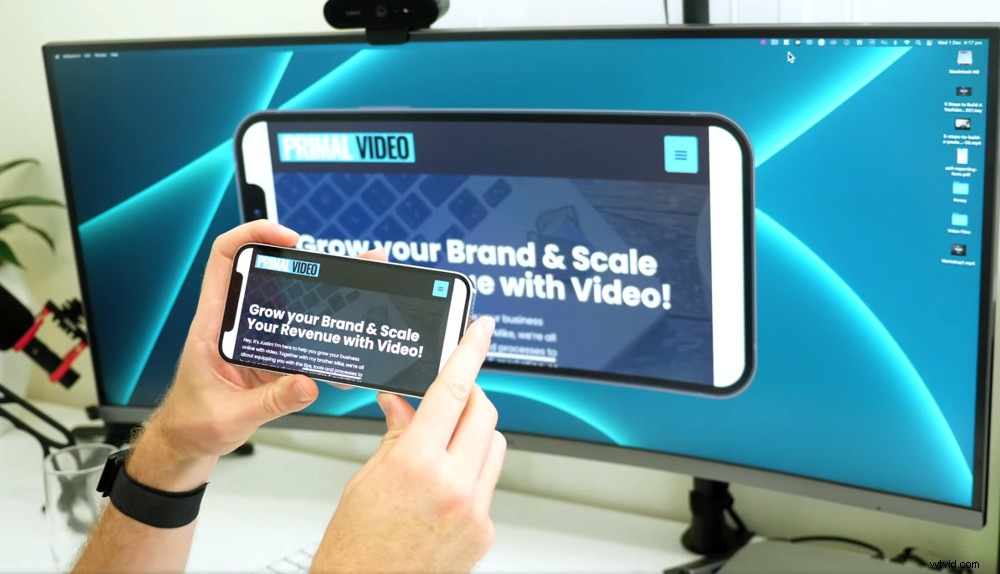
You can change your orientation while recording and using the built-in camera with Reflector
To sum up: Reflector is a really high quality tool. The usability and the app are awesome plus the amount of features and control you have make it a really solid solution.
Reflector Pricing
There’s a 7 day free trial so you can try Reflector out before committing to a purchase. But keep in mind that this free trial is watermarked.
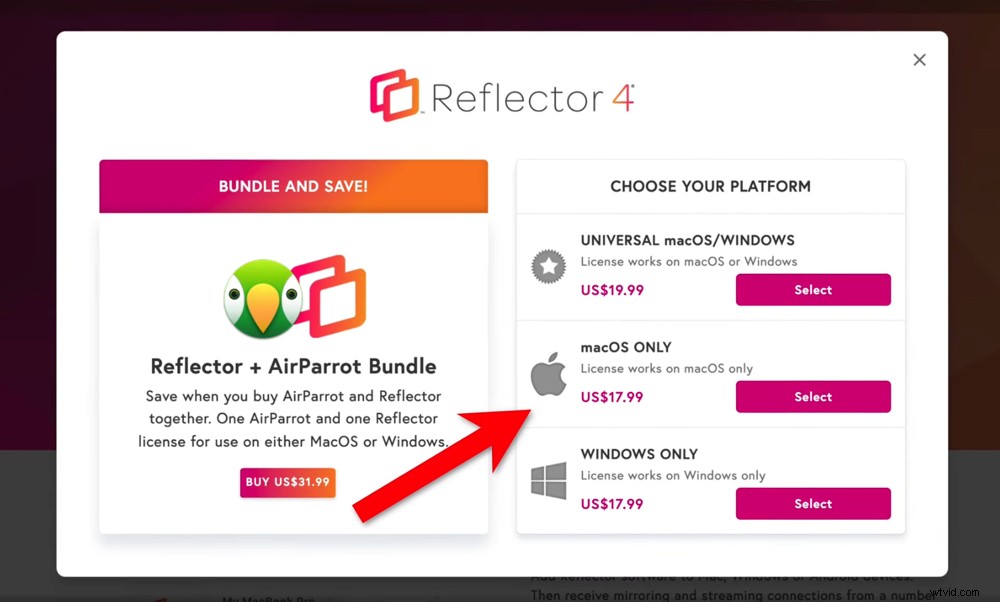
You can purchase a Mac, PC or universal license
After the trial, Reflector costs $17.99 for Mac or Windows license. Or if you’ll be using it on both platforms, you can purchase the universal license to use on Mac and Windows for $19.99.
How To Screen Mirror With Airplay
Airplay is Apple’s answer to screen mirroring. It’s built into iPhones, the latest Mac operating systems and a lot of Smart TVs and Apple TVs as well. So if you have any of those devices, you already have everything you need to mirror phone screens.
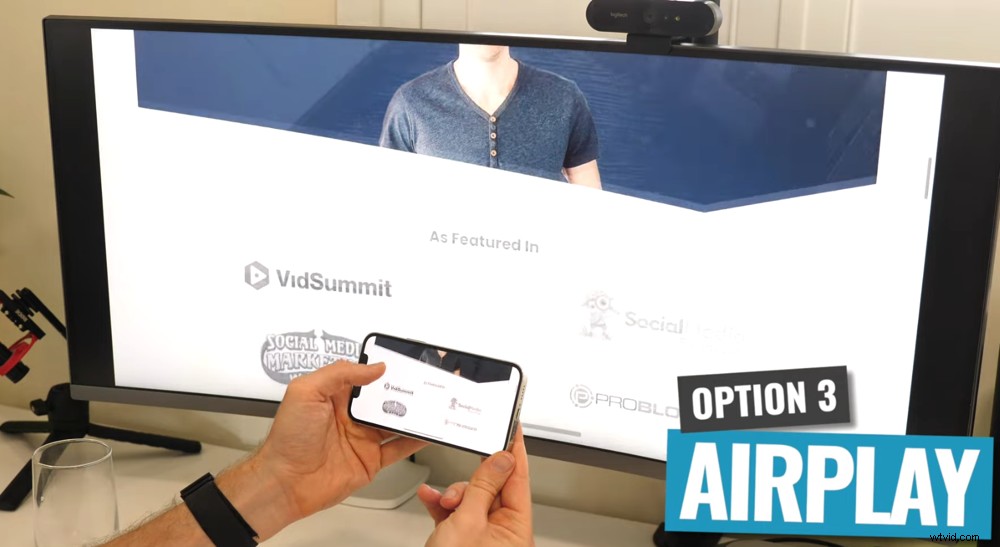
If you’re wondering how to mirror iPhone to TV, Airplay is a great screen mirror option
If you want to use Airplay on your Mac, just make sure it’s running on the latest Monterey operating system.
The process to screen mirror with Airplay is pretty much the same as with Reflector. Swipe down on your phone and select the Screen Mirroring icon.
All compatible devices will show up there. Select the device you want to mirror to and then your phone screen will appear on that device. It’s as easy as that!
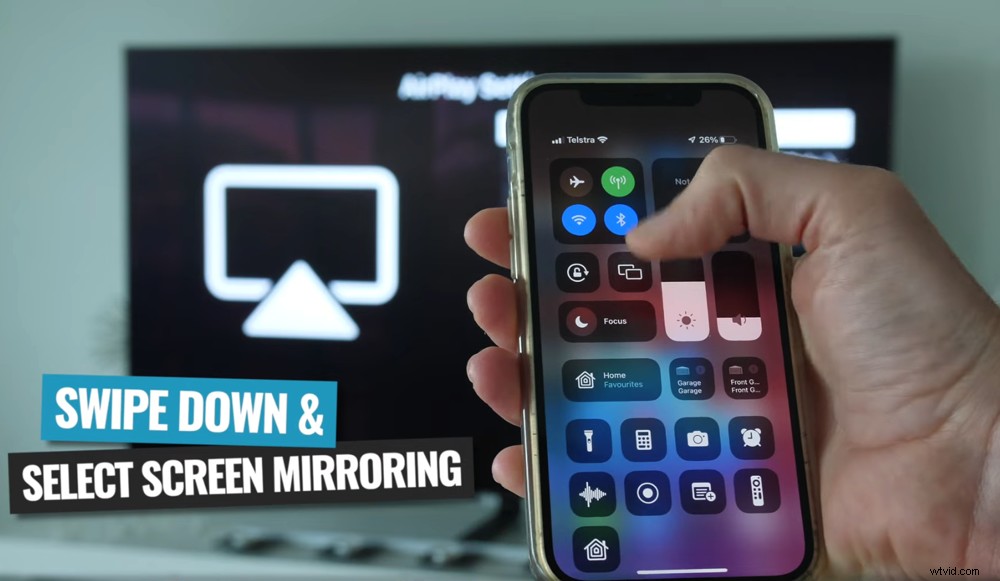
It’s super easy to connect iPhone to TV with Airplay
This is something that Apple TVs have had built in for a long time but it’s really cool that so many more Smart TVs are integrating Airplay as well.
Airplay allows you to switch between portrait and landscape super easily. This makes it a great way to play videos and games on a bigger screen or different device.
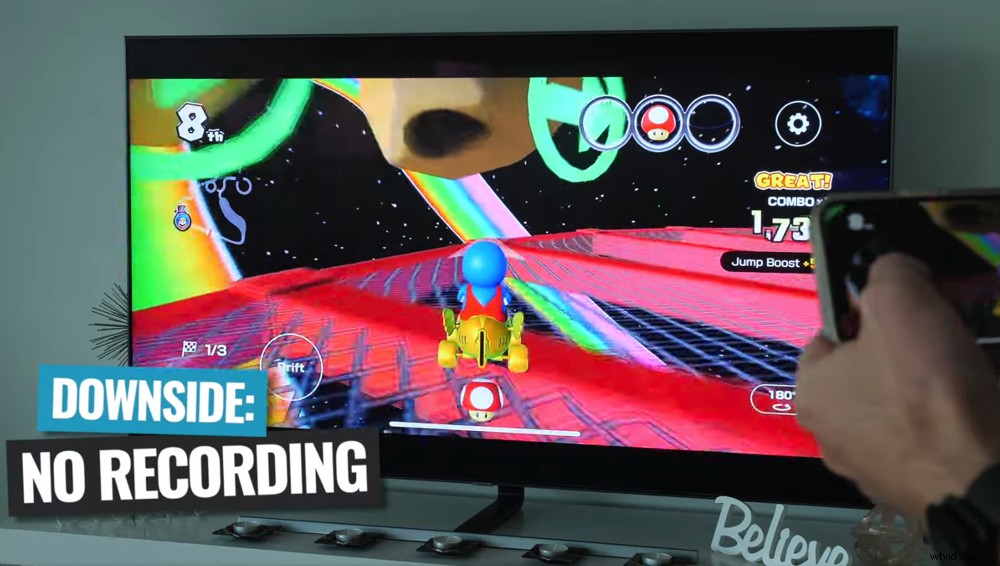
You can’t record or have multiple things on the screen when using Airplay
The downsides? Airplay doesn’t allow you to record.
And in terms of mirroring to your computer, the phone screen takes over the entire screen. You can’t resize this or have multiple things on the screen. So, while it’s a great solution for playing games or watching movies, Airplay isn’t an option for recording or live streaming.
How To Screen Mirror With Live Streaming Software
The next option for mirroring your iPhone screen is to use live streaming software. There are so many live streaming software options out there. Our favorites that allow you to easily bring in your phone screen are Ecamm Live and ManyCam.
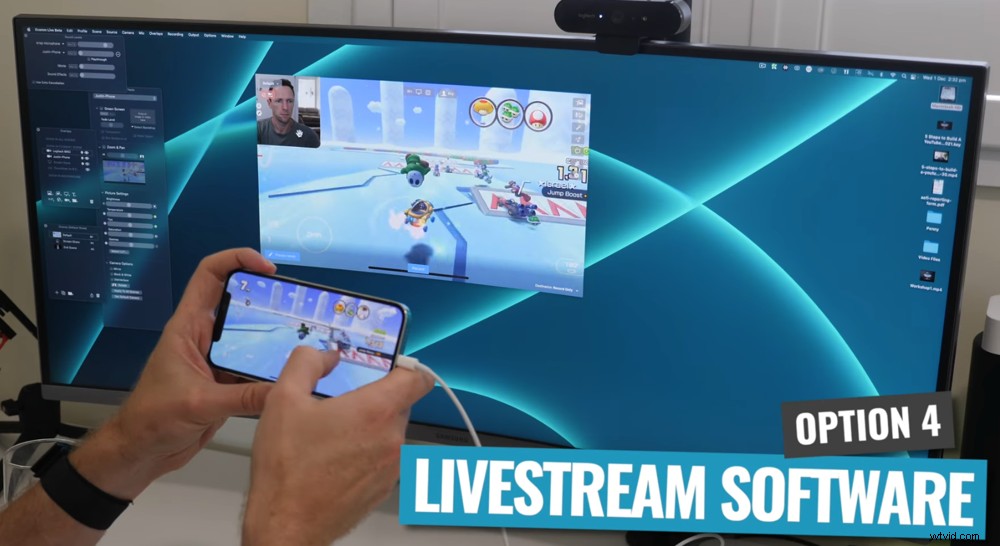
If you’re iPhone screen mirroring Mac or PC, livestream software is a good choice
To use both of these, connect your phone to your computer via USB. This will show up as a new video source. From there, you can use the screen mirror as part of your live streams, to create video recordings or simply to view your phone on a bigger screen.
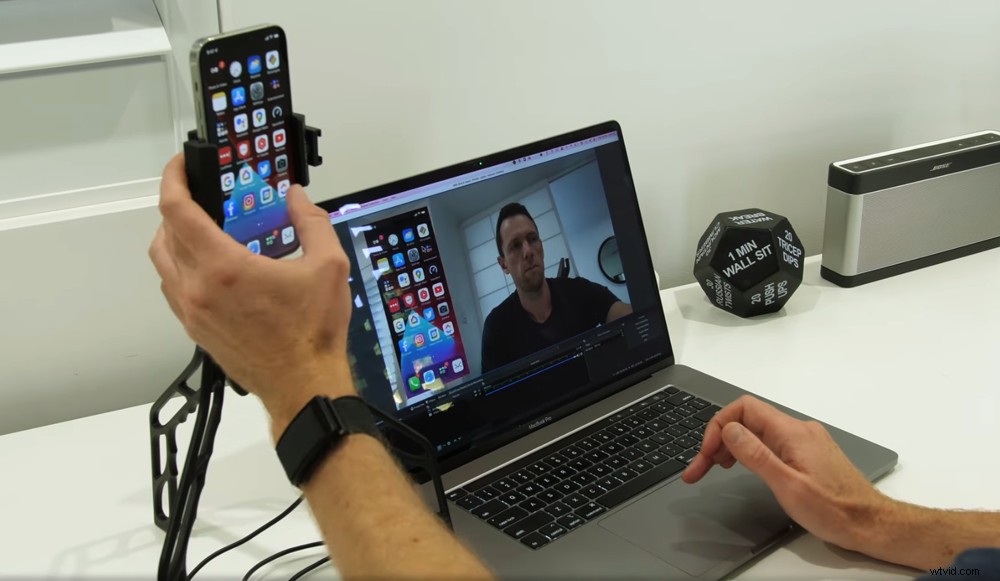
Livestreaming software is the best option if you want to screen share during a livestream
This method is most beneficial for people who already have live streaming software or people who want to screen share during a live stream.
If you simply want to mirror your phone screen or do simple recordings, tools like QuickTime and Reflector are cheaper and easier for these purposes.
How To Screen Mirror With A HDMI Adapter
You can also connect your iPhone to a TV or computer screen via HDMI. You’ll need an iPhone to HDMI adapter for this. The adaptors are available on Amazon for as little as $25 – $30.
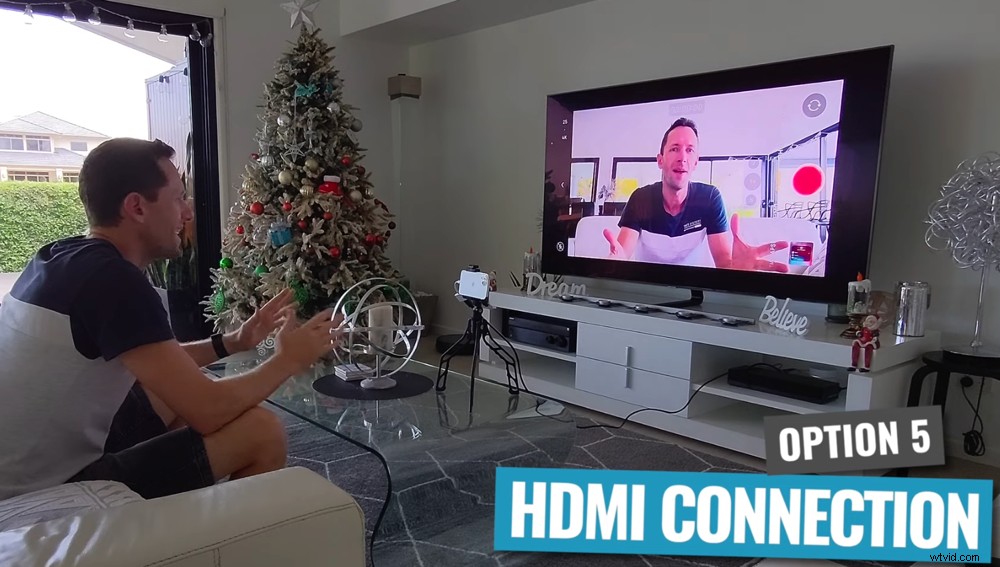
If you’re wondering how to mirror iPhone to PC, a HDMI adapter is a great option
So all you need to do is plug the adapter into your iPhone and then connect a HDMI cable from the adapter into the TV or computer screen.
The biggest benefit of connecting your iPhone this way, is that there’s going to be no lag or delay and you’ll get a really high quality image.
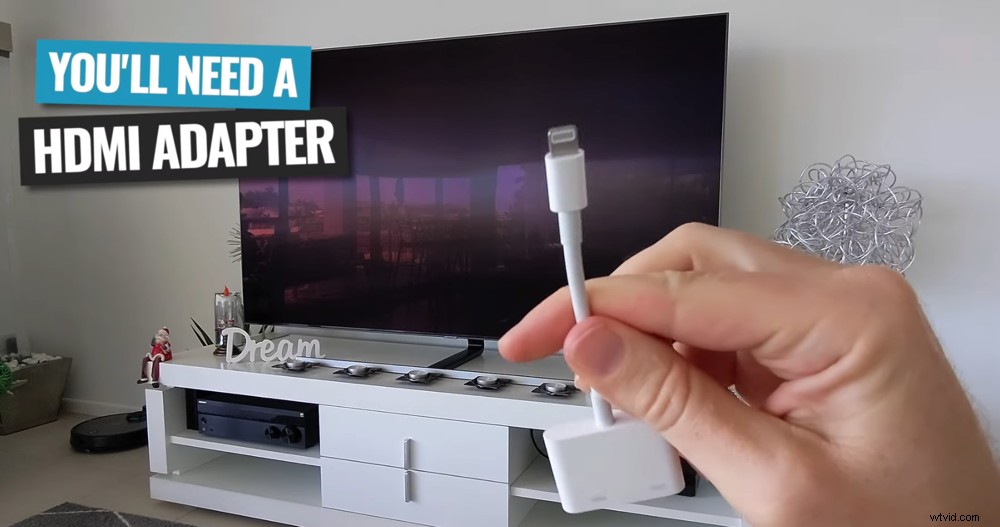
With the HDMI adapter, you can screen mirror iPhone to any TV with a HDMI port
But the downside is that essentially all this allows you to do is make your phone screen bigger.
So this isn’t a great option for recording or live streaming. But it could be perfect for watching movies or playing games, especially if you don’t have access to Wi-Fi or an Apple TV.
Now You Know How To Share iPhone Screen To Any Device
There you have it – these are the best ways for screen mirroring on iPhone.
The right option for you will depend on the reason you want to screen mirror. But, there is a screen mirroring option that’s a stand out winner for us…
Our top pick for iPhone screen mirroring is Reflector.
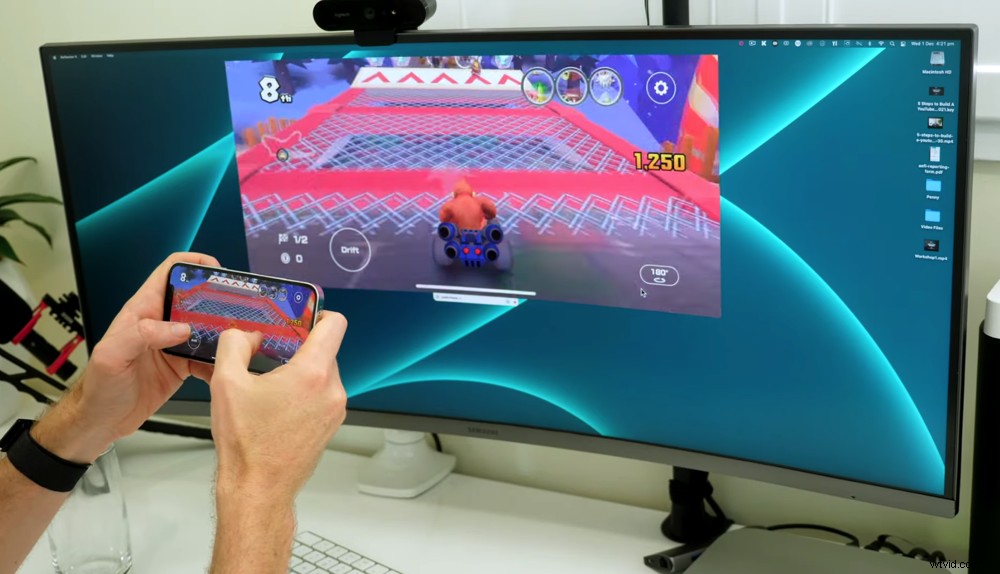
Choose the screen sharing method that best suits your specific needs
It’s awesome that Reflector works on Mac, PC, iPhone AND Android. Plus you can use it for pretty much every reason that you’d want to screen mirror.
Whether you want to use it for live streaming, recording content or just for a bigger screen – Reflector ticks all the boxes.
If you found this complete guide to iPhone screen mirroring helpful, please share it on social media or with others who might like to learn more about how to screen mirror.