
Adobe Photoshop allows you to add text to images with many built-in fonts. Do you want to add some new fonts? How to add fonts to Photoshop? How to import fonts into Photoshop? This post will provide you with a clear guide. And if you try to add text to video with different fonts, try MiniTool MovieMaker.
As one of the top image-manipulating applications, Adobe Photoshop gives users a variety of tools to customize and enhance their pictures. One of the most popular features is to add text to photos, and it offers you many fonts. But how to download new fonts and how to add a font to Photoshop? This post will tell you how to add fonts to Photoshop on Windows and Mac.
How to Add Fonts to Photoshop on Windows?
Here’s the guide on how to add font to Photoshop.
How to Download Fonts to Photoshop from the Internet
Many online websites offer plenty of fonts for you. You can choose the fonts you like and download them, but please be sure that the resource is legal. Also, you can download fonts from the Microsoft Store.
How to Locate the Font Folder
Open the download folder and scroll down to the new added fonts file. If the fonts are in a ZIP file, you can right-click it and choose Extract to access the contents. The common font file extensions include OTF, TTF, PBF, and PFM.
How to Install Fonts in Photoshop
Here’s the how-to guide:
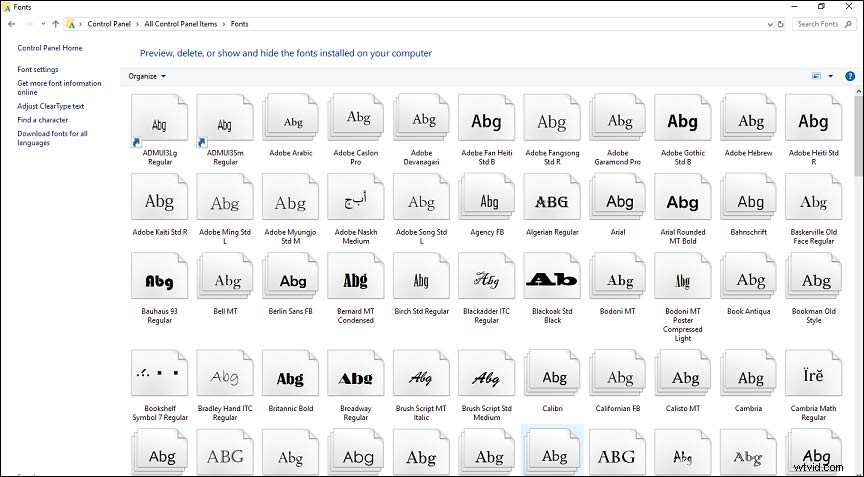
- Tap on the Start Menu, select Control Panel> Appearance and Personalization > Fonts.
- In the Fonts window, select the File and click Install New Font.
- Go to the folder that contains the desired fonts.
- Select the fonts and click the OK button to install them.
How to Add Fonts to Photoshop on Mac
How to Download fonts from the internet.
You can search for free Photoshop fonts on Mac, choose and download some fonts, and save them as a folder.
How to Navigate to the Folder Containing the Desired Fonts
Firstly, you need to quit all active applications. Then, you can double-click the zip file to extract the fonts file. And click the font file to preview it.
How to Install Fonts in Photoshop
- Method 1: Double-click the font file to open the Font box, and select and click the install button to install the font.
- Method 2: Go to Library/Fonts or Users/<username>/Library/Fonts to find and place the fonts manually.
Also read:How to outline text in Photoshop
Bonus – How to Change Font in MiniTool MovieMaker
MiniTool MovieMaker is a simple and free video editor, allowing you to add text to videos and GIFs with different fonts.
Here’s how to change the font in MiniTool MovieMaker.
Step 1. Download and install MiniTool MovieMaker.
Step 2. Launch it, close the pop-up window, click Import Media Files to upload your video clips.
Step 3. Click the + to add it to the timeline, and select Zoom to Fit Timeline.
Step 4. Click the Text, choose a text style, click +, next type your text.
Step 5. Select the text and click the default font Arial to choose another font.
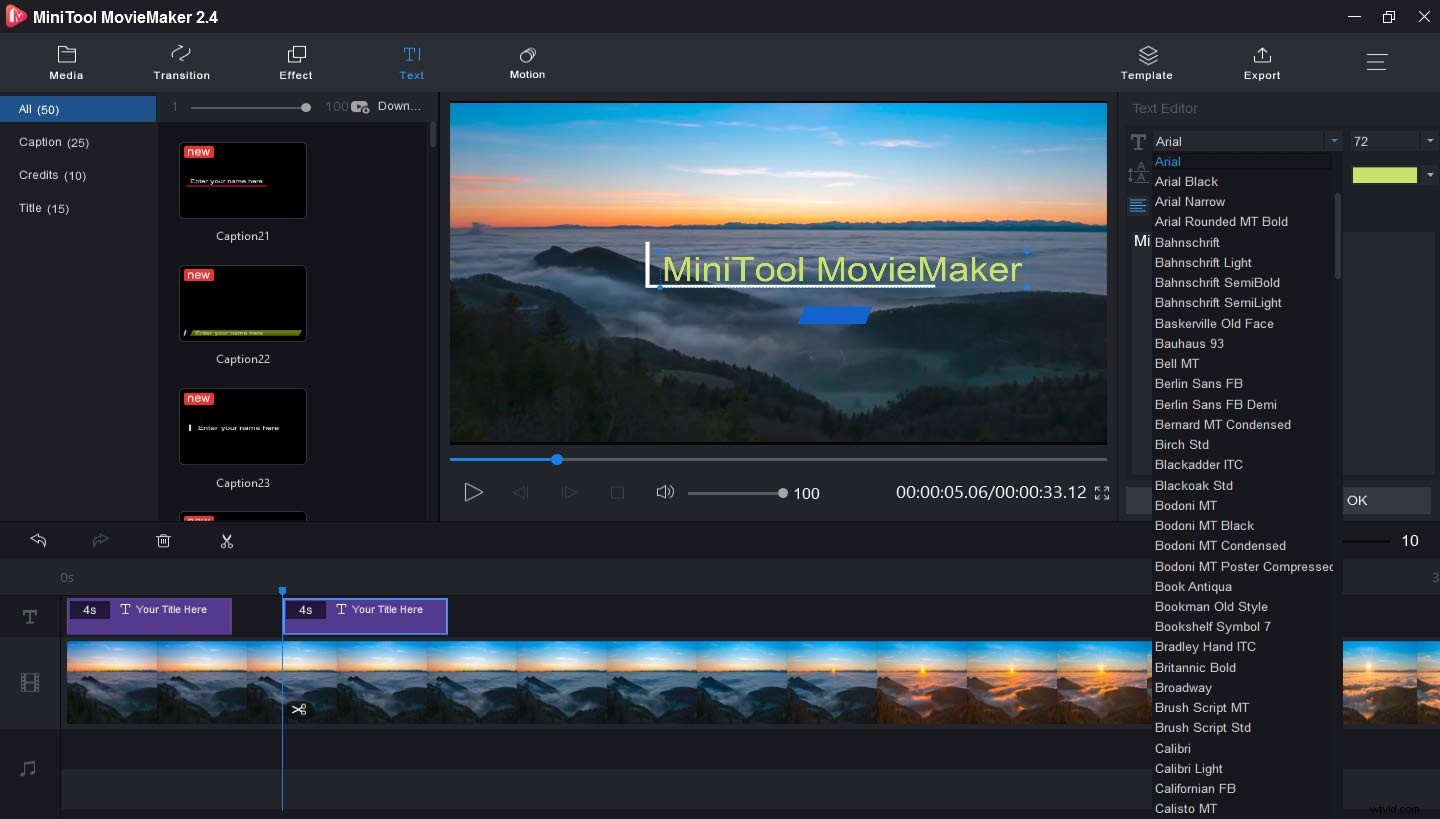
Step 6. Click OK, and hit the Export to download and save the video.
Bottom Line
Now, you’ve learned how to add fonts to Photoshop on Windows and Mac. Try to add other new fonts to your Photoshop. If you’d like to share other methods to add font to Photoshop, please leave them in the below comments area.