
There are two broad categories of effects in Final Cut Pro X: Inspector effects and Effects Browser effects.
I've written previously about how to use Inspector effects to create a picture-in-picture effect, among many other effects available to us in Final Cut Pro. In this article, I want to show you how to apply an effect to a clip, modify that effect, temporarily turn that effect on or off, or delete it entirely.
This is a basic tutorial about Apple Final Cut Pro X, professional video editing software. However, if video editing is new to you, consider Wondershare Filmora for Mac. This is a powerful but easy-to-use tool for users just starting out. Download the free trial version below.
How to Apply Effects to Video in Final Cut Pro X
- Find and apply an effect
- Modify an effect
- Disable and delete an effect
- Extra credit
Find and apply an effect
Here is our clip - a fearsome polar bear.
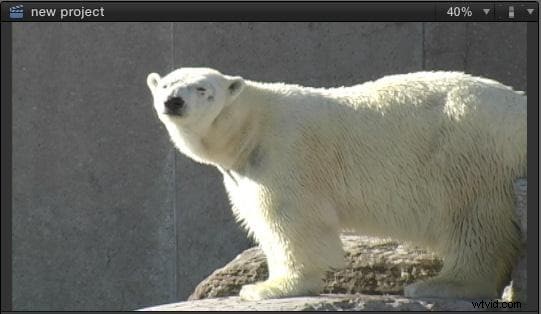
To apply an effect, first select the clip in the Timeline.
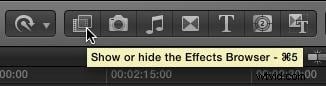
Then, click this icon in the Toolbar to open the Effects Browser (or type Cmd + 5).
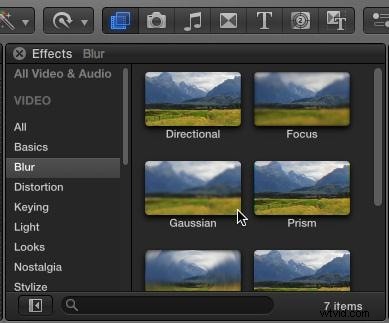
The Browser, like all the effects browsers, lists categories of effects on the left, a search box at the bottom to use for searching for the names of effects, and effects for each category on the right.
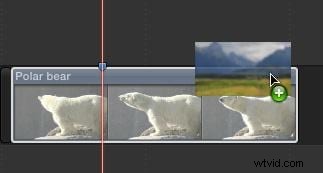
Here, for example, I've selected the Blur category, with my cursor near the Gaussian blur effect. (Gaussian blur is the best effect to use when you want a clip to look blurry.)
To apply an effect, do one of two things:
- Drag the effect from the Browser onto the clip you want to change.
- If the clip, or clips, are selected, double-click the effect in the Browser to apply it.
Modify an effect
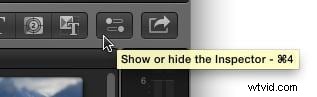
To modify an effect, click this icon in the Toolbar to open the Inspector (or type Cmd + 4).
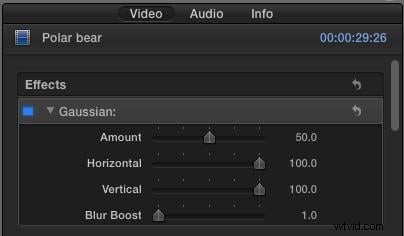
Click the Video tab in the Inspector. Effects from the Effects Browser are always listed at the top of the Inspector.
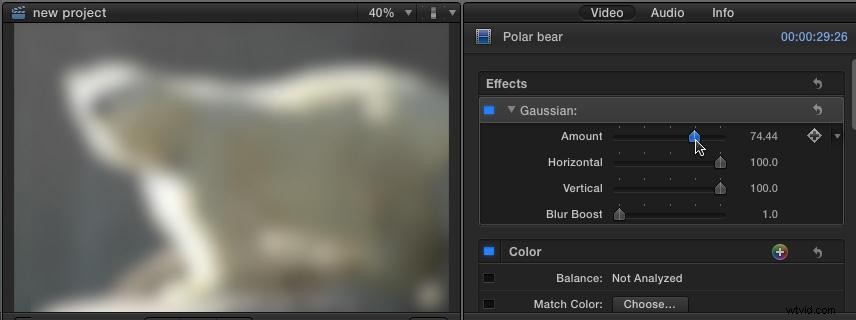
Grab a slider and drag it to see what happens. For example, to make an image blurrier, drag the Amount slider to the right. To lessen the effect, drag it to the left.
Disable and delete an effect
To temporarily disable an effect, without deleting it, click the blue box so that it turns gray.
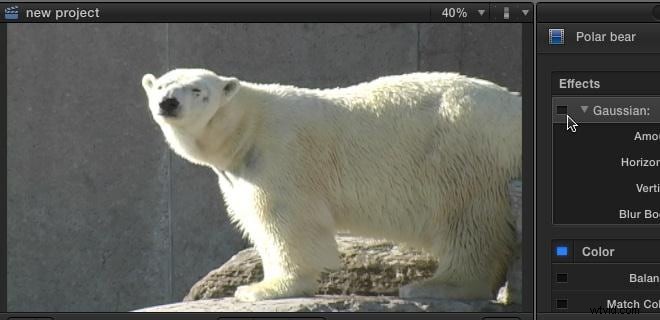
To enable an effect, click the gray box so it turns blue again.
To delete an effect, click the name of the effect - in this example: Gaussian - and press the big Delete key.
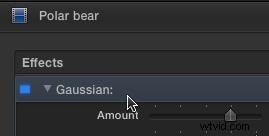
The effect will be deleted from the selected clip.
Extra credit
You can apply, modify, even delete the same effect to multiple clips by first selecting all the clips you want to change in the Timeline then adding, changing the settings, or deleting an effect in the Inspector.
Summary
The process of applying effects is the same for all effects you apply from the Effects Browser. In future articles I'll show you how to use this technique to create a wide variety of different effects in Final Cut Pro X.