
Whether you are planning to make a gif to add to your presentation or you got a meme idea while watching a movie. Here is the easiest way to convert any video or images into an animated gif. The best part is you don’t need to install any fancy software to do this. [ Yes we are talking about Photoshop ]
Follow these 3 simple steps to create your animated gif.
- Step 1: Create a new project in Animaker
- Step 2: Upload the video. (or images)
- Step 3: Download it as a GIF

Step 1: Create a new project in Animaker
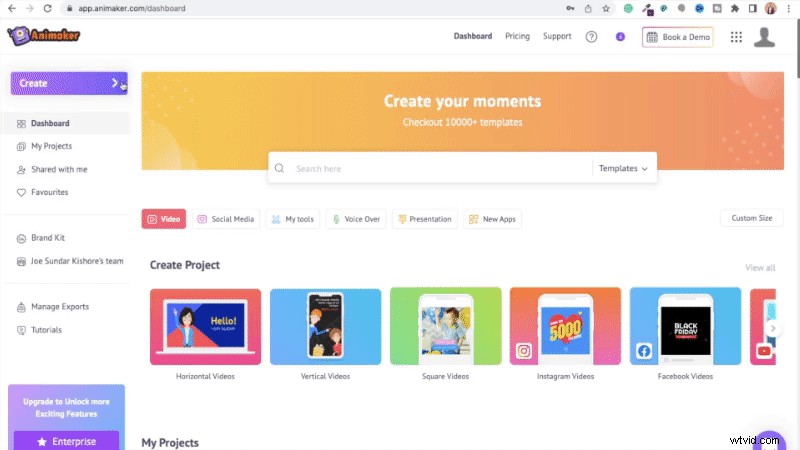
Visit the website of Animaker and sign up for an account. From the dashboard select the following options to create a new blank project.
Create > Create a video > Blank Project.
Step 2: Upload the video or the images
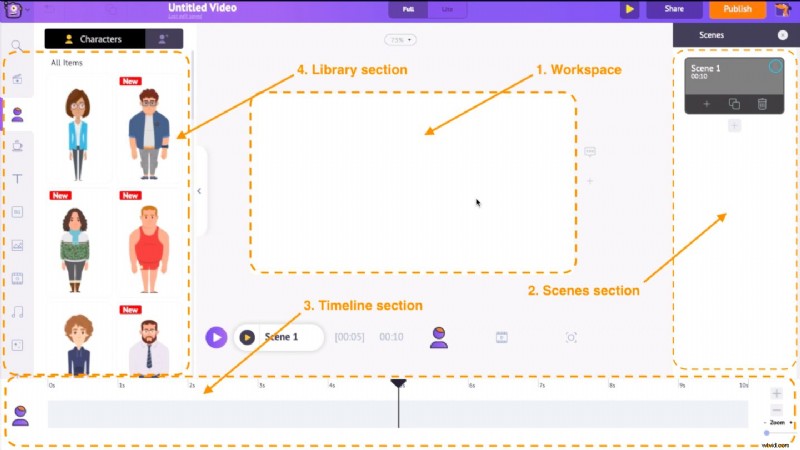
This is the interface of the Animaker.
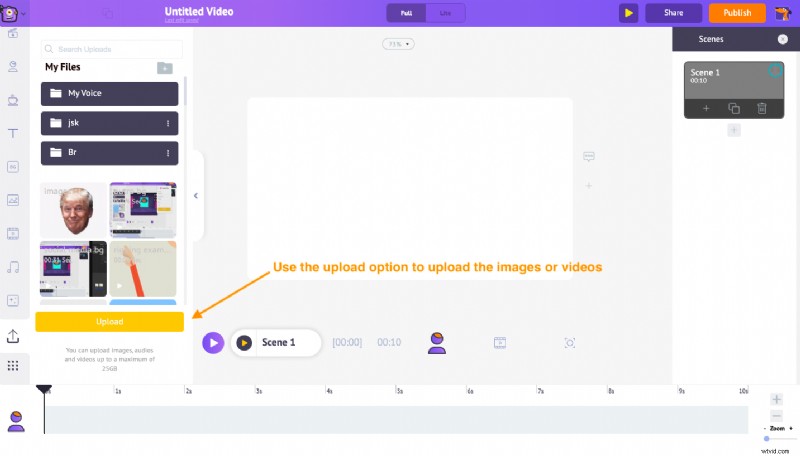
Go to the upload section present at the bottom of the library and click on the upload option to upload your images(videos). You can also drag and drop the files directly into the project.
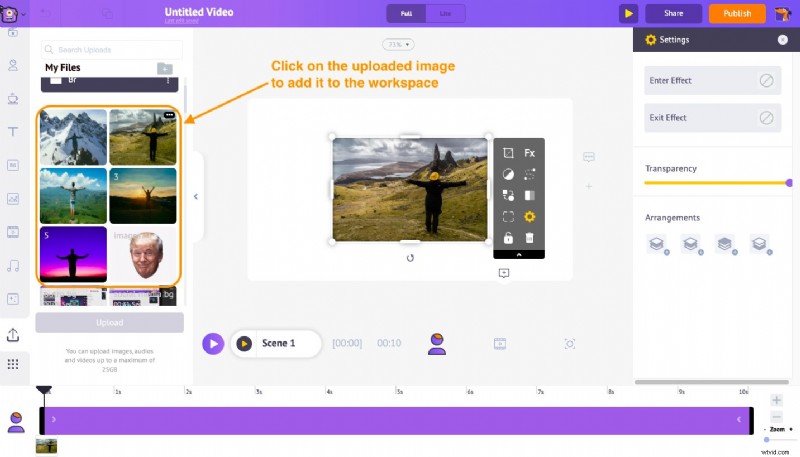
Now select the uploaded image to add it to the workspace.
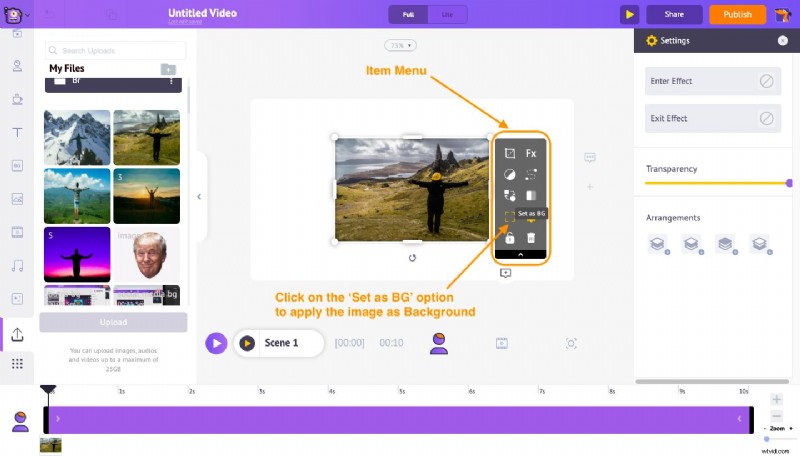
Once the image is added to the workspace, you will see a couple of options appear right next to it. This is called the ‘Item Menu’. Use the option named ‘Set as Bg’ within the item menu to apply the image as the background of the scene.
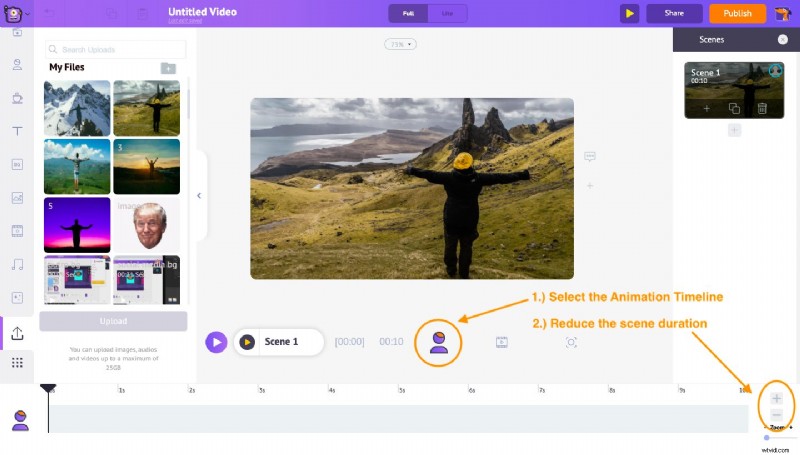
Now reduce the duration of the scene. By default, the duration of a scene is 10 seconds. You Can increase or decrease the duration of a scene using the ‘+’ and ‘-’ options present at the bottom of the animation timeline. Reduce it to 1 second.
It’s time to add the second image. To add the second image you need a new scene. You can create a new scene using the ‘Add Scene’ option from the ‘Scenes section’ present on the right-hand side of the interface.
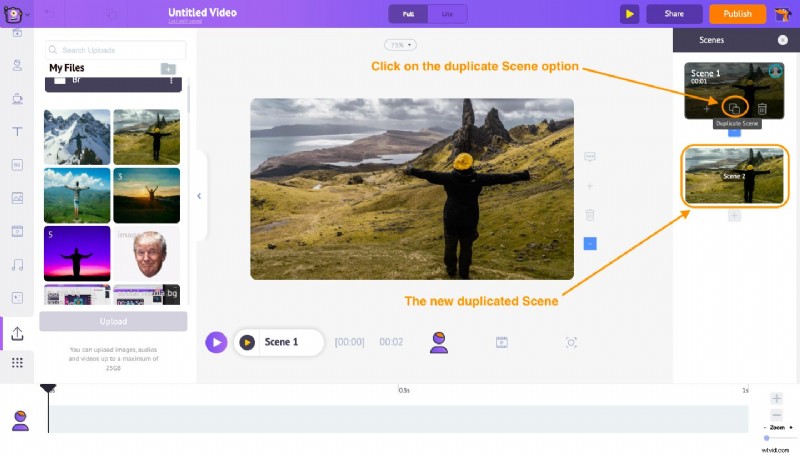
But instead of adding a new scene, you can duplicate the current scene using the ‘Duplicate’ scene option and add the new image as background. By doing this you can avoid spending time adjusting the duration of the new scene.
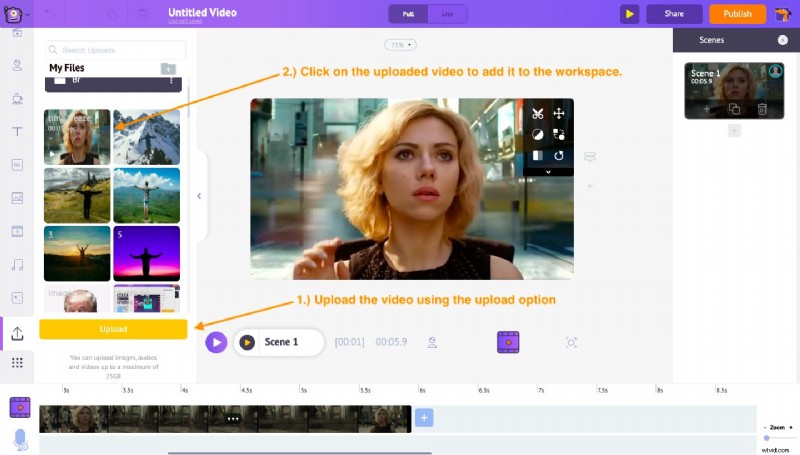
If you wish to convert a video into an animated gif the process is the same. Upload the video using the upload option and add it to the workspace.
Step 3: Download it as a GIF
Click the publish option at the top, and then select the ’Download as Gif’ option.
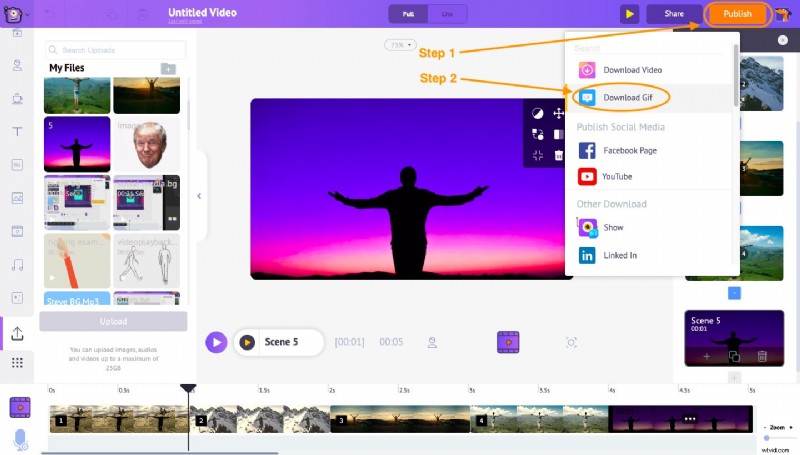
Your gif will render in a few minutes and will be ready for download.

Well! We already told you this is one of the easiest ways to create animated Gifs!
Now that you know how to make animated gifs, what are you waiting for?
Click here to create your Gif!