
Your google profile picture will be visible on any google services, such as Gmail, Docs, etc. How to change google profile picture on desktop and phones? This post will offer a step-by-step guide. Want a free photo video maker? MiniTool MovieMaker is the best choice.
This post will give you 3 methods on how to change your profile picture on google on the desktop, Android, and iOS.
How to Change Google Profile Picture on the Desktop?
Here’s the how-to guide:
Step 1. Type myaccount.google.com in Google web browser and log in with your Google account.
Note: To get this Google account home page, you can open Google Chrome, then click the three-dot icon (Customize and control Google Chrome button) at the top right of the page, next click the Settings, and click the Manage your Google Account.Step 2. On the left of the menu bar, click the Personal info.
Step 3. Tap on the Photo in the Profile part.
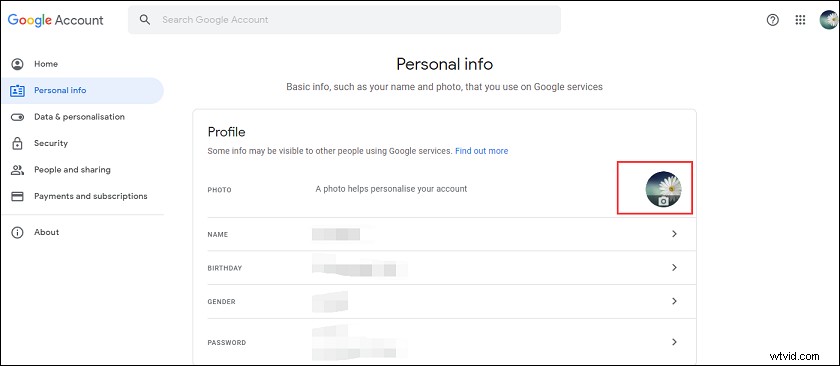
Step 4. In the Select profile photo window, select the Upload photos > Select a photo from your computer to import a new image. Choose Your photos, you can choose another existing picture as your profile picture.
Note: On the home page, you can also directly click your current profile picture to open the Select profile photo window.Step 5. You can crop this image, or add captions. When you’re happy with the result, click the Set as profile photo.
How to Change Google Profile Picture on Android and iPhone?
For Android and iPhone users, the best way is to change Google profile picture through Gmail. How to change your profile picture on google using the Gmail app?
For Android users:
Step 1. Launch the Gmail app, and then click your profile photo.
Step 2. Select the Manage your Google Account.
Step 3. On the Google account page, choose the Personal info.
Step 4. Under the Profile section, click the current profile picture and then select the Set profile photo.
Step 5. Select the Take photo to take a new picture, or tap the Choose photo to set an existing image as your profile photo.
For iPhone users:
Step 1. Open the Gmail app, tap the three-line icon (Menu button) and, select Settings.
Step 2. Select a Gmail account and sign in, and choose the Manage your Google Account > Personal info.
Step 3. In the Profile section, click your profile picture and then select the Set profile picture.
Step 4. To shot a new picture as a profile photo, click the Take photo, then choose the OK. After finishing it, click the Use photo.
Step 5. To upload new images from your camera roll, click the Choose from photos, then choose a picture and tap the Choose.
How to Remove Google Profile Picture?
Step 1. Go to the myaccount.google.com and sign in with your Google account.
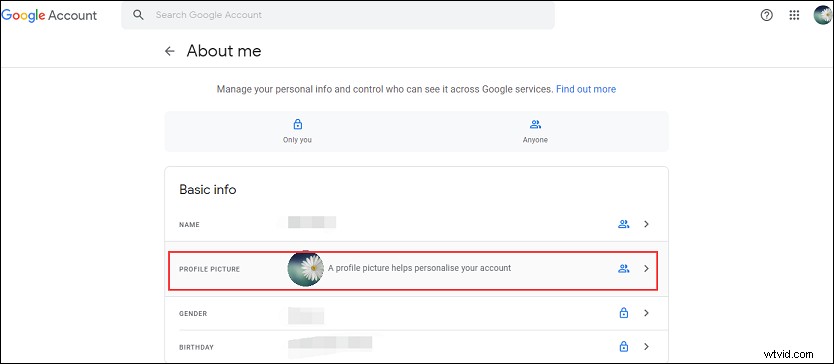
Step 2. Click the Personal info, then scroll down to the Go to About me, and click it.
Step 3. In the Basic info section, tap on the PROFILE PICTURE. In the pop-up window, you can choose a single profile picture then click the Continue, or you can directly choose the Cancel.
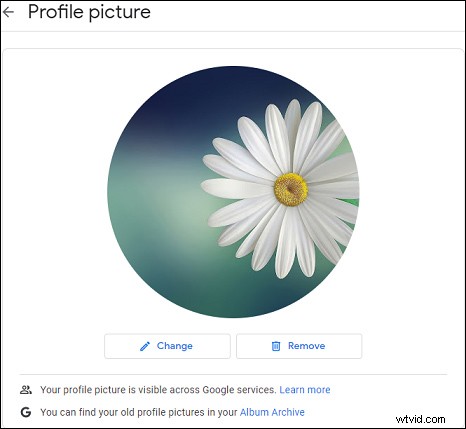
Step 4. Click the Remove to remove the profile picture.
Conclusion
This post shows you how to change Google profile picture on the desktop, Android, and iOS devices, and it also tells you how to remove Google profile picture. Follow the above steps and change your google profile photo!