
Do you have a spelling mistake in your Google Meet profile? Here's how you can fix it! We've all considered changing our names or adding a letter at a certain point in our lives. Although you wouldn't have the freedom to modify your name spelling on official documents, you can do that on Google Meet.
When you update your Google account's user name, it also changes on Google Meet. That way, you may correct any errors in your Google account's name and modify your initials or names. This guide will show you how to change your name in Google Meet using Android, iOS, and laptops.
You may also like: How to Use Snap Camera on Google Meet?
- Part 1: How to Change Your Name on Google App on Windows/Mac/Chromebook?
- Part 2: How to Change Your Google Meet Name on Your Android Device?
- Part 3: How to Change Your Google Meet Name Using the iOS Gmail App?
- Part 4: How to Add or Change Your Google Meet Nickname as Displaying Name?
- Part 5: Why Should You Change Your Name on Google Meet?
Part 1: How to Change Your Name on Google App on Windows/Mac/Chromebook?
Before we get onto this method, let us tell you that the safest and the most secure way to change the name in Google Meet is by doing it via your web browser. And you don't have to worry about using a specific browser. Here's is your step-by-step guide on how to change the name on Google Meet:
Step 1: First and foremost, go to your Google account page using the browser and log in to your account.
Step 2:: After you've logged in, click on the Personal Info tab available vertically on the menu bar on the left side of your screen.
Step 3:: Under the Name section of the page, tap on the right-side arrow of the screen to proceed further.
Step 4:: A new page will open, asking you to enter your first name and last name into the fields provided there.
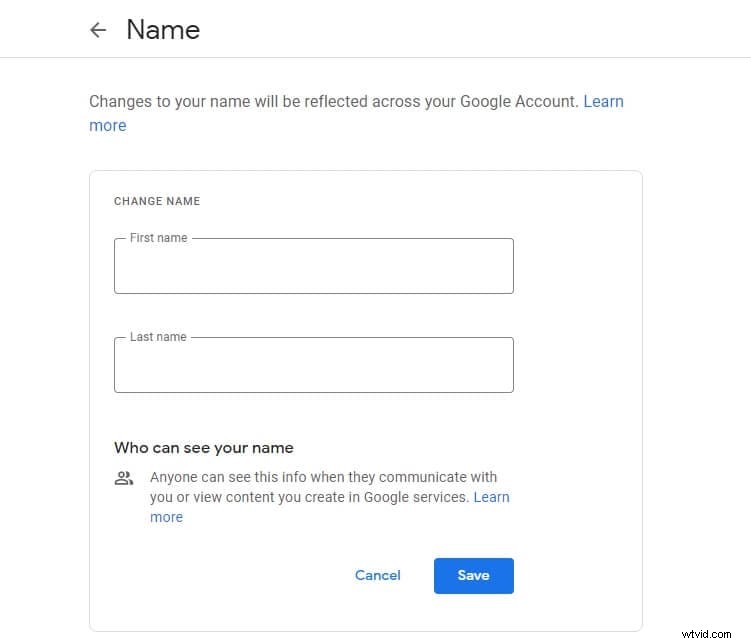
Step 5:: When you're done entering the correct spelling, tap on the Save option available right under the name fields to save your new name.
Tips: If you don't want to waste any time and do this quickly, paste the link https://myaccount.google.com/name in your browser search bar. This will direct you straight to your Google Account name settings, and then you can change the name displaying on Google Meet as well.
For Windows users, renaming yourself in Google Meet becomes easier when you do it through Google Chrome. For Mac users, you can use the Safari browser).
Part 2: How to Change Your Google Meet Name on Your Android Device?
If you don't have a laptop or computer, you can still change your name on Google Meet using your mobile. You may alter your Google Meet username utilizing the default Chrome mobile browser directly, or you can use the Gmail App. Here's how to change Google Meet name using your Android smartphone with the browser:
Step 1: Launch your mobile browser and search for "Google Account." From the given search engine results, tap on the "Manage Your Google Account" shown in the picture below. Tap on the Personal Info option available on the horizontal menu.
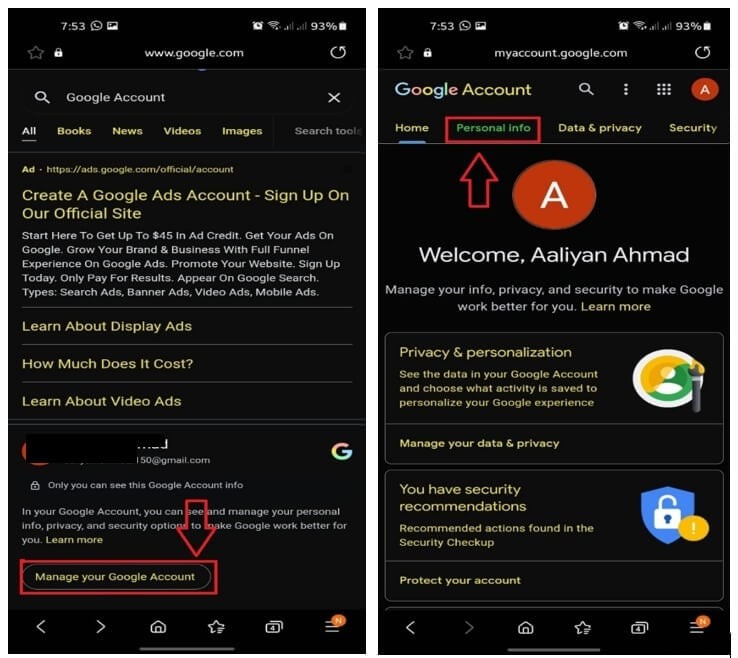
Step 2: On the Name section of the page, tap on the right-side arrow of the screen to proceed further. Now, enter your first name and last name into the fields provided there.
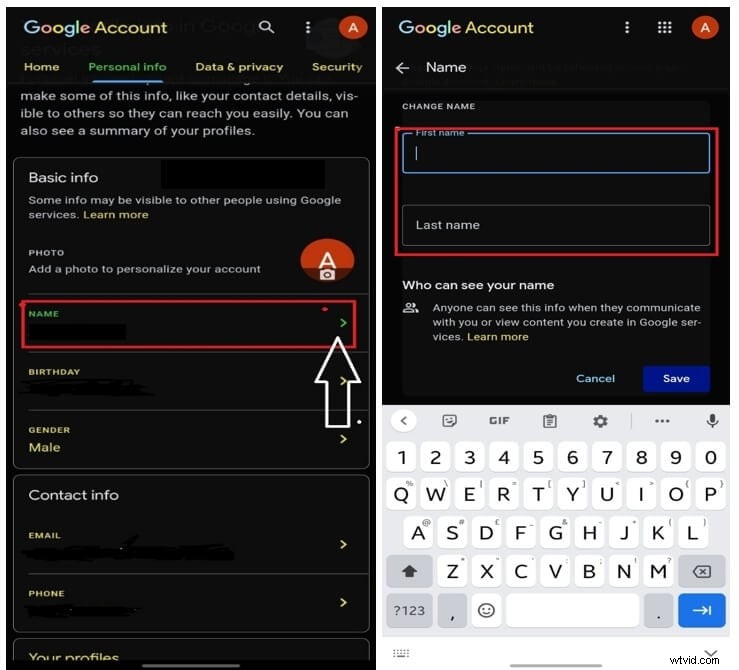
Step 3: When you're done entering the correct spelling, tap on the Save option available right under the name fields to save your new name.
Now, you can launch the Google Meet app on your Android device to check the revised name.
Part 3: How to Change Your Google Meet Name Using the iOS Gmail App?
For iOS users, this one is a must-know hack. Although you won't be able to alter your Google Meet name through your iOS smartphone's system configuration, you may do it through the Gmail app on your iPad or iPhone. Here's your step-by-step guide on how to rename in google meet:
Step 1: Launch the Gmail App on your iOS smartphone (or iPad, if you have one).
Step 2:: Select the Menu icon available on the top-left side of the screen. Find the Settings tab and tap on it, and choose the Manage Your Google Account to proceed further.
Step 3:: Select the Personal Info option and tap on the Right-facing arrow option available on the right side of your interface.
Step 4:: Enter your name spellings in the space provided to save your name.
Part 4: How to Add or Change Your Google Meet Nickname as Displaying Name?
The name fields in Google Meet are restricted to first and last names, but you could still optionally show a nickname. It's a quick and easy method to add a middle name to your display name.
Step 1: Visit https://myaccount.google.com/profile, and then select the Name option available under the Basic Info tab.
Step 2:: Now select the Pencil icon available under the Nickname field.
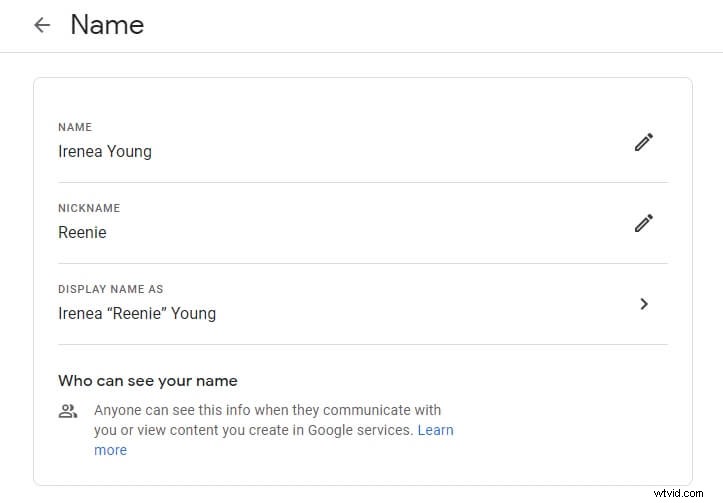
Step 3:: Enter your nickname under the Nickname field and select the Save option. Now select the Display Name as an option and choose from the list.
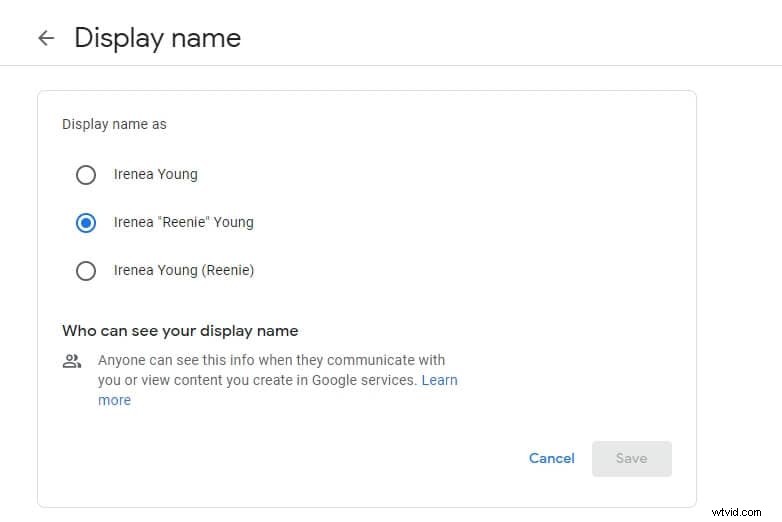
Note: If you changed the name, but the old name still shows up on Google Meet, you can try to clear cache and cookies.
Part 5: Why Should You Change Your Name on Google Meet?
You may wish to alter your username on Google Meet for a variety of reasons, such as:
- For professional reasons, you'd like to use a pseudonym or alias.
- When you've officially changed your first or last name, you might also want to amend it on Meet.
- You might want to use your middle name.
- You would like to allow someone else to connect your Google account for a video meeting.
Frequently Asked Questions about Changing Name on Google Meet
1. Can I Change My Name During a Meeting in Google Meet?
Yes, you can. The procedure is relatively straightforward. While you're attending a video conference or a meeting and want to change the name spellings, from the left-hand menu, select Personal Info. After the website has loaded, go to the profile section and update your 'Name.' On the following screen, edit or add your first and last names, then tap the save option when you're through.
2. How Many Times Google Names Can Be Changed?
Google once had a restriction on how many times you may alter your name in a given period of time. Now, you may change it as frequently as you would like.
Conclusion
We are confident that now you'd be able to answer anyone if they ask you 'how to change the name in Google Meet.' The above step-by-step guide includes all the methods for changing the name in Google Meet, ranging from Windows, Android, and iOS. Not only can you change the name as many times as you want, but you can also head over the Google Account settings during any meeting to alter your name spelling.