
Google Meet is a video conference application for your computer and mobile phone. Now, you can use filters and effects in Google Meet? How to use the native Google Meet filters? How to get Snapchat filters on Google Meet? Just check this post.
Recently, Google Meet has become increasingly popular in these troubled times. To give users a better experience, Google Meet has introduced many features, such as changing background, screen sharing, the ability to raise and lower hand, and more.
Also, you may wonder how to use Google Meet filters. Just continue to read this post to find answers.
If you want a video editor to edit your Google Meet recording, MiniTool MovieMaker is recommended here.
How to Get Filters on Google Meet
You can use the Google Meet app for Android and iPhone/iPad or in your web browser.
Here’s how to use filters on Google Meet app.
Step 1. Open the Google Meet app on your Android device or iPhone, and select a meeting.
Step 2. Before you join, tap the Effects icon at the bottom of your profile view.
Step 3. Tap the Filters at the bottom, choose and click the filter you want to use. When you’re done, click the Done. Then click the Join to join the meeting.
You can also choose a filter during a video call. Also, you can click the Effect icon, then click Filters, choose and click the desired filter to apply it, then click the Close icon.
How to use filters on Google Meet via a web browser?
When you’re in a video call in Google Meet in the web browser, click the More options (three dots) icon, then click the Apply visual effects, then you can see many backgrounds but no available filters.
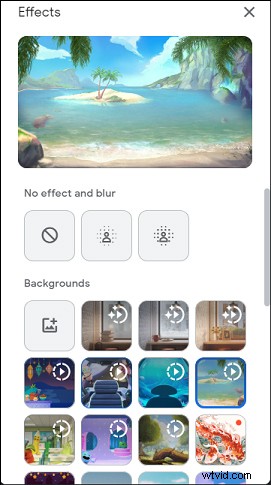
Although the online Google Meet has no face filters, you can still add a filter to your Google Meet with the help of a Google Meet filters extension, Face Swap & Stickers for Google Meet.
This extension offers multiple video filters, stickers, and swap faces. You can add a filter to enhance your look, or add a sticker (lips, glasses, left check, right check) and make it appear on your face, and do face swaps with celebrities.
Go to Chrome Store, find Filters, Face Swap & Stickers for Google Meet, click the Add to Chrome > Add extension, then click the Extensions icon and pin this extension to the toolbar.
When you’re in Google Meet, you can see a blue button at the top left corner. Then you can add a filter, do a face swap, or add a sticker as you like.
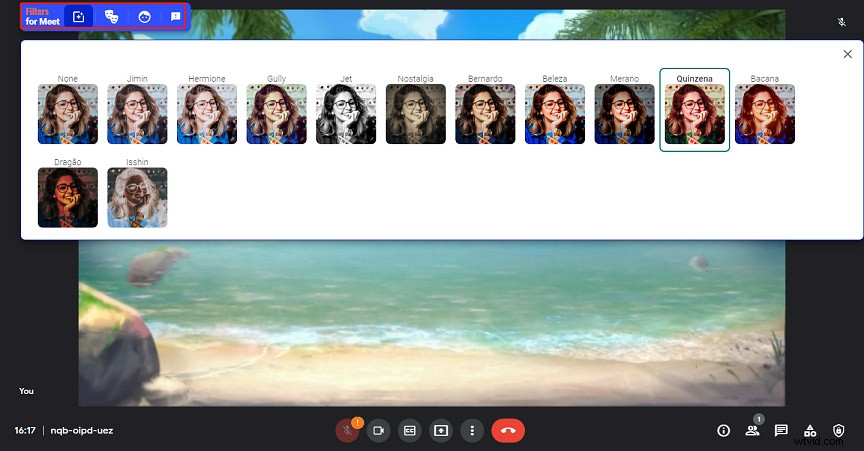
How to Get Snapchat Filters on Google Meet
Do you want to use Snapchat filters for Google Meet? How to get Snapchat filters on Google Meet?
First, you should download and install the Snap Camera on your computer.
Then open the Snap Camera, and choose a filter you want to use. Next, open your call in Google Meet.
Hover your mouse towards the bottom of the window, then click the three dots at the bottom right.
Then click Settings, go to the Video tab, and choose Snap Camera as your Camera.
Note:
If you are unable to select Snap Camera, restart your browser and try again.
Conclusion
That’s all about Google Meet filters. You can easily add a face filter in the Google Meet app. If you use the online service, you can use the Google Meet filters extension to add effects/stickers/face swaps. And you can also use the Snap Camera on Google Meet to add the desired Snapchat filter.