
Twitter is one of the most popular social media platforms. You may want to personalize your Twitter backgrounds to get more followers. The default background of Twitter is white. How to set its background as a night mode? This post will show how to change Twitter backgrounds and Twitter profile background picture.
If you want to know how to change Twitter backgrounds and profile images, you’ve come to the right place. Just check out this post now! Need a free video maker to create videos for your Twitter, try MiniTool MovieMaker.
Part 1. How to Change Twitter Backgrounds?
Twitter no longer allows users to choose a theme color for the background, but it enables you to select a night mode for your Twitter background. How to change Twitter backgrounds on your computer? Here’s the tutorial.
Step 1. Go to twitter.com and sign in to get the home page of your Twitter.
Step 2. Tap on More and choose Settings and privacy.
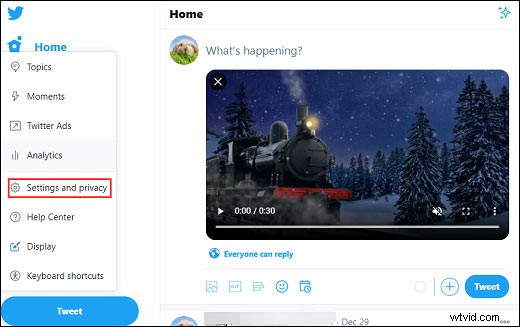
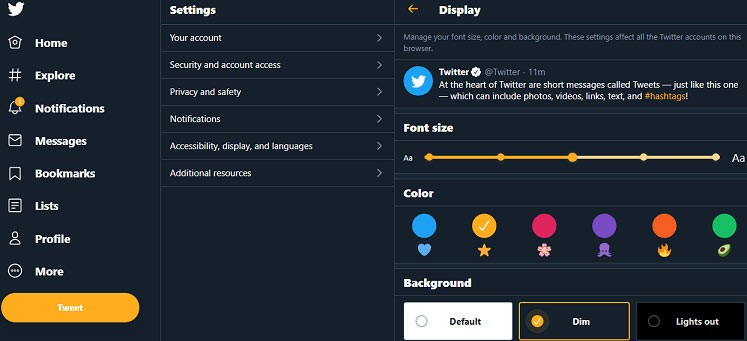
Step 3. Under the Settings part, select the Accessibility, display, and languages, and next tap on the Display.
Step 4. In the Background section, click the Dim or Lights out to change the Twitter background. And you can also change the font size and the color of Twitter.
Part 2. How to Change Twitter Profile Background Picture?
About Twitter Profile Picture Size
Before learning how to change the Twitter profile picture, let’s look at the requirements of the uploaded image.
- The supported image formats include JPEG and PNG.
- The maximum file size for profile pictures cannot exceed 2MB.
- The recommended dimensions for the profile pictures are 400x400 pixels.
How to Change Twitter Profile Picture?
Changing the Twitter profile background picture is another method to change Twitter backgrounds. Here’s the tutorial.
Step 1. Open Twitter on a web browser.
Step 2. Click the Profile and then tap on Edit Profile.
Step 3. Click your Twitter profile picture to browse the local storage and find the desired image, and click the Open.
Step 4. Move the slider to edit the photo and then click the Apply.
Step 5. Click the Save to apply your changes.
How to Change Twitter Header Image?
The third way to personalize your Twitter backgrounds is to change the Twitter header image. Twitter supports PNG, JPG, and GIF formats, but the header image only supports PNG and JPG formats. The recommended dimensions are 1500x500 pixels. Here’s how to change the Twitter header image.
Step 1. Navigate to the home page of your Twitter.
Step 2. Click the Profile or tap on any profile image on this page.
Step 3. Hit the Edit profile.
Step 4. Tap on the camera icon on the header image.
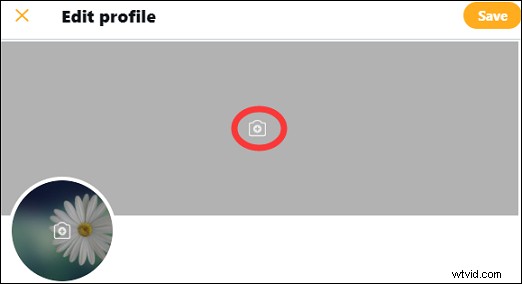
Step 5. Choose a photo that you want to set as the header image and click the Open.
Step 6. Drag the image select a part as the header image, then click the Apply.
Step 7. Tap on Save to save your changes.
Conclusion
This post provides you with 3 ways to personalize your Twitter backgrounds including setting Twitter background as a night mode, changing Twitter profile picture and header image. Follow the above steps and try to customize your Twitter backgrounds.