
GIFs are one of the best ways to express our feelings. How to upload GIFs to Twitter? This post will teach you how to post a GIF or multiple gifs on Twitter and how to fix can’t upload GIFs to Twitter.
Before uploading GIFs to Twitter, you may want to know how to make a GIF. MiniTool MovieMaker is a free GIF maker and GIF editor. You can create a GIF from any video and photo.
How to Upload a GIF on Twitter
Take the following steps to post a GIF on Twitter.
On Computer
Step 1. Go to the Twitter website and log in to your Twitter account.
Step 2. Choose the GIF option under What’s happening. Browse the GIFs and tap on the GIF that you want to post.
To upload your GIF from the computer, click the Media button (picture icon) and select the target GIF.
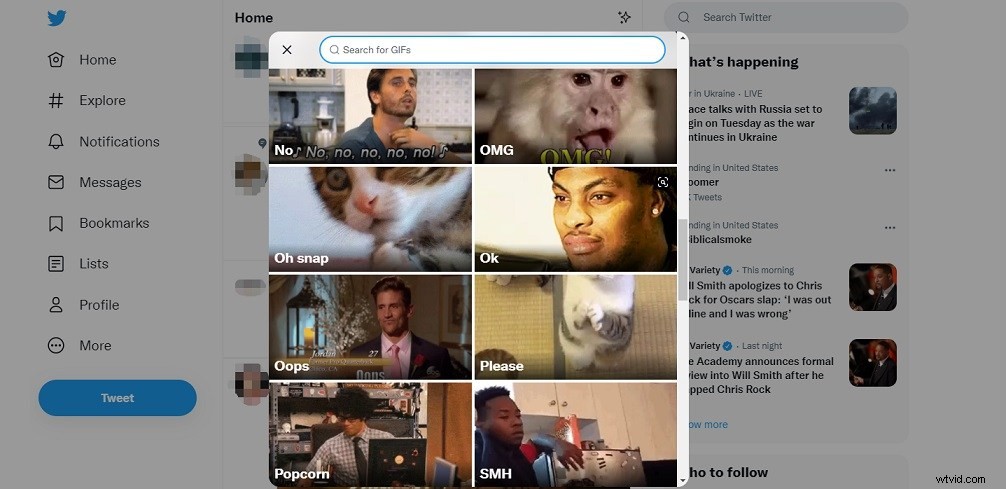
Step 3. Click the Tweet button to button.
On Phone
Step 1. Open the Twitter app on your phone.
Step 2. Click the + and click GIF or click the picture icon to choose a GIF.
Step 3. Then tweet the GIF on Twitter.
How to Upload Multiple GIFs to Twitter
Can you tweet multiple GIFs at once? Yes, you can upload multiple GIFs to Twitter but first, you need to convert GIFs to APNG.
How to Convert GIF to APNG
Step 1. Go to the Ezgif website.
Step 2. Head to APNG > GIF to APNG.
Step 3. Upload the GIF from your PC and click the Upload button.
Step 4. Click on Convert to APNG to start the conversion.
Step 5. Once done, save the APNG file from the website.
How to Post Two GIFs on Twitter
Step 1. Go to the Twitter website.
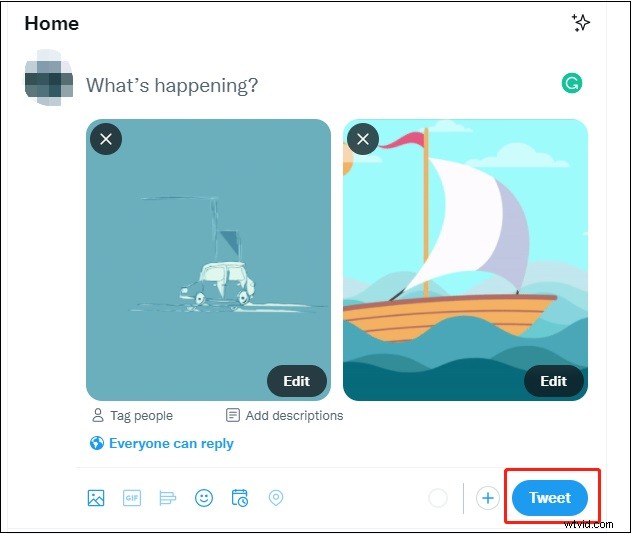
Step 2. Click the picture icon and select two or more APNG files from the computer.
Note:
You can upload up to 4 photos or animated images to Twitter.
Step 3. Click on Tweet to post the two GIFs on Twitter.
How to Fix Can’t Upload GIFs to Twitter
To fix can’t upload GIFs to Twitter, you should check whether your GIFs exceed the Twitter GIF size limit. The maximum GIF size is 15 MB on the web, and 5 MB on mobile. The recommended resolution is 1280 x 1080.
If your GIFs are larger than 15 MB, you can use a GIF compressor to reduce the GIF size.
Tip: How to Make a Twitter GIF
MiniTool MovieMaker is an easy-to-use video editor as well as a GIF maker. It supports a wide range of video formats. You can use this tool to create a GIF from pictures or a video. It lets you split, trim, speed up, slow down, reverse GIFs, add text to GIFs, and more.
Step 1. Launch MiniTool MovieMaker after installing it on your computer.
Step 2. Import the video you want to use and add it to the timeline.
Step 3. You can cut out the unwanted parts or trim the video by using the blue playhead. Then make edits to the video as needed.
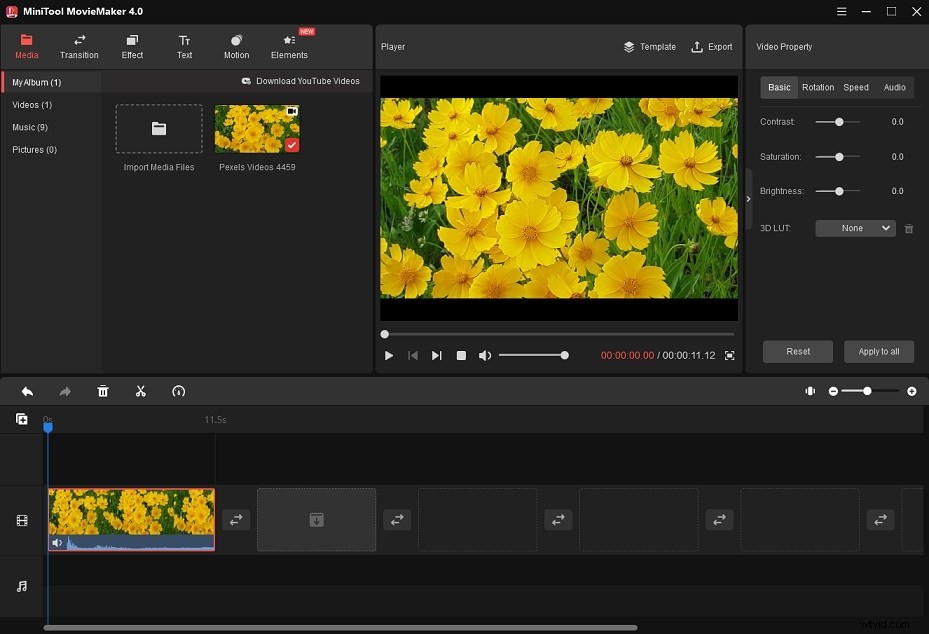
Step 4. Click the Export button and choose the GIF as the output format.
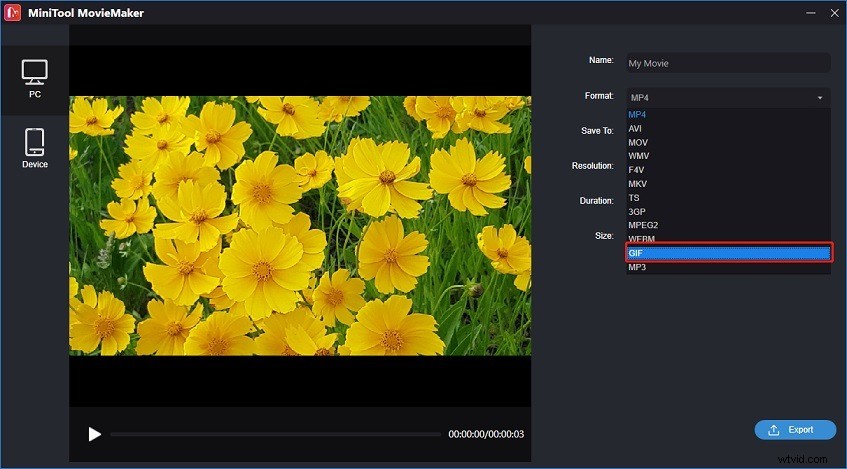
Step 5. Press the Export button to make a GIF from the video.
Conclusion
Try MiniTool MovieMaker to make a funny GIF and upload the GIF to Twitter!