
Most people like to use GIFs in text messages to express their feelings and reactions. This post will provide different methods of how to text a GIF to you and teach you how to convert video to GIF on Windows with MiniTool MovieMaker.
How to Send GIFs on Android
For Android users, they can use Google Messages to text a GIF. Google Messages is pre-installed on Android phones and allows users to share GIFs, videos, and images. It also enables users to search for GIFs.
Option 1
Step 1. Open the Messages app on your Android phone.
Step 2. Tap the smiley face icon in the text box.
Step 3. Find and click the GIF button. Click the search icon to find the GIF you want to use.
Step 4. Choose the desired GIF and tap the Send button.
Option 2
Step 1. To message GIFs, click the + next to the text box.
Step 2. Choose Attach file > Photos to browse gifs saved on your phone. Then choose the needed GIF and click Send.
How to Send GIFs on iOS
The Messages app on iPhone lets you send GIFs, photos, videos, and more.
Here’s how to send GIFs on iPhone using Messages.
Option 1
Step 1. Open the Messages app.
Step 2. Click the Compose button to start a new message or open an existing conversation.
Step 3. Tap the App Store icon and click the red magnifying glass icon.
Step 4. Enter the keyword and find the GIF you want to send.
Step 5. Click the forward icon to send this GIF.
Option 2
Step 1. Open Photos and find the GIF you’d like to share.
Step 2. Select the GIF and tap the Share icon.
Step 3. Choose the Message option to send the GIF.
How to Send GIFs with GIPHY
To text a GIF on your phone, you can use a GIF keyboard like GIPHY. It’s available for both Android and iOS.
Here’s how to text a GIF with GIPHY.
Step 1. Download and install the GIPHY app.
Step 2. Launch the GIPHY app.
Step 3. Search and find the GIF you want.
Step 4. Tap on the GIF and share it to the desired app.
How to Convert Video to GIF on Windows
If you want to convert video to GIF, MiniTool MovieMaker might be a good option for you. It’s a video maker, video converter, and GIF maker. You can make a GIF from a video in any popular video and image format.
Step 1. Download and install MiniTool MovieMaker.
Step 2. Run MiniTool MovieMaker, close the popup window and import the video file.
Step 3. Drag and drop the video into the timeline and edit it by trimming, splitting, etc.
Step 4. After that, click Export and choose GIF as the output format. Adjust other output settings as needed.
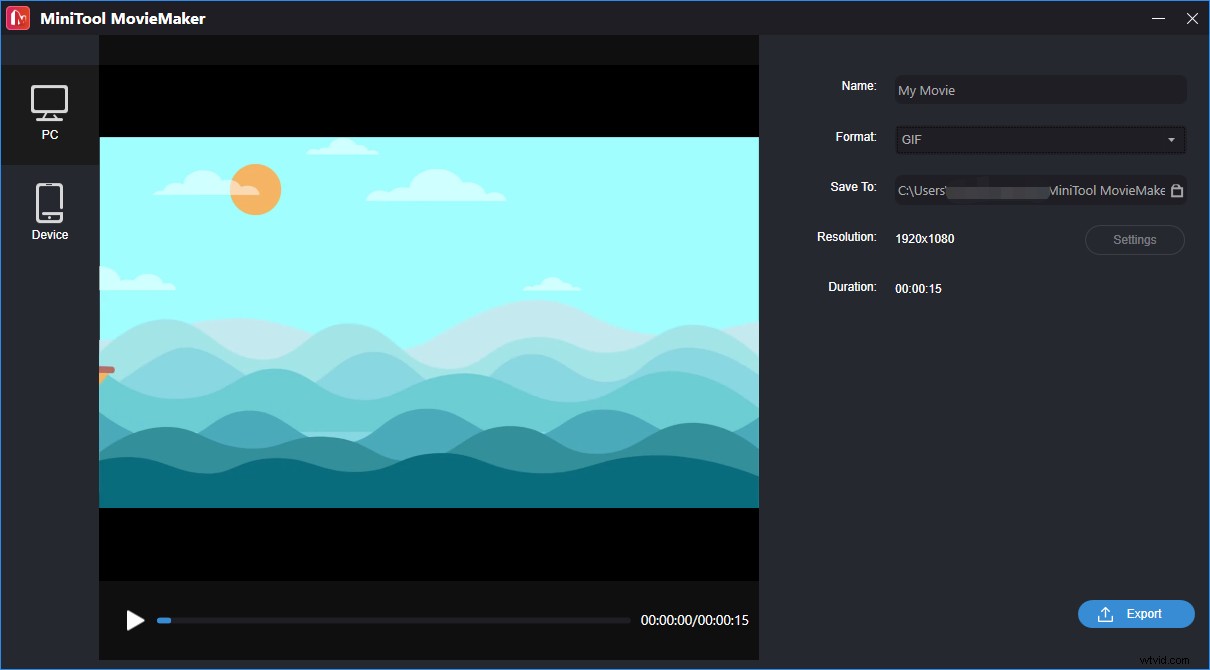
Step 5. In the end, hit the Export button to convert the video to GIF.
Conclusion
How to text a GIF on Android and iPhone? Now, you’ve known the answer. Follow the above guides and send GIFs to your friends for fun!