
Nowadays, people love sharing videos on Twitter. How to post a video on Twitter? How to post a YouTube video on Twitter? This post will give you a satisfying answer. Want to create your amazing Twitter videos or convert a Twitter video to GIF? MiniTool MovieMaker should be the best resort.
Before learning how to post a video on Twitter, let’s look at the Twitter video upload requirements. Currently, MP4 and MOV formats are supported on mobile applications, and on the web, it supports MP4 video format with an H264 format with AAC audio. You can post videos up to 512 MB, but videos must be 140 seconds or less. Here are the limitations on supported video resolutions and aspect ratios on the web.
- Minimum resolution: 32 x 32
- Maximum resolution: 1920 x 1200 (and 1200 x 1900)
- Aspect ratios: 1: 2.39 - 2.39:1 range (inclusive)
- Maximum frame rate: 40 fps
- Maximum bitrate: 25 Mbps
How to Post a Video on Twitter
How to share a video on twitter, there are 4 methods to post a video on Twitter:
- Record videos with the Twitter app on Android and iPhone.
- Import videos from your devices. (Android, iPhone, iPad)
- Share videos with Twitter.com.
- Create a live video from the Twitter app.
Now, let’s focus on the specific steps on how to post a video on Twitter.
Method 1 – How to Record Videos with Twitter APP on Android and iPhone
Step 1. Launch Twitter on your phone.
Step 2. Click the Tweet icon (+ button)
Step3. Tap on the camera icon to take a video.
Step 4. Choose the camera settings.
Step 5. Click and hold the Record icon to record a video.
Step 6. Click the Play button to edit the video.
Note: Maximum Twitter video length is 140 seconds. If your video is longer, trim the video length.Step 7. Click the Done when your editing is completed, and tap the Tweet to post the video.
Method 2 – How to Import Videos from Your Devices
Step 1. Open the Twitter app, and yap the Tweet icon.
Step 2. Click the camera icon and recent videos appear as thumbnail previews.
Step 3. Click the target video to open the editing window.
Step 4. Tap the Trim to trim the video. (Optional)
Step 5. Select the Done > Tweet to share the video.
Method 3 – How to Share a Video on Twitter.com
Step 1. In a web browser, type twitter.com.
Step 2. Click the Gallery icon under What’s happening.

Step 3. Locate the folder, select the video, and tap Open.
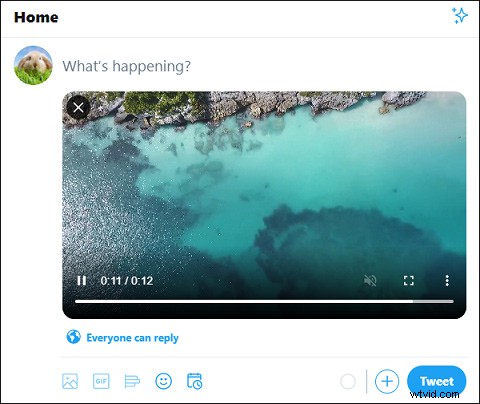
Step 4. Hit the Tweet to post the video.
Method 4 – How to Create a Live Video from Twitter App
Step 1. Run the Twitter app and log into.
Step 2. Click the camera icon from the composer and select the Live at the bottom selector.
Step 3. Click the Add Location to select the location for the live video.
Note: If you want to go live with audio but not video, you can click the microphone to turn off the camera.Step 5. Click the What’s happening and add your text.
Step 6. Tap Go Live to create a live video.
Step 7. Click the Stop button to end the live video
How to Post a YouTube Video on Twitter
Step 1. Open YouTube on your device.
Note: You can open the YouTube app on Android, iPhone, or iPad. If you’re using a computer, type youtube.com in the web browser.Step 2. Click the video you want to tweet.
Step 3. Tap the Share beneath the video to get a pop-up window.

Step 4. select the Twitter button.

Step 5. Edit the tweet. (optional)
Step 6. Click the Tweet to post the YouTube video on Twitter.
Bottom Line
This post shows how to post a video on Twitter with 5 ways including how to post a YouTube video on Twitter. If you like this post, share it with your friends!