
Some Discord users’ profile pictures (PFP) are GIFs. How to make your discord PFP a GIF? This post is going to teach you how to set a GIF as discord PFP, how to make a Discord GIF PFP and how to fix GIF Discord PFP not working.
How to Set GIF as Your PFP on Discord
Discord Nitro subscribers can set animated GIFs as their profile pictures. They have two options to make Discord GIF PFP. One is using Tenor GIFs, the other is uploading GIFs from your device. If you want to create a GIF from a video, MiniTool MovieMaker might be a good choice for you.
Here’s how to make your PFP a GIF on Discord.
Step 1. Open the Discord app and log into your account.
Step 2. Click the gear icon (User Settings) at the bottom left of the window.
Step 3. Click the Edit User Profile button to get the User Profile.
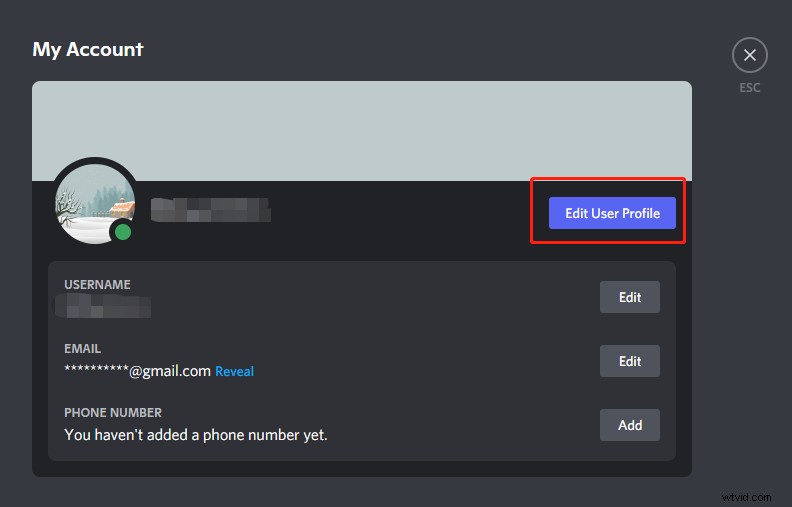
Step 4. Tap on Change Avatar or click your profile picture in the PREVIEW section to change your PFP.
Step 5. In the popup window, upload a GIF from your device or use the built-in GIF search engine. Choose the GIF you want to set as Discord PFP and use the slider to zoom in or zoom out your Discord GIF avatar. Click Apply to save the change.
Step 6. Tap on ESC to exit the User Settings window.
How to Make a Discord GIF PFP
Before making a Discord GIF PFP, it’s necessary to learn about the requirements for the Discord profile picture. The maximum file size for your Discord GIF PFP is 8MB and the recommended Discord GIF PFP size is 128x128 pixels.
How to save a GIF
Step 1. Go to the GIPHY or Tenor website.
Step 2. Search and find the GIF you want to use.
Step 3. Right-click on this GIF and choose Open image in new tab.
Step 4. Then right-click on the GIF and select Save image as… to save the GIF.
How to make a GIF PFP for Discord
Step 1. Visit the EZgif website: https://ezgif.com.
Step 2. Click Resize and upload the GIF needed to be resized. Click Upload!
Step 3. Enter “128” in the boxes of Width and Height and change the resize method as needed. If your GIF PFP is over 8MB, you should choose the resize method Gifsicle.
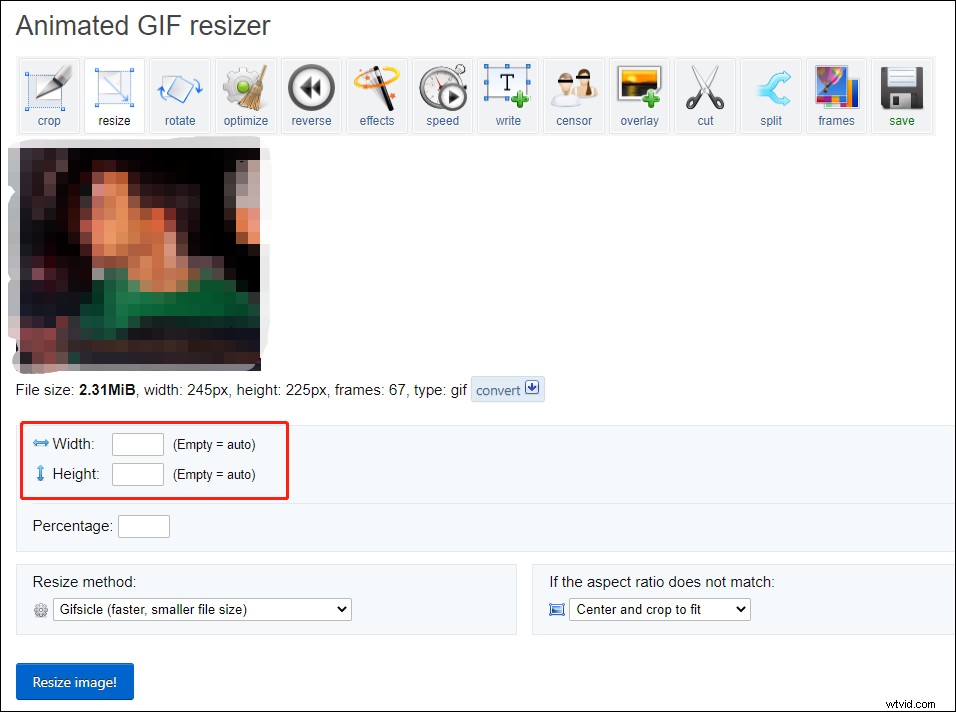
Step 4. When you are done, click Resize image.
Step 5. After that, scroll down to Resized image and click the save button to download this GIF PFP.
How to Fix GIF PFP Not Working on Discord
Can’t upload GIF as your profile picture? GIF PFP not working on Discord? Here are some solutions to solve this problem.
- Make sure you have Discord Nitro.
- Check the Internet connection.
- Make sure the Discord PFP format is GIF, not WebM.
- For iOS users, re-upload the GIF from your PC.
- Reinstall the Discord app.
Conclusion
That’s all about Discord GIF PFP. Follow the above guide to make your Discord PFP a GIF!