
WhatsApp is an instant messaging app that enables users to send text and voice messages, share images, make voice and video calls, send documents, etc. Also, it allows users to send animated GIFs. And this post will show you how to send GIF on WhatsApp on your Android or iOS device.
WhatsApp has a library of GIFs. How to send a funny GIF with friends via WhatsApp? This post comes with a clear tutorial. WhatsApp works on Android, iOS, Windows, macOS, and it also offers a web application, but you can’t send GIF on WhatsApp from your computer. You can send photos, videos, documents, etc. on the web and desktop WhatsApp.
Try MiniTool MovieMaker to convert an animated GIF to MP4 and then upload and share it on WhatsApp from your Windows PC.
How to Send GIF on WhatsApp on Android and iPhone
It’s fun to send a GIF while you’re chatting with a friend or a group. Thanks to WhatsApp’s built-in GIF library, you can share a funny GIF while chatting on your Android and iPhone to convey your feeling.
Below are detailed steps on how to send GIF on Android via WhatsApp.
Step 1. Open WhatsApp and open an individual chat or join a group chat.
Step 2. Tap the Emoji icon (a smiling face) and you’ll see many GIFs.
Step 3. Choose one GIF or search a specific one by tapping the Search button and typing a keyword.
Step 4. Tap the GIF you want to send and the preview pop-up opens. Then you can edit the GIF by adding a caption, cropping, trimming, and more.
Step 5. After editing, click the Send to send the GIF to the person you’re chatting with.
Want a GIF maker to create an amazing GIF and share it with friends via WhatsApp? Check this post - Top 7 GIF Makers for Android Devices.
How to send a GIF on WhatsApp On iPhone.
Step 1. Open your WhatsApp and start a chat.
Step 2. Click the Stickers icon and select the GIF.
Step 3. Tap the Search button and enter a keyword to search for a specific GIF. Also, tap the Recent to show the recently used GIFs. Click the Favorite to see your favorite GIFs.
Step 4. Find and tap the GIF you want to send, and click the Send icon.
You can not only send GIFs from WhatsApp’s built-in GIF library, and also you can share your saved GIFs from your device to WhatsApp.
While you’re chatting with a person or a group, click the + icon next to the message box, and then select the Photo & Video Library. Next, choose a saved GIF on your phone and tap it to send it from your camera.
Alternatively, you can click on a video from your camera roll and choose the GIF option from the editor screen, then this video will turn into a GIF. Finally, click the Send.
How to Send Photos and Videos on WhatsApp from a Computer
This section will show you how to send photos and videos on WhatsApp from your computer.
Step 1. Go to the Web WhatsApp or open the WhatsApp desktop app, then open WhatsApp on your phone, and scan the QR code to log in.
Step 2. Start or join a chat, click the Attach icon, then select the Photos & Video to select pictures or videos from your computer. Or click the Camera to take a picture with your computer’s camera.
Note:
You can add and send up to 30 pictures or videos at once, then you can add a caption to each one. A single video file size cannot exceed 16 MB.
Step 3. Tap the Send button to share pictures or videos.
Do you want to save videos from WhatsApp? Read this post - How to Save Video from WhatsApp (Phone/Computer).
As mentioned before, you can not upload an animated GIF from your computer to WhatsApp. But luckily, you can turn this GIF into an MP4 video, and then follow the above steps to send it. How to convert an animated GIF into an MP4 file? MiniTool MovieMaker is recommended here.
MiniTool MovieMaker is a free GIF to video (MP4, AVI, WMV, MKV, MOV, and more) converter. Before the conversion, you can edit the GIF by rotating, adding text, or you can combine multiple GIFs into a GIF or video, and more. This program is free and simple to use.
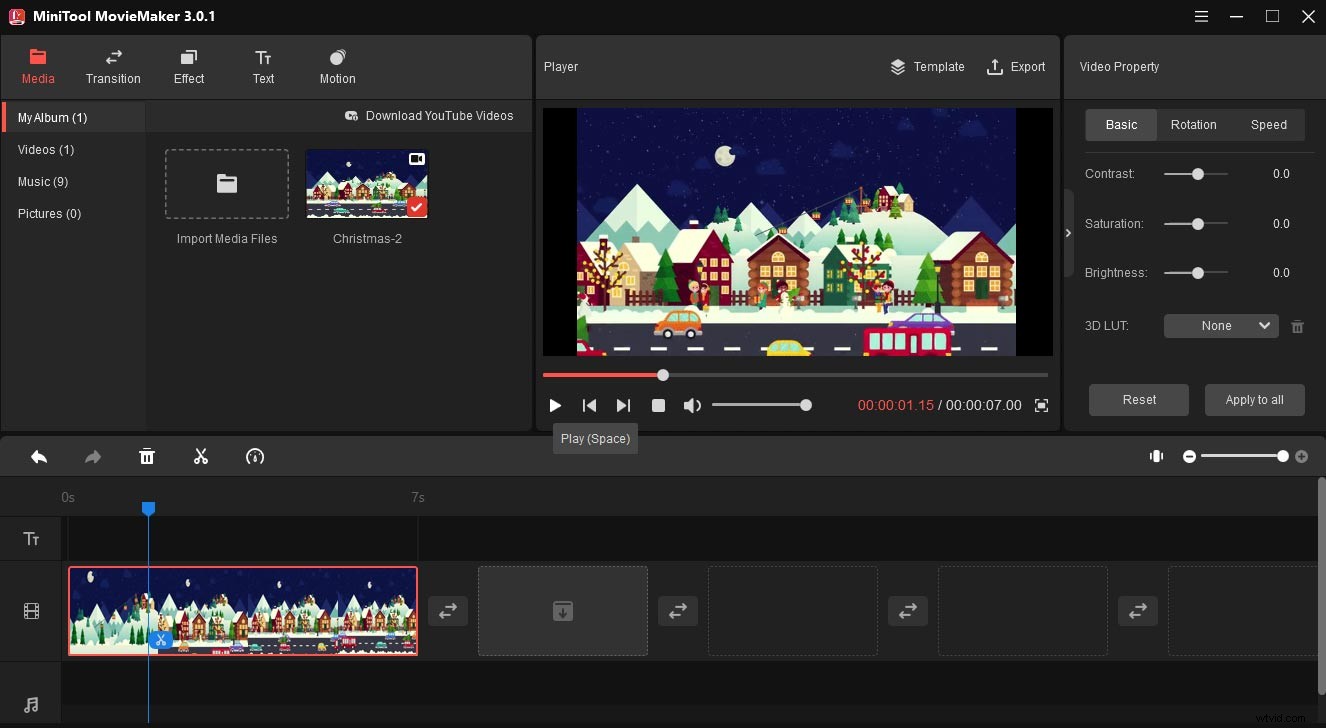
Step 1. Launch MiniTool MovieMaker after installation, click the Import Media Files to add your GIF.
Step 2. Drag it to the timeline and edit the GIF optionally.
Step 3. Tap the Export button, choose an output folder, and click the Export to start the GIF to MP4 conversion.
Conclusion
This post offers clear instructions on how to send GIF on WhatsApp on your Android and iPhone. To send a GIF from your computer via WhatsApp, try MiniTool MovieMaker or other GIF to video programs to convert it to a video.
And if you need to record WhatsApp calls, you can try MiniTool Video Converter to record a video call on your Windows PC.