
Usually, computers and mobile phones have built-in video players but their functionalities are limited. Therefore, you may want to set VLC media player as default on your device. How to make VLC default player on your device? This post will tell you the answer.
VLC media player is a free, open-source, and cross-platform multimedia player. It can play videos and audio files in any format and supports streaming online videos from websites. It’s multifunctional and packed with lots of features. If you want to change your default player to VLC media player, read this post and you will learn how to make VLC default player on various platforms. (To change the video format, you can try MiniTool MovieMaker or MiniTool Video Converter.)
How to Make VLC Default Player on Windows 10
Here are three simple methods to make VLC the default player on Windows 10.
Method 1
Step 1. Tap on the Search icon on the taskbar and type “settings” in the search bar. Then open the Settings app.
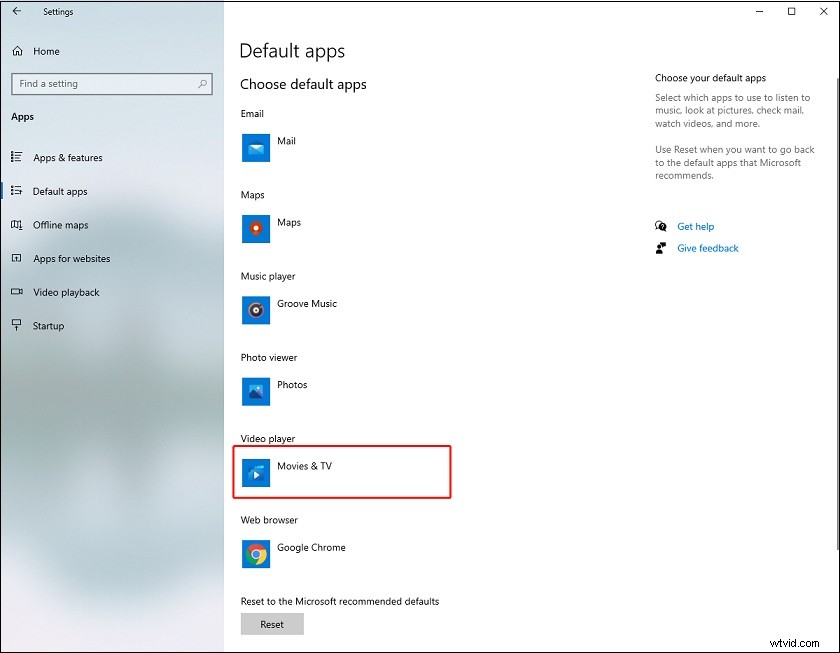
Step 2. Click on Apps and choose the Default apps option in the left panel.
Step 3. Click on the app (Movies & TV) under the Video player and choose VLC media player from the pop-up window. If you wish to set VLC as the default music player, click the app under Music player and select VLC media player.
Method 2
Step 1. Right-click on the video file that you can’t open with Windows media player.
Step 2. Choose Open with > Choose another app.
Step 3. Select the VLC media player under Other options and check the Always use this app to open xxx files.
Method 3
If you want to make VLC the default video player when playing videos in MP4, MKV, AVI, or other formats. Here’s how:
Step 1. Open the Settings app and go to Apps > Default apps.
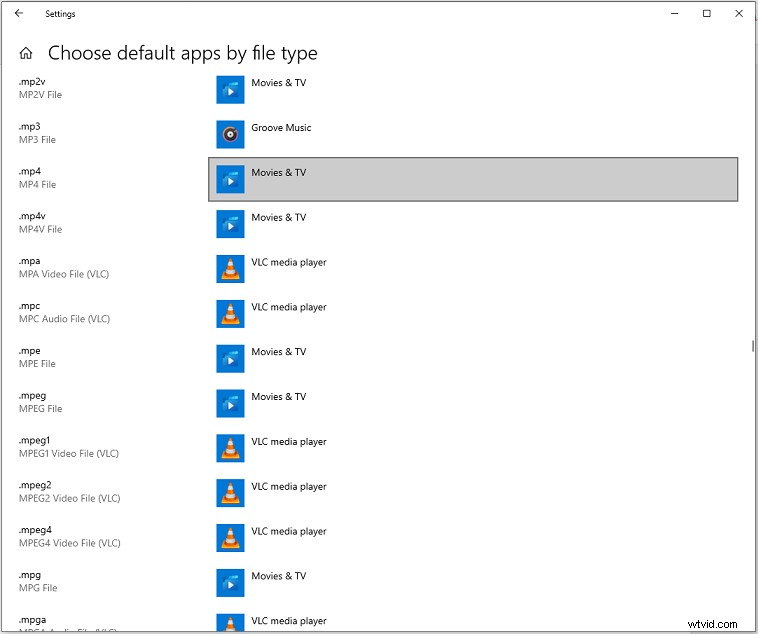
Step 2. Scroll down this page and tap on Choose default apps by file type.
Step 3. On the Choose default apps by file type window, find the desired format and tap on its default player, and choose VLC media player.
How to Make VLC Default Player on Mac
Below are the detailed steps on how to make VLC default player on Mac.
Step 1. Find the video you want to play and right-click on it.
Step 2. From the drop-down window, choose the Get Info option.
Step 3. Then, click on Open with and change the default app to VLC.
Step 4. Click on Change All… and then tap on Continue.
Related article: 5 Best Free 4K Video Player for Windows and Mac
How to Make VLC Default Player on Android
Here’s how to change the default video player on Android devices.
Step 1. Go to Settings.
Step 2. Next, click on Application Manager.
Step 3. In the Application Manager, find the video player app that you’re using and tap on it.
Step 4. Tap on Clear defaults under the Launch by Default.
Step 5. Then, open a video, select VLC as the default player, and tap on Always.
Conclusion
This post shows you how to make VLC default player on Windows, Mac, and Android. Now, it’s your turn!