
An animated GIF is a good way to express your feelings. And now many messaging apps support GIFs, including Snapchat. But how to send GIF on Snapchat snap? How to send GIFs on Snapchat messages? This post gives clear steps. Want to edit your GIF for free? Try MiniTool MovieMaker.
Sometimes, you may want to send GIF on Snapchat to someone. How to make a GIF on Snapchat? How to send GIF on Snapchat? And how to send GIF on Snapchat messages? Check the following steps and learn how to send GIF on Snapchat.
How to Send GIF on Snapchat Snap
This part will describe how to send GIFs on Snapchat and this method can be applied to Snapchat for iPhone and Android devices.
Step 1. Launch Snapchat, click the camera icon to take a snap.
Step 2. Click the sticker icon on the right side of the screen and click the GIF button.
Step 3. Search and find a GIF form the GIPHY window and add it to your picture. Then you can drag and drop the GIF to any position on your snap.
Step 4. Finally, click the Send at the bottom right corner to send the GIF to a friend to post it to your story.
Where to find cute animal GIFs? Check this post - The Best Websites for Cute Animal GIFs and Videos.
How to Send GIF on Snapchat Messages
Sending GIF on Snapchat messages is a good way to make conversations interesting. How to send a GIF on Snapchat chat on Android and iPhone?
For Android
If you want to send GIF on Snapchat messages on your Android phone, you need the help of Gboard app. Most Android phones have installed Gboard by default. If you don’t have it, go to Google Play Store to download and install it.
Then set it as the default keyboard by clicking Settings > System > Languages and Input > Mamage Keyboards and turning the Gboard slider on.
Next follow the steps on how to send a GIF on Snapchat chat.
Step 1. Open your Snapchat, and go to the chat room of the person you’d like to send GIF to.
Step 2. Click the text bar to open the keyboard, and click the GIF option, and you’ll see many GIFs.
Step 3. Choose a GIF and send it to your friend.
For iPhone
If you want to send GIF on Snapchat messages on your iPhone, try GIPHY keyboard. After installing the GIPHY app on your iPhone, open iPhone settings, and click General > Keyboard > Keyboards > Add New Keyboard… > GIPHY and switching on Allow Full Access button.
Follow the steps to send GIF on Snapchat chat.
Step 1. Open your Snapchat and open the chat room of the person you’d like to send GIF to.
Step 2. Open the keyboard and press the globe icon and select GIPHY from the list.
Step 3. Then choose a GIF and click the Send to send it to your friend.
How to Send GIF on Snapchat from Camera Roll
You might have many GIFs in your image gallery and sometimes you want to share an interesting your saved to a friend on Snapchat. How to send a GIF on Snapchat from your camera roll?
Step 1. Go to your camera roll and open the GIF.
Step 2. Tap the Share button and then choose Snapchat icon from the list.
Step 3. Send the GIF to a friend or directly post it to your story.
Best GIF Maker for Windows
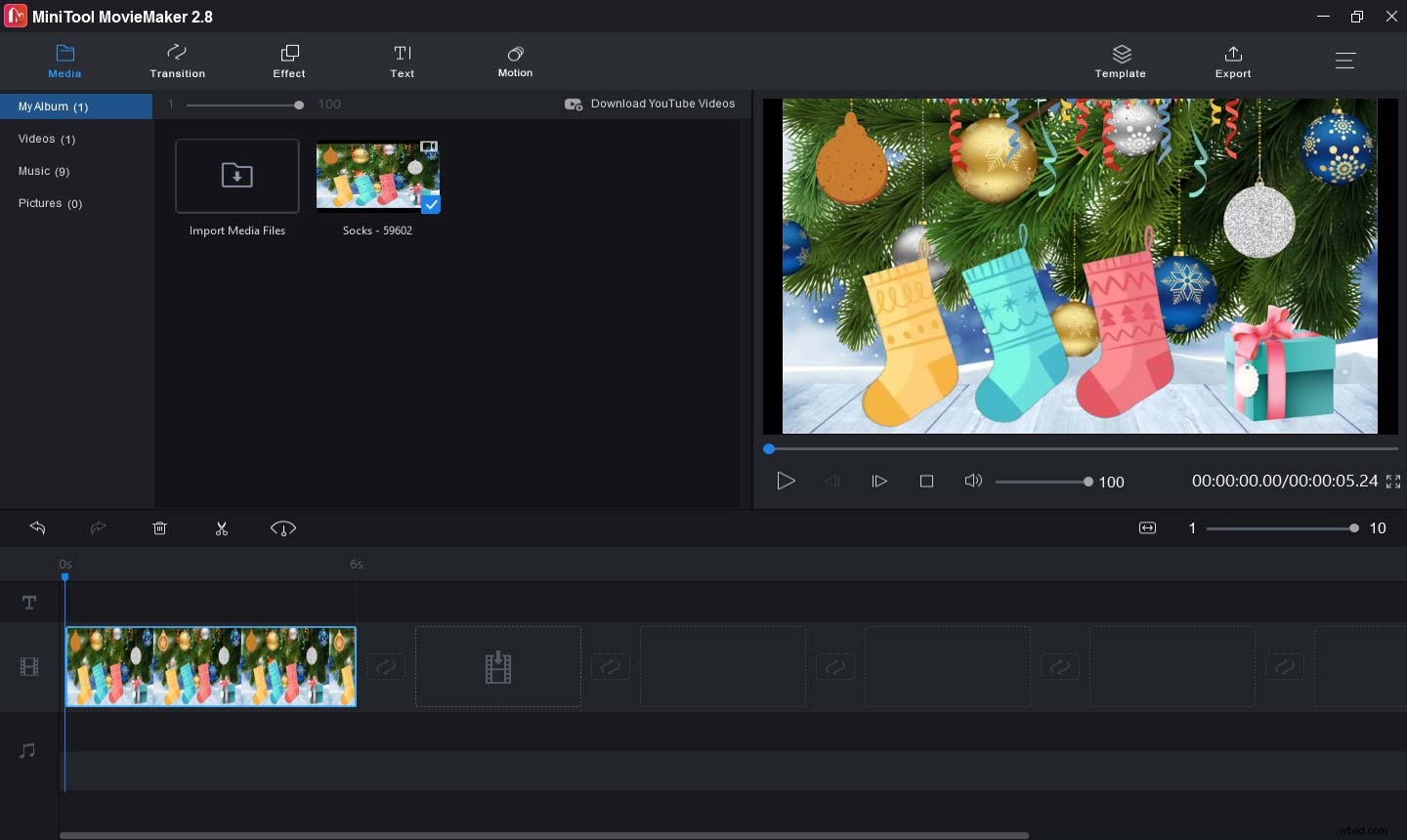
And if you want to make a GIF from a video clip on Windows, you can try MiniTool MovieMaker. It is a free video to GIF converter that lets you make a GIF from multiple video file types. And before conversion, you can also edit your video clip like trimming, splitting, rotating, adding filters, and more.
Conclusion
That’s all about how to send GIF on Snapchat. You can choose a method and share your favorite GIF with friends.