
Learn from the step-by-step instructions on how to use Voicemod on Discord to surprise and impress your friends and folks!
How to Use Voicemod on Discord
Has it ever occurred to you that you can catch your friends off guard in Discord’s chatting room, using a totally different voice, say a cute girl’s voice? The voice-changing is an old-school prank and it still works today. The best part about voice-changing is that it brings nothing but rejoicing and surprise but no annoyance, which makes it acceptable to the most.
Thanks to the development of voice-changing software and applications, it now becomes much easier to do voice-changing than before.
On this page, we’ll talk about how to change voice using Voicemod for Discord conversations on desktops and mobile phones. The detailed steps to setting up and using Voicemod on Discord are as followed, now let’s take a look.
Related Post: 4 Best Voice Changers for YouTube Videos
Basic Knowledge of Voicemod
Acquiring the basic information about Voicemod helps you more quickly get started. Voicemod is a piece of voice-changing software that works on 64bit Windows 10 and 11. Unlike video voice changers, Voicemod alters your voice in real time.
When using this real-time voice changer Voicemod with the chatting & hang-out app Discord, you get to talk to your friends or strangers using a totally different voice.
While we’re going to talk about how to use Voicemod on Discord, please note that Voicemod is not an exclusive application for Discord but a compatible voice-changing tool that also works on other chatting platforms such as ZOOM, Google Meet, Minecraft, etc.
In the following part, you’ll find out the detailed steps to using Voicemod on Discord, which includes the Voicemod and system audio input setup, and the process of connecting Voicemod to Discord.
Do Not Miss: The 12 Best Random Chat Apps for PC and Mobile
How to Setup and Use Voicemod on Discord for Desktops
Step 1. Download and Install Voicemod
To get started, you need to first free download the Voicemod for Discord from the official source: https://www.voicemod.net/discord-voice-changer/
Step 2. Configure Audio Input and Output
Launch the Voicemod application on your computer and now you’re in the main interface. Hit the Settings button from the left panel, and check from the Audio tab that your Input and Output device is correctly set up.
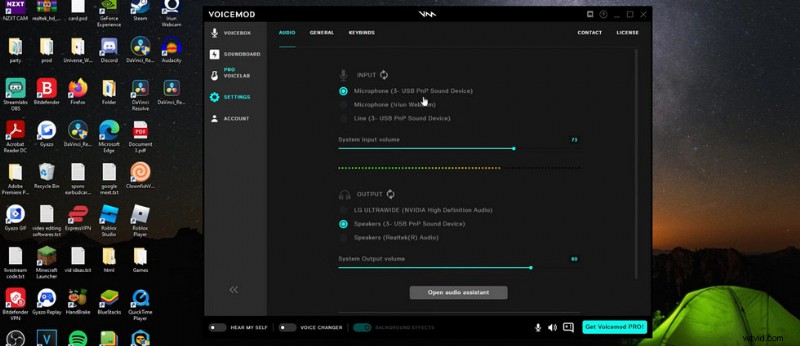
Setup Voicemod Input and Output
Step 3. Check System Input Device
Go to the lower-left Windows search bar, search for and go to ‘Sound settings’ and check that your Input device is set as Microphone (Voicemod Virtual Audio Device (WDM)).
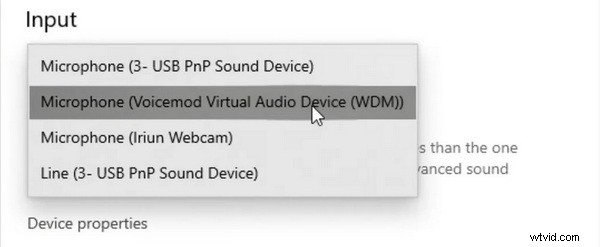
Check Input Device on Computer System
Step 4. Connect Voicemod to Discord
Launch Discord on your computer. From Discord’s main interface, hit the little cog icon to enter the User settings menu, and go to the Voice & Video tab.
Set up your Discord Input and Output devices to be in alignment with that of your system and Voicemods.
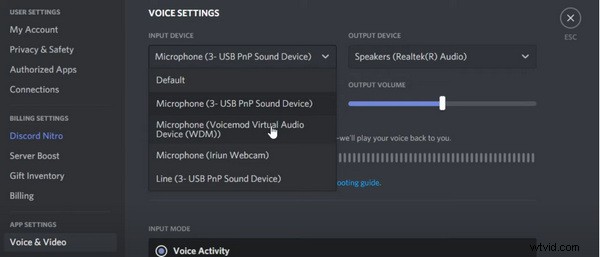
Connect Voicemod with Discord App
Step 5. Choose a Voice in Voicemod
Now let’s head back to the Voicemod application. Hit the VOICEBOX button from the left panel, and then you can select a favored voice to change your voice to. Try one from TODAY’S FREE VOICES section!
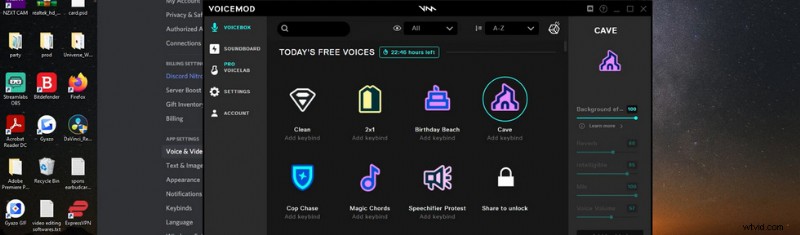
Choose a Voice in Voicemod for Discord
Step 6. Activate Voicemod Voice Changer
Lastly, from the main interface of the Voicemod app, switch on VOICE CHANGER from the bottom to activate the voice-changing feature. You can also enable the HEAR MY SELF option to hear your own voice while you’re speaking.
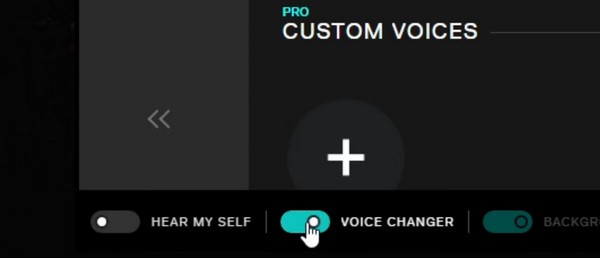
Activate Voicemod Voice Changer for Discord
How to Use Voicemod on Discord on Android Phones and iPhones
Since the Voicemod application is only compatible with Windows 10 and Windows 11 personal computers, and the only Voicemod app for Android phones and iPhones is the Voicemod Controller App, it’s not possible to use Voicemod on Discord on Android phones and iPhones.
However, there is a workaround. To use Voicemod on Discord on Android and iOS, you should opt for a voice changer for discord mobile. Check below for recommended Voicemod mobile alternatives.
Best Voice Changer Apps for Discord Mobile
- Voice Changer with Effects (Android)
- Voice Changer Plus (iOS)
- Voicer Celebrity Voice Changer (Android)
Using Voicemod on Discord: The Benefits
As mentioned, changing your voice on Discord is a good and classic prank, yet the benefits of using Voicemod on Discord are not limited to just that.
Check out the benefits of using Voicemod on Discord:
- Pull a nice and friendly prank on everyone without getting mad at
- Give yourself a sense of mystery in Discord chatting rooms
- Chat with full anonymity in an unfamiliar Discord chatting room
- Play a different type of character or a different gender
- Use a more fitting voice to create specific content
Why is Voicemod not Working on Discord?
If there isn’t any hardware issue with your microphone or headphone/speaker, then the main reason for the Voicemod not working on Discord issue is the incorrect setup of the input and output devices of Voicemod and Discord.
Make sure the input device for Voicemod, Windows System, and Discord have all been set to Microphone (Voicemod Virtual Audio Device (WDM)), and the output devices of them are set to the one you’re currently getting audio from.
To Sum Up
As you can see from the content above, there are a lot of benefits to using Voicemod on Discord, especially if you’re a heavy Discord user. Whether it’s for making fun or keeping anonymous, Voicemod can serve as a great voice-changing tool for Windows 10 and Windows 11 computers.
So don’t hesitate to follow the tutorial and give it a try! And if you have any questions then, leave us a message in the comment section below. Happy chatting!