
Sometimes, due to light, the color of the photos you take may not be ideal. In this case, you can recolor the image. Fortunately, here we detail 3 methods to help you recolor images for free. Want to correct the color of videos? MiniTool MovieMaker is recommended here.
How to recolor an image when you’re not satisfied with its color? To solve this annoying problem, here list 3 different methods, all of which are free and easy-to-use. Let’s check these methods one by one.
1. LUNAPIC
LUNAPIC is one of the best online photo editors, which never lets you down when it comes to doing the task of recoloring images. With it, you can not only recolor image online but also change the color of the eyes.
Related article: Top 10 Best Photo Viewers for Windows 10 (2020)
Steps on how to recolor images with LUNAPIC:
Step 1. Visit the LUNAPIC site on your browser.
Step 2. Click the Upload option on the upper left and import your image file.
Step 3. Once you uploaded your image, click the Adjust button in the top toolbar and select Replace Color from the list.
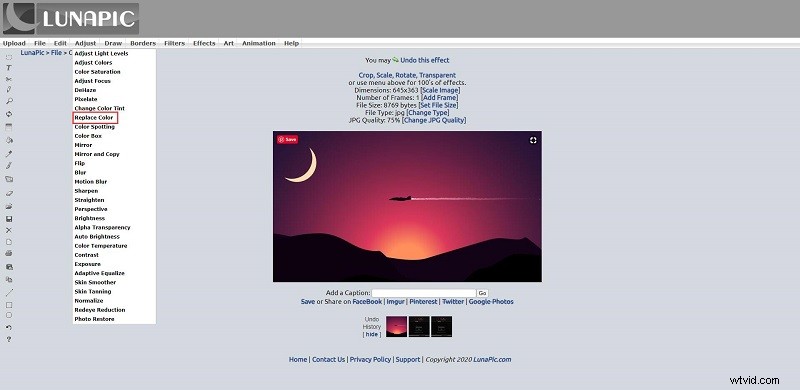
Step 4. Choose the color that you want to add to your image from the color palette box next to New Color.
Step 5. Click the color on the image that you want to replace by the color you selected.
Step 6. Use the slider at the top to adjust the threshold of the color.
Step 7. Click Apply color to save all changes.
Step 8. Now, you can save the new image on your PC or directly share it on popular media platforms.
You might be interested in: Best DVD Burning Software - Burn Image/Audio/Video to DVD
2. PIXEL E
PIXLR provides two online photo editors - PIXLR X and PIXLR E for you to choose from. Both of them can open almost any image format, such as PSD (Photoshop), PXD, JPEG, PNG (transparency), WebP, SVG, etc. To recolor image online, we recommend PIXLR E.
Steps on how to recolor images with PIXLR E:
Step 1. Navigate to the PIXLR site on your computer and select PIXEL E on the main interface.
Step 2. Select OPEN IMAGE or LOAD URL to upload the image that you want to recolor.
Step 3. Click the color circle from the left pane and then choose the desired color from the color palette.
Step 4. Choose the Color replace tool and start brushing the image. You can adjust the brush size and tolerance level at the top.
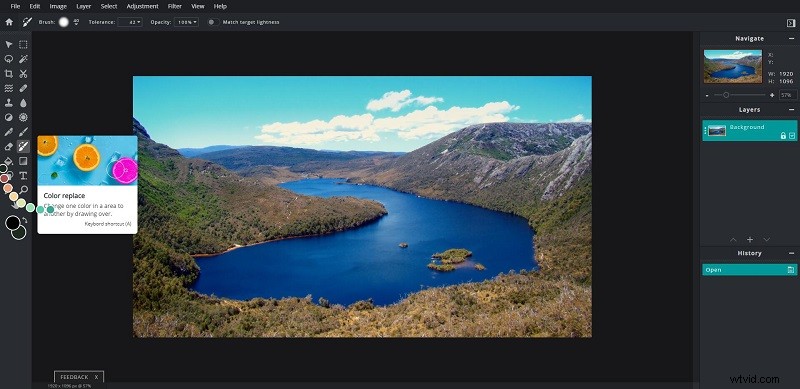
Step 5. Go to File > Save to download the image you recolored.
3. PowerPoint
PowerPoint is a tool familiar to most people, which is mainly used to create, edit, view, present, or share presentations quickly and easily. However, almost no one knows that it provides a tool to recolor images.
Steps on how to recolor images with PowerPoint:
Step 1. Open your presentation at first.
Step 2. Go to Insert > Pictures to add the image to the presentation.
Step 3. Select the image and click the Color option under the Format tab.
Step 4. Choose a style to recolor your image under Recolor. Then the image will be recolored at once.
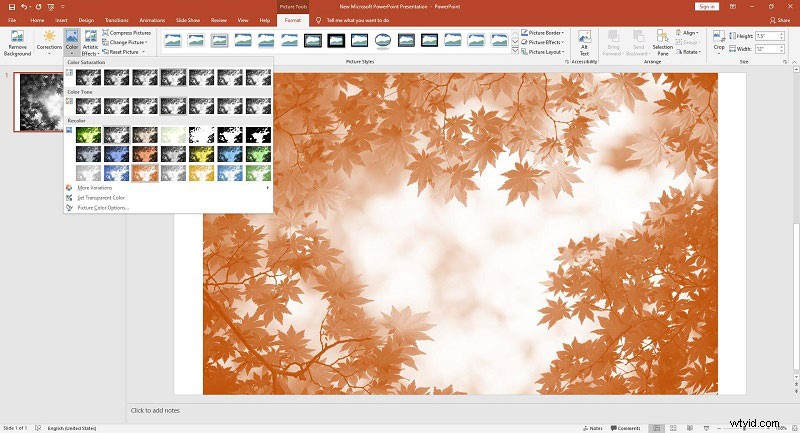
Step 5. Right-click the recolored image and select Save as Picture to download it to your computer.
Bottom Line
Have you mastered how to recolor images after reading this post? If you have any questions or suggestions about it, please let us know via admin@wtvid.com or share them in the comments section below.