
Sometimes, you may need to blur some information or background in a picture to protect your privacy before posting it on social media platforms. So how to blur a picture? Here offer 3 effective methods to blur images, you can choose the suitable one and have a try!
To prevent the leakage of personal information, it’s necessary to hide some information from a picture like address and phone number when sharing it on social networks. What should you do? Crop the picture or blur the picture? To be honest, compared with cropping, blurring might be the best way to solve this problem. Want to convert pictures to video? Try MiniTool MovieMaker.
Thus, this post will teach you how to blur a picture step by step in 3 ways.
Method 1. How to Blur a Picture in Photoshop
Photoshop is a versatile photo editor that has all photo editing tools including the blur tool. Using the blur tool, you can blur background, face and anything you want.
Now, let’s see how to blur a picture in Photoshop.
Step 1. Open the Photoshop program.
Step 2. Go to File and open the picture that you want to blur.
Step 3. Choose the Lasso tool or the Marquee tool from the toolbar and circle the area you want to blur.
Step 4. Then click on Filter in the menu bar and choose Blur > Gaussian Blur.
Step 5. In the Gaussian Blur window, you can move the slide bar to completely blur the desired part of the picture. Then click the OK button to save changes.

Step 6. In the end, export the blurred picture and save it to your computer.
Tip: If you want to blur the whole picture, simply import the picture and go to Filter > Blur > Gaussian Blur to blur the image.
Method 2. How to Blur a Picture in Fotor
Trusted by 300M+ users, Fotor is one of the most popular design makers that helps people create awesome images. By using Fotor, you can add effects to pictures, retouch pictures and edit your pictures like blur, resize, crop, background remover and so on.
Here’s how to blur a picture.
Step 1. Open the browser and go to the Fotor website.
Step 2. Once you are here, click on Edit a Photo.

Step 3. Click the + icon to upload the image you want to blur.
Step 4. Tap on Effect in the left sidebar and scroll down this page to find the TILT-SHIFT effect. Then click it.
Step 5. There are two blur options: Circular and Linear. You can choose the one you like and adjust the position of the blur area, change its size and blur intensity.
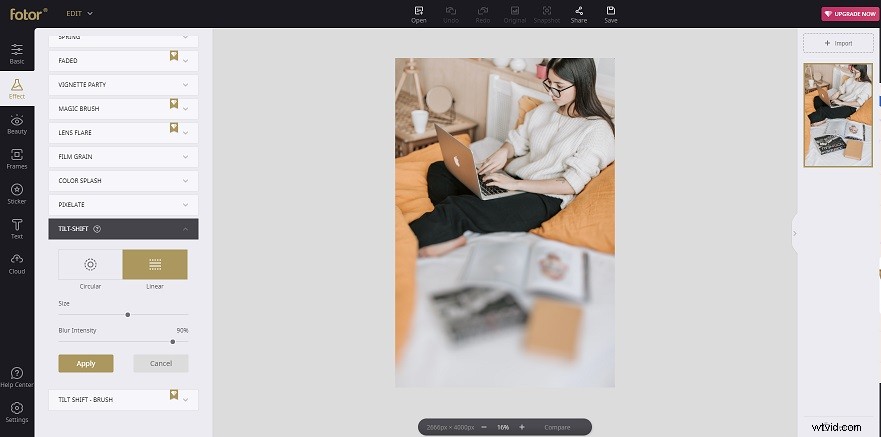
Step 6. When you are done, click on Apply to save changes.
Step 7. Lastly, press the Save button to download the blurred image from the website.
Related article: How to Change DPI of Image with 2 Online DPI Converter.
Method 3. How to Blur a Picture in PowerPoint
Do you know how to blur a picture in PowerPoint? Here are the detailed steps on how to make a blurred image in PowerPoint.
Step 1. Open PowerPoint and insert the picture that needs to blur.
Step 2. Choose the picture and navigate to Picture Format > Artistic Effects.
Step 3. Select the Blur option from the drop-down menu.

Step 4. Then right-click on the blurred picture and save it.
Conclusion
After reading this post, you must know how to blur a picture. Try the above-mentioned ways and make a blurred image. If you have better suggestions about blur image or blur background, share them in the comments section!