
PDF is a universal file format used to present documents in a way that is independent of apps, hardware, and operating systems. The advantage of sharing pictures in PDF format is that you can ensure that the file can be opened and viewed in the best way regardless of the recipients’ platforms. To achieve the above, you must understand how to convert picture to PDF on iPhone.
There may be many reasons why you want to convert pictures to PDF. Read the following content and you will find that it is not complicated to understand how to convert picture to PDF on iPhone.
Want to make a great slideshow with your pictures and export it in multiple formats? MiniTool MovieMaker is a free and easy-to-use tool.
Use Files app to Convert Picture to PDF on iPhone
If you want to know how to convert picture to PDF on iPhone free, read the following steps.
Step 1. Open the Photos app on your iPhone and select one or more pictures to be converted to PDF files.
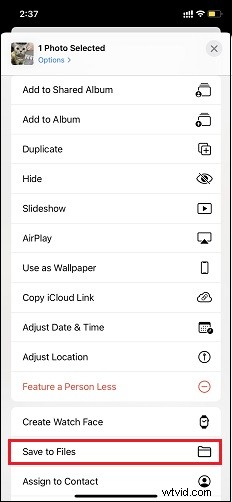
Step 2. Click the Share button in the lower-left corner, then click the Save to Files option and choose the location you want to save.
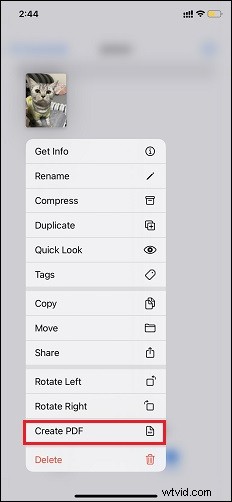
Step 3. Open the Files app and find the location where you saved the picture. Next, long-press the picture and choose the Create PDF option in the pop-up window.
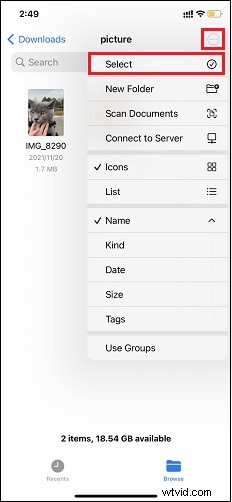
Step 4. If you want to convert multiple pictures to PDF at once, click the Three-dot icon in the upper right corner. Then, click Select and pick all the pictures you want to convert to PDF.
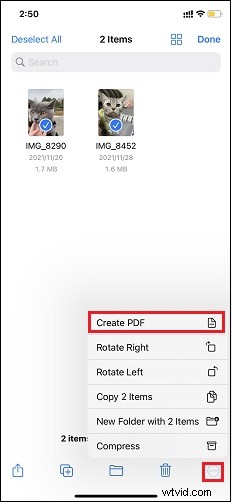
Step 5. Click the Three-dot button in the lower right corner and select the Create PDF option in the pop-up window.
Use Printer Option to Convert Picture to PDF on iPhone
Step 1. Open the Photos app on your iPhone and choose the picture you want to convert to a PDF document.
Step 2. Click the Share button in the lower-left corner and click the Print option.
Step 3. In the new window that pops up, expand the picture displayed at the bottom with two fingers.
Step 4. Click the Share button in the lower-left corner, and you can see that it has become a PDF document in the pop-up window.
Use Apple Books app to Convert Picture to PDF on iPhone
If you want to know how to turn a picture into a PDF on iPhone in a simpler way, the Books app that comes with iPhone is a great choice.
Step 1. Open the Photos app on your iPhone and select the picture you want to convert to a PDF document.
Step 2. Click the Share button in the lower-left corner and choose the Books app.
Step 3. If you don’t see the Books app in the window, swipe to the left, click the More button and you will see the Books app.
Step 4. After completing the above operations, the picture you selected will be automatically converted to a PDF file and automatically opened in the Books app.
Conclusion
The above three methods are equally feasible and easy to operate. Once you have mastered how to convert picture to PDF on iPhone, you can use PDF for paperwork documents, classwork or other specific purposes you want.