
With the continuous development of smartphones, you should also always pay attention to your privacy protection. The privacy and security of photos in your mobile phone is a big issue that you should notice. This article will mainly introduce how to hide photos on iPhone to protect your privacy.
Let’s take a look at the relevant knowledge on how to hide photos on iPhone.
If you want to make a video or slideshow with your photos, MiniTool MovieMaker is highly recommended to you.
Why Hide Photos on iPhone?
You may consider that you don’t want others to see some of the photos in your iPhone, or that you don’t want some important photos to fall into the hands of others when your iPhone is lost.
The above questions are also the reason why most of you want to hide photos on your iPhone.
How to Hide Photos on iPhone?
In order to save you some unnecessary troubles and avoid things that are unfavorable to you, there are three ways to help you effectively hide photos on your iPhone.
How to Hide Photos in the Photos App on iPhone
Step 1. Open the Photos app and select one or more photos you want to hide.
Step 2. Click the Share button in the lower-left corner of the screen.
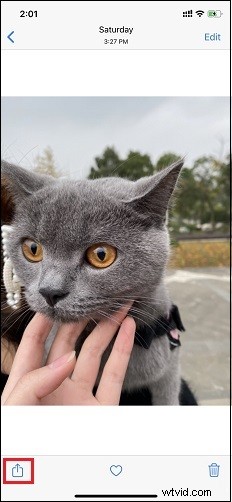
Step 3. Swipe down the taskbar window that pops up, and click the Hide option.
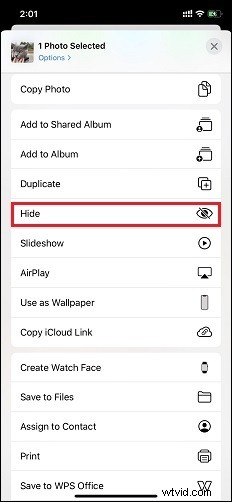
Step 4. Click Hide Photo in the pop-up window to confirm.
The photos you have hidden have been moved from your main album to an album named Hidden. If you want to know how to see hidden photos on iPhone, you just need to open the Photo app and swipe down until you see the Hidden album.
How to Hide the Hidden Album in the Photos App
Step 1. Open the Settings app.
Step 2. Swipe down to find the Photos app.
Step 3. On the Photos page, find the Hidden Album and slide it to the left to change it from green to grey.
After you complete the above operations, the album you have hidden will no longer appear in the Photos app. If you want to unhide the album, you just need to go back to the Settings app and turn on the Hidden Album.
How to Lock Photos in the Notes App on Your iPhone
Do you still want to know how to hide photos on iPhone with a password? Then the following method is perfect for you.
Step 1. Open the Photos app and choose the photos you want to hide.
Step 2. Click the Share button and click the Notes icon in the new window that pops up.
Step 3. Choose your storage location and click Save.
Step 4. Open the Notes app and select the note that you saved the photo.
Step 5. Click the Share button in the upper right corner of the screen.
Step 6. In the pop-up list, select Lock Note.
Step 7. Set a password, confirm the password, and create a hint in case you forget the password. Click the Done button in the upper right corner.
When you are done, a lock will appear in the upper right corner of your note, and you cannot view the note. To unlock the note, you only need to click the Lock icon and enter the correct password.
Conclusion
After reading this article, I believe you have a certain understanding of how to hide photos on iPhone.
If you have never paid attention to the privacy of photos before, then it’s time for you to act.