
If you take a lot of selfies on your iPhone or iPad, you already know how the final image is not the same as the one you saw in the camera preview. This is because the preview is flipped to make it seem like you’re looking in the mirror, but the final image you get is what the camera actually sees, which is also what someone looking at you would see.
But what if you want the final image snapped with the iPhone camera to stay flipped and mirrored? Of course, there’s a setting for that.
How to Mirror Photos Taken with Front Camera on iPhone & iPad
Mirroring the front camera is actually a pretty easy and straightforward procedure, but it’s not done within the Camera app itself. Make sure your device is running iOS 14 or later since earlier versions do not have this capability.
- Head over to “Settings” from the home screen of your iPhone.

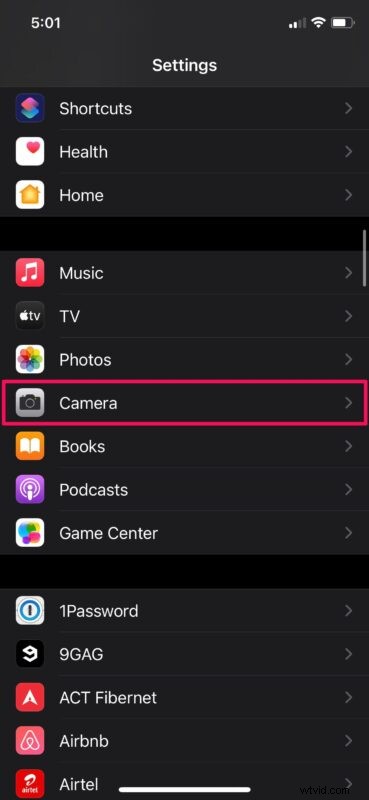
- In the settings menu, scroll down and tap on “Camera” to adjust your camera settings.
- Here, you’ll notice the option to mirror the front camera under the Composition category, as shown below. By default, it’s set to off. Tap once on the toggle to enable it.
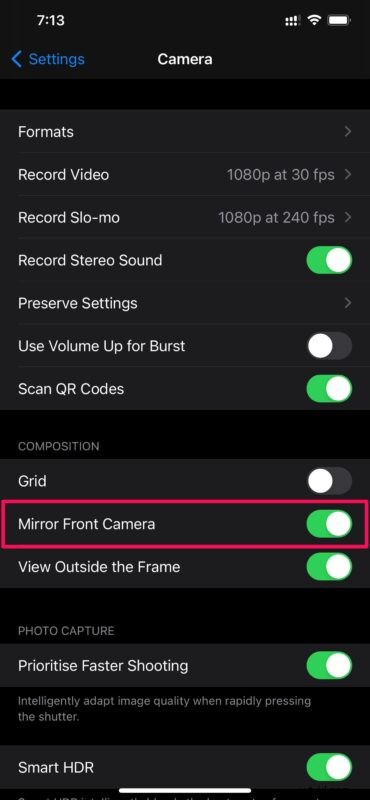
That’s pretty much all there is to it.
Now, if you launch the stock Camera app and take a selfie, you’ll find that the final image looks exactly the way it did in the preview.
Keep in mind that the camera still sees you the way it did before, except that it flips the picture immediately after it’s captured.
It’s very important to note that not all iPhone models have this option in settings. As of this writing, iPhone XR, iPhone XS, iPhone XS Max, iPhone 11, iPhone 11 Pro, iPhone 11 Pro Max, iPhone 12, iPhone 12 mini, iPhone 12 Pro, iPhone 12 Pro Max and newer models are supported. We’re not quite sure why older models aren’t supported, but maybe that will change in the future.
Prior to the iOS 14 update, you could only do this manually by mirroring or flipping the final image using the built-in photo editor. Therefore, if you have an unsupported iPhone or if you haven’t updated your device to iOS 14 or later, you can use that method instead.
Did you adjust this setting to get your selfies to look like mirrored images? What do you think of this feature? Let us know in the comments. And if you’re a fan of selfies, don’t forget you can use selfie flash too to brighten up your front facing photos.