
This page is the complete guide on how to slow-mo a video on Windows, Mac, online, Android, iOS, etc. And you’ll also learn about the best free video editing software for slow-motion effects.
In this post, you’ll find four free and working methods to how to make smooth slow motion on ANY device including Android/iOS smartphones, Windows PC, and Mac PC. All introduced methods have been tested to be free and easy, and they work like a charm in making motions and scenes slow-motion smoothly. While we were testing, the output clips look absolutely amazing, so don’t hesitate to follow the tutorials, try it on your own, and impress your friends!
The methods introduced in this post can be used to slow down an entire video, or particular movements and scenes in a video.
Popular Posts: How to Slow Down TikTok, 10 Best Gaming Video Editing Software, 10 Best Chroma Key Software
Content Table:
What is Video Smooth Slow Motion EffectHow to Do Smooth Slow Motion in CapCut(Android/iOS)
How to Make a Video Slow Motion on Windows
How to Smooth Slow Motion in iMovie(Mac/iPhone)
How to Make Smooth Slow Motion Online
Bonus Tip: Best Slow Mo Video Editor
What is Video Smooth Slow Motion Effect
Slow-motion, or slow-mo in abbreviation, is a practical video editing technique with which you get to slow down a specific motion or scene to make the motion of the character or the visual much clearer in a bid to reveal more details. Different from the slowing down videos technique which slows down the entire footage, video slow-motion editing is only used to slow down and point up a proportion of which.
One of the more common applications of video slow-motion is the awesome time-lapse videos we see on video-sharing platforms like YouTube and TikTok. With the emphasis on the movements, all the easily omitted details in the motions are now within sight.
How to Do Smooth Slow Motion in CapCut(Android/iOS)
CapCut video editor, the video editing app for TikTok, is an all-in-one video editing toolkit for mobile video editors. It works on Android phones and iPhones and has a wide scope of video editing features including slow-motion effects.
Slow-motion video effect on CapCut can be implemented with the in-built slow-mo effect, or the manual speed adjustment, which is a common practice of CapCut velocity edit.
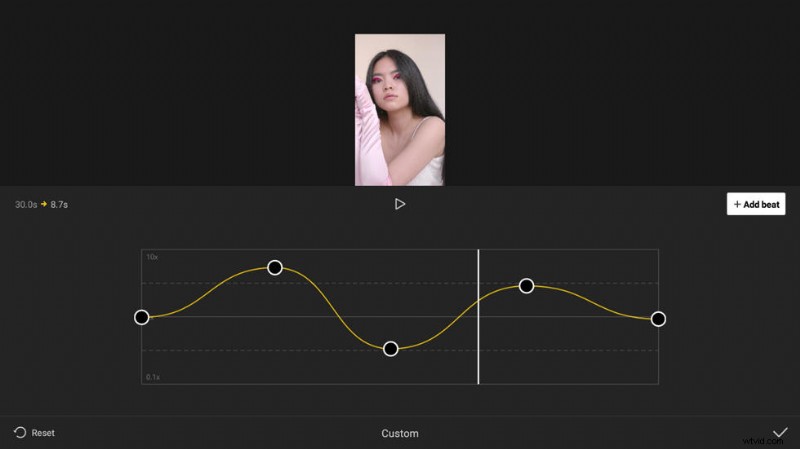
Edit Velocity by Dagging the Dots
- Install and launch CapCut on your Android or iOS phone to get started. You can easily find the CapCut app from the Google Play Store or Apple App Store.
- In CapCut, click the New Project button to the left to start a new video editing project.
- Select a video from your camera roll to be added to CapCut. Press the lower-right add button to add the video.
- Slowing down a video will also slow down the background music of the video, thus we need to first remove the background music of the video. Go to Volume and then
- Hit the speed button from the CapCut editing screen, and then hit the normal button to adjust the video speed in CapCut. Go to Normal to slow down the entire video. To slow-mo certain parts of the video in CapCut, we need to go to the Curve option.
- From CapCut speed curve, drag and drop the beats to the lower side to slow down videos (from the range of 1x to 0.1x). Additionally, by adjusting the horizontal position of the beat, you get to decide which parts of the scene get slow-mo.
- When you’ve done editing, go to the upper-right side of the video editing workplace and hit the upper arrow button to export your slow-mo video.
For more details, the below tutorial can definitely help.
How to Make a Video Slow Motion on Windows with FilmForth
FilmForth is a free video editing application for Windows 10 and Windows 11. As a free video editor, it has extensive video editing features including cutting, cropping, merging, transitions, effects, stickers & emojis, slow-mo effects, etc.
FilmForth video editor is available for free from Microsoft Store, hit the Download button below to get it now!

Step 1. Create a New Project in FilmForth
To slow-mo your video, first, launch FilmForth from the Windows start menu and hit the New Project button in the middle.
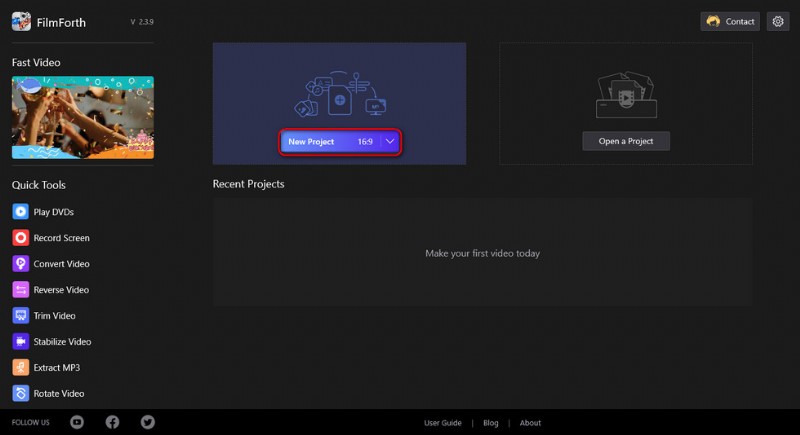
Create a New Project
Step 2. Import the Video into FilmForth
Drag and drop the video into the program or click ADD VIDEO/PHOTO CLIPS button to import the video. Then hit the added video in the timeline, and hit the Split button below to split the part of the video that needs the slow-motion effect.
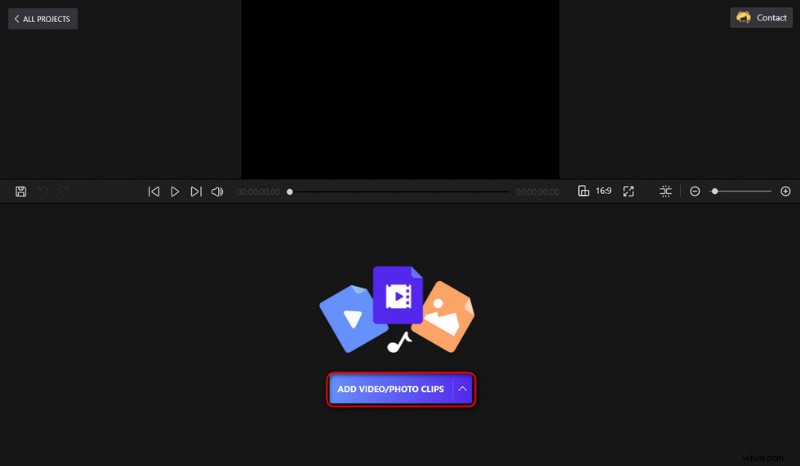
Import Video Files
Step 3. Change the Video Speed
Now hit the Speed button underneath. In the new window, FilmForth allows you to slow-mo your video from 0.25x to 1x speed.
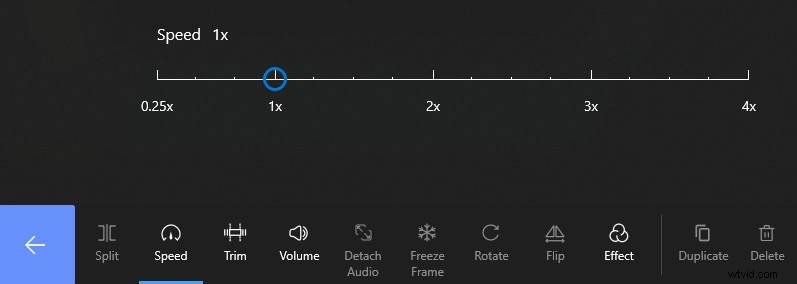
Change Video Speed on Filmforth
Step 4. Save and Export the Video
Whenever you’re satisfied with your work, hit the backspace button and then click the Save video button from the lower-right side of the video editing screen. A dialog will pop up for export settings, choose a higher frame rate for a smooth slow-mo effect.
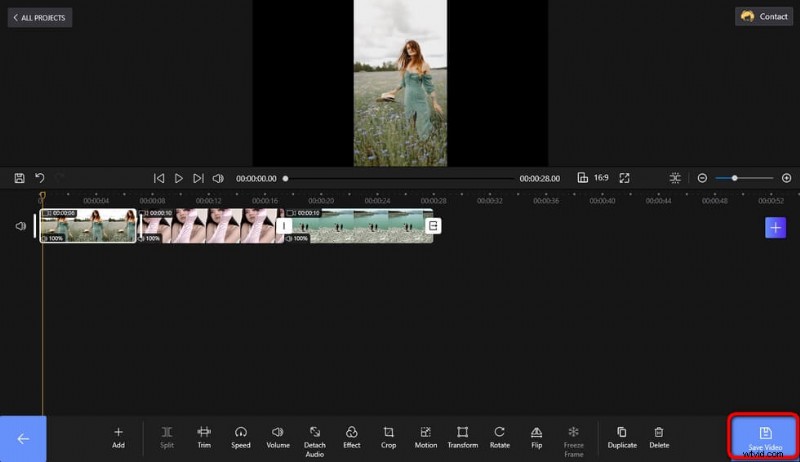
Save and Export Video
How to Smooth Slow Motion in iMovie(Mac/iPhone)
The following are the steps to make a video slow motion on iPhone and Mac devices. To do so, what we need is iMovie, the free video editing app pre-installed on Apple devices that allows you to implement simple video editing, such as adding text to videos.
- Launch iMovie on your iPhone or Mac, then drag the video into the project timeline.
- Hit the split button to split the proportion of the clip where you want to apply a slow-motion effect
- Then hit the speed control button that looks like a speedometer icon from the upper-right side.
- Click Slow from the drop-down speed box, and then select a favored slow-mo speed.
- Lastly, save and export your slow-motion video from the upper-right side.
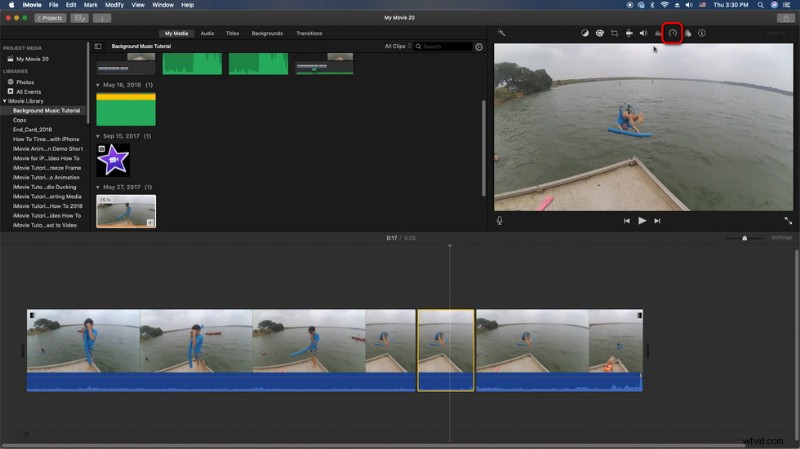
Slow Motion Video on iMovie
How to Make Smooth Slow Motion Online
For users that want to do slow-motion for short or small videos, the installation of a video editing program isn’t a must. In that case, we can draw support from a decent online video editing tool to slow down your videos real quick. And I’m talking about Adobe Creative Cloud Express, one of the best online video editors that allow you to slow-mo videos smoothly in a few clicks, it’s perfect for instant sharing.
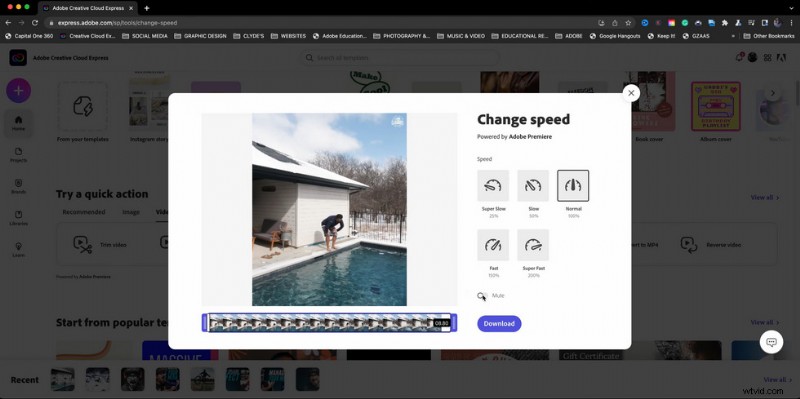
Slow Motion Video on CC Express
Follow the tutorial below to make a video slow-motion with Adobe Creative Cloud Express!
- Go to Adobe Creative Cloud Express slow-mo feature page: https://www.adobe.com/express/feature/video/change-speed/slow-motion
- Hit the Upload your video button to upload a video from your device to Adobe Creative Cloud Express. CC Express supports videos for up to 1 hour long.
- From the upper menus, go to Quick actions, and then Change speed.
- Select from two slow-motion presets Super Slow 25%, Slow 50%.
- Hit the Download button to instantly download your new slow-mo video to your computer.
Bonus Tip: Best Slow Mo Video Editor
As we’ve seen in the above tutorials, the following three video editing tools are the best free slow-mo video editing applications:
There is a table to introduce some best slow mo video editors, or check our post 18 best slow-motion video editors to get more details.
| Name | Supported Platform | Best for |
| FilmForth | Windows only | Offer slow-motion effects for Windows 10/11 newbies |
| iMovie | macOS/iOS | Build-in video editor with a practical slow-motion feature on Apple devices |
| CapCut | Android/ iOS | Lower-bar video editor provides slow-mo effect for TikTokers |
| Movavi Video Editor Plus | Windows/Mac | Impressive smooth slow motion features for YouTubers and Vloggers |
| Wondershare Filmora | Windows/Mac | A good video/movie editor for beginners comes with slow-mo effect |
| CyberLink PowerDirector 365 | Windows/Mac | An affordable video editor to do snow motion |
To Sum Up
That’ll be all about how to make a video slow motion on Windows, Mac, Android, iOS, and online. And don’t forget to check out the best free slow-motion video editors! With detailed tutorials and ample options, I believe you can easily find the best solution for you to make incredible slow-motion videos.
By the way, please note that the video slow-mo effect may make the audio track of your video sound weird, to resolve the issue, our guide on how to replace audio in videos for free may have the information you need.
More Related Articles
- Top 10 MP4 to MP3 Converters
- The Best Windows Movie Maker Alternatives
- Top 3 Apps to Convert YouTube to MP3 for iPhone
- 10 Recommended Chroma Key Software
- 12 Best Video Editing Software for YouTube