
Twitter is a great place to share anything with the world. When you sign up for Twitter, your Tweets are public by default. And these Tweets can be viewed by everyone. If you only want your followers to see your Tweets, you can make your Twitter account private to protect them.
When you post something on Twitter, you can make a public Tweet or a protected Tweet. Public Tweets are visible to anyone who has a Twitter account or not. Protected Tweets can only be seen by your followers.
If you want to go private on Twitter and don’t want anybody to see your tweets, you can make your Twitter account private to protect your Tweets. This post will explain how to make Twitter account private on desktop and mobile. (Try MiniTool MovieMaker to edit your Twitter videos.)
How to Make Twitter Account Private
#Make Twitter Private on desktop
Step 1. Go to Twitter.com and log into your account.
Step 2. On the left side, click the More option and then select Settings and privacy option. Choose and click the Privacy and safety option in the Settings section.
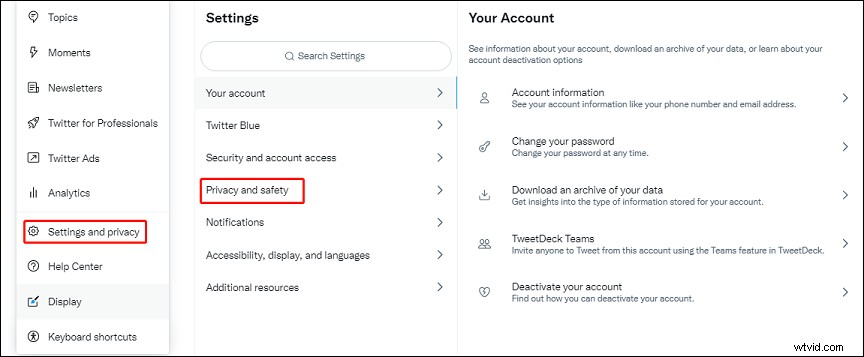
Alternatively, you can click the Notifications tab and then click the settings icon, then click the Privacy and safety.
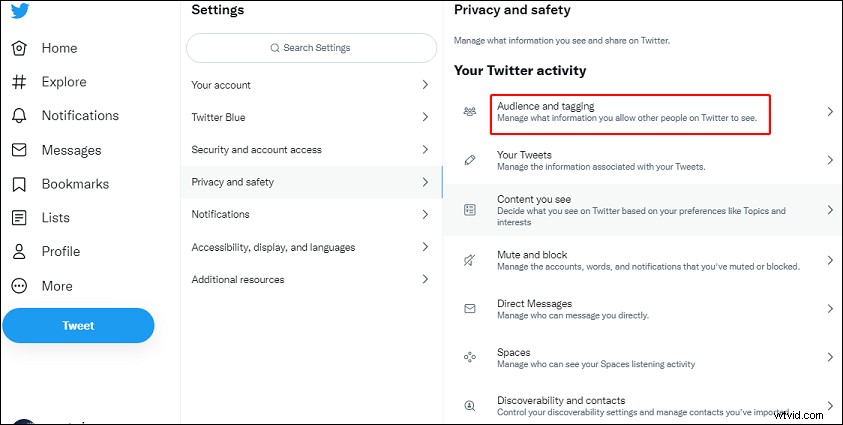
Step 3. On the right side, tap the Audience and tagging.
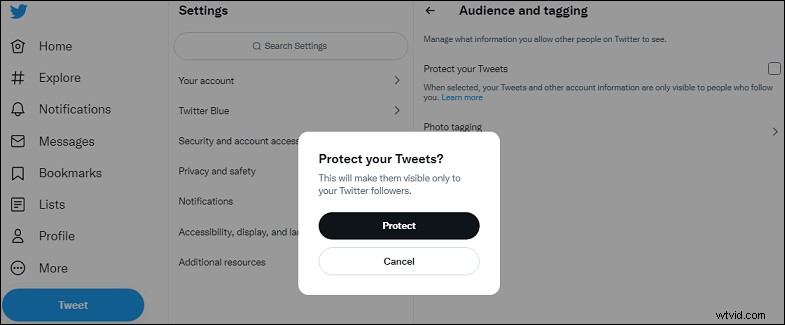
Step 4. Check the box next to Protect your Tweets, then click the Protect to confirm. Then your Tweets will be visible only to your followers.
When you have a private Twitter account, you’ll receive a request when some people want to follow you. Your Tweets will only be visible to the followers, and these Tweets can’t be retweeted and won’t be searchable in third-party search engines like Google.
Want to view Twitter without an account? Read this post: A Quick Guide on How to View Twitter Without an Account.
#Make Twitter Private on Mobile
Step 1. Open the Twitter app on your Android or iOS.
Step 2. Click your profile picture at the top left corner, then tap the Settings and privacy.
Step 3. Choose the Privacy and safety and then tap the Audience and tagging.
Step 4. Tap the Protect your Tweets toggle to turn it on.
How to Unprotect Tweets
If you want previous protected Tweets to be public, you should change them from protected to public. How to unprotect Tweets? Just follow the above steps, then uncheck the box next to Protect your Tweets on the web. On a mobile device, drag the slider or uncheck the box next to Protect your Tweets.
Tip - Can You See Who Viewed Your Twitter Profile
You’ve already learned how to see who viewed your Instagram posts, and you may also want to know who viewed your Twitter profile or your Tweets. Can you see who viewed your Twitter profile?
You can’t see who viewed your Twitter profile and Tweets. However, it’s possible to see how many people viewed your Tweets and profile. Just click the More > Analytics to open Twitter’s Analytics page on the web. Then go to the Home or Tweets tab to get detailed information about your Tweet activity.
Conclusion
Now, it’s your turn! Just follow the above steps to make your Twitter account private to make your Tweets visible only to your followers.