
Like Instagram, Snapchat also lets you create a Boomerang video. But this function is only available on iOS. In this post, I’ll show you how to do a Boomerang on Snapchat on iOS and Android devices.
Does Snapchat have Boomerang? Yes, Snapchat has a Bounce feature that can make Boomerang-like videos. Read this post to learn how to do a Boomerang on Snapchat on iPhone or Android phone. (Try MiniTool MovieMaker to reverse your videos for free!)
How to Do a Boomerang on Snapchat
How to make a Boomerang on Snapchat? Follow the steps below:
Step 1. Make sure that you have the latest version of Snapchat. Go to App Store and click your profile icon. In the Available Updates section, find the Snapchat app and update it.
Step 2. Open the Snapchat app. Press and hold the Camera button to create a video snap.
Step 3. After recording your video, click the Bounce option twice and move the slider to change the duration of the bounce.
Step 4. If you’re happy with the result, click Send To to share your Boomerang video.
Can You Boomerang on Snapchat on Android?
Unfortunately, you can’t use the Bounce feature on Android devices. But Snapchat gives Android users a loop option to create a Boomerang-like video. Here are two ways to do a Boomerang on Android.
Use the Loop Feature on Snapchat
Here’s how to loop a video on Snapchat.
Step 1. Press and hold the Camera button to record a video.
Step 2. On the right sidebar, you will see the loop icon. Click it and the video will loop once. To make the video loop infinitely, click this icon again.
Step 3. After that, you can publish this Boomerang-like video.
Boomerang on Instagram
As Bounce is an exclusive feature for iOS, you can use Instagram to make a Boomerang video. It’s the best alternative to Snapchat.
How to Boomerang on Instagram? The steps are:
Step 1. Launch the Instagram app on your phone.
Step 2. Click the + icon at the bottom center and swipe left to record a story video.
Step 3. Choose the Boomerang option on the left sidebar.
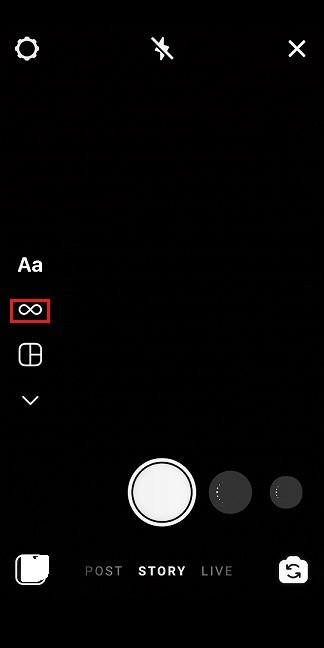
Step 4. Then press and hold the Record button to create a Boomerang video.
Step 5. Share this video to your story by clicking the Send to button.
Further Reading: How to Turn Video into Boomerang on Windows
MiniTool MovieMaker can be used to make a boomerang video, create a GIF from video, combine video clips into one, extract audio track from video, etc.
Step 1. Download, install and run MiniTool MovieMaker.
Step 2. Import the video you want to turn into Boomerang. Select the imported and click the + to add it to the timeline.
Step 3. Then click the + again to duplicate the video.
Step 4. Make sure that the second video is selected in the timeline. In the Video Property panel, click on Speed.
Step 5. Then check the Reverse speed option and adjust the speed of the video clips.
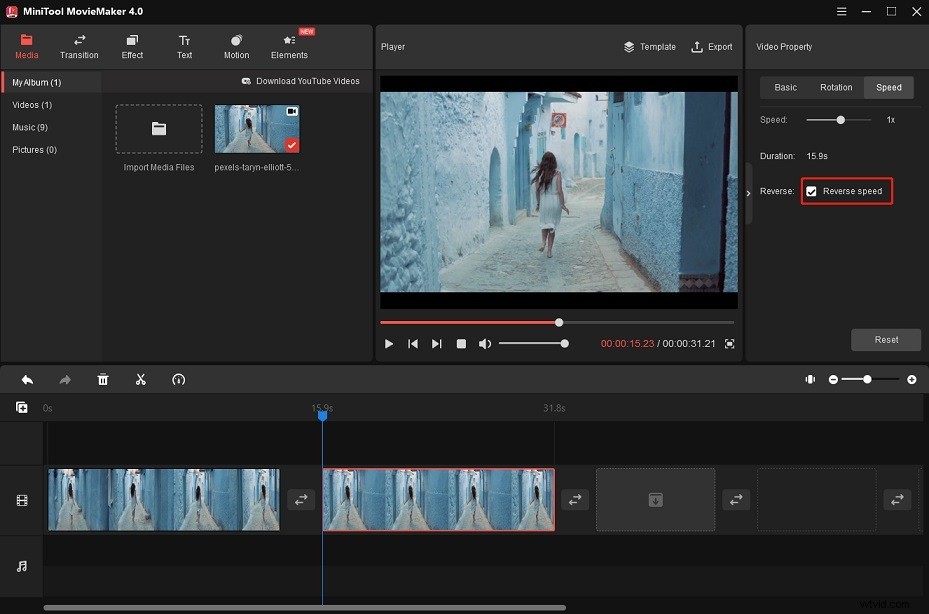
Step 6. Finally, export the video.
Conclusion
That’s all about how to do a Boomerang on Snapchat and Instagram. If you want to share other Boomerang apps with us, post them in the comments section.