
Adding emojis to videos and meme creations is popular since it can make the visual content more humorous and entertaining. How to add an emoji to a video? Read on to get the method. If you want to add music or text to a video, try MiniTool MovieMaker.
An emoji is a visual symbol generally used in electronic messages. Nowadays, adding emojis and stickers to videos is becoming more and more popular. Check out this post to learn how to add an emoji to a video to make it more attractive.
Kawping
Kapwing is a popular web-based platform for creating images, videos, and GIFs. It is free to use and can run on mobile phones, tablets, and computers.
Its Meme Maker tool has many built-in video emojis for you to use, but you cannot animate emojis added to video clips. Despite this, Kapwing is still one of the best solutions that you can use to add stickers to videos.
Here are the steps on how to add emojis to videos using Kapwing.
Step 1. Select Meme Generator
Go to kawping.com on your browser and log in to your account. Click the Tools tab to view all tools the site provided. Select Meme Generator and click Get started.
Step 2. Upload Your Video
Click anywhere within the dotted line to upload your local video or paste a video URL in the blank box.
Step 3. Add an Emoji
Click the Images option or the Upload button, and then switch to the Emojis tab. Now scroll down the find the emoji that you like and click to add it. You can add as many as emojis.
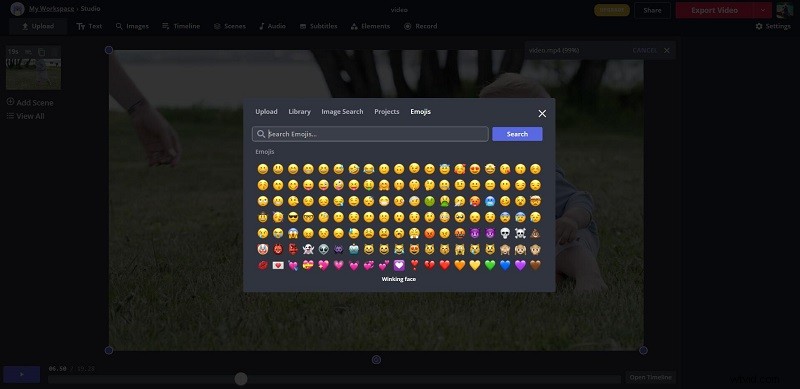
Step 4. Edit the Emoji
Move the emoji and drag any purple dot to make the emoji bigger or smaller. Click the Open Timeline option, select the emoji layer, and then adjust the start and end time. Click the Play icon to preview the video. If you’re satisfied with the result, click Done in the upper right corner.
Step 5. Export the video
Open the drop-down list next to Export Video to select Export as MP4. Wait patiently because it may take several minutes to process the video. Once done, click Download to save the final video on your device.
FlexClip
FlexClip is an easy-to-use yet powerful online video maker packed with rich video editing tools and options. It is another great option that you can use to add emojis to videos without watermarks.
It comes with 1,000+ pre-made video templates, countless elements, and millions of high-resolution stock photos, videos, as well as music for your video production. In addition to using the built-in emojis of the tool, you can also upload transparent emojis.
Let’s learn how to add emojis to videos using FlexClip.
Step 1. Upload Your Video
Navigate to flexclip.com on your browser, log in to your account, and then tap on Start from scratch. When you enter the editing interface, click Local Files to import your video.
Step 2. Add an Emoji
Select the Element option from the left panel and enter emoji in the search box. Pick your desired emoji and click to add it to the video.
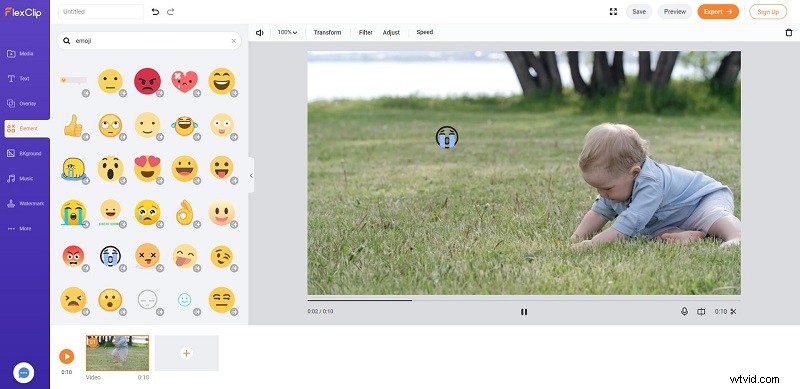
Step 3. Customize the Emoji
Now, you can move the emoji to the desired position, change its size and color, flip the emoji, etc. In addition, you can also click the Adjust Element option to set the start and end times of the emoji.
Step 4. Export the Video
After completing all operations, click the Export button in the upper right corner. Choose your preferred video resolution and click Next. After that, give a title for the video and hit Export Video.
Bottom Line
The two online tools we presented in this article can help you add emojis to videos in just a few easy steps. Of course, if you have any other better ways to add emojis to videos, please share them in the comments section below.