
Want to insert an image to PDF or add an image watermark to PDF? How to add image to PDF? Here are 3 solutions in this post. Read this post to learn how to insert image to PDF with Smallpdf, Sejda, and Preview.
There are many PDF editors on the web. What are the best PDF editors? This post offers 3 PDF editors and teaches you how to add image to PDF step by step.
Solution 1. Add Image to PDF with Smallpdf
Smallpdf has a simple interface that makes it easy for you to edit PDFs (Looking for a video editor? Try MiniTool MovieMaker). You can add image to PDF, add text to PDF and draw on PDF. Other useful functions of Smallpdf include split PDF, Merge PDF, Rotate PDF, compress PDF, convert PDF to Word or another format, encrypt PDF, unblock PDF and so on. No registration is required!
How to add image to PDF online? Follow these steps below!
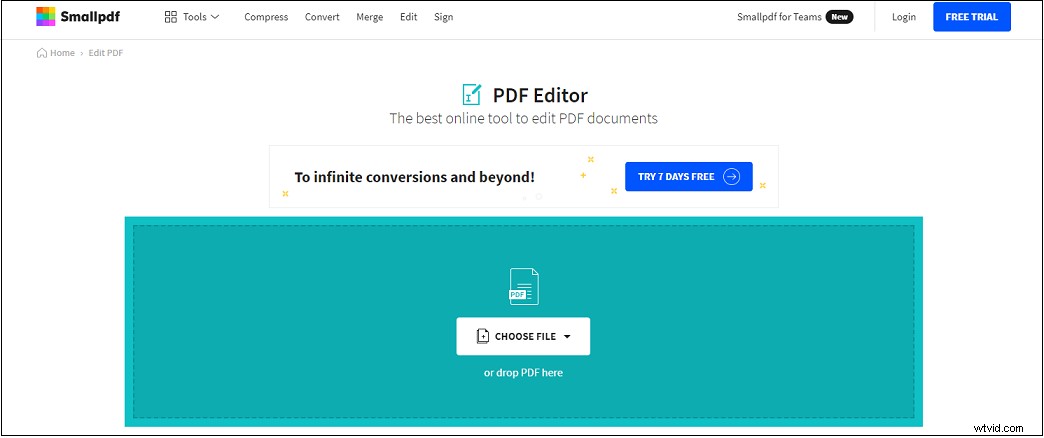
Step 1. Go to Smallpdf and find the Edit PDF tool. Click on it to continue.
Step 2. Tap on CHOOSE FILE to upload the PDF that needs to be added images from Device, Smallpdf, Dropbox, or Google Drive.
Step 3. On the editing page, click the image icon in the toolbar. Then choose an image that you want to insert into the PDF.
Step 4. Click where you want to put the image on the document and adjust its size.
Step 5. Click on DOWNLOAD to save the edited PDF file.
Related article: Image to PDF | PDF to Image: 10 100% Free Online Converters
Solution 2. Add Image to PDF with Sejda
Sejda, an online PDF editor, allows you to insert an image to PDF free. You can use it to edit PDFs like merging, splitting, cropping, compressing, resizing, etc. Besides, it’s capable of converting PDF files and recognizing text in PDF with OCR. It’s safe and all the uploaded PDFs will be automatically deleted after 2 hours.
Here’s how to add image to PDF with Sejda.
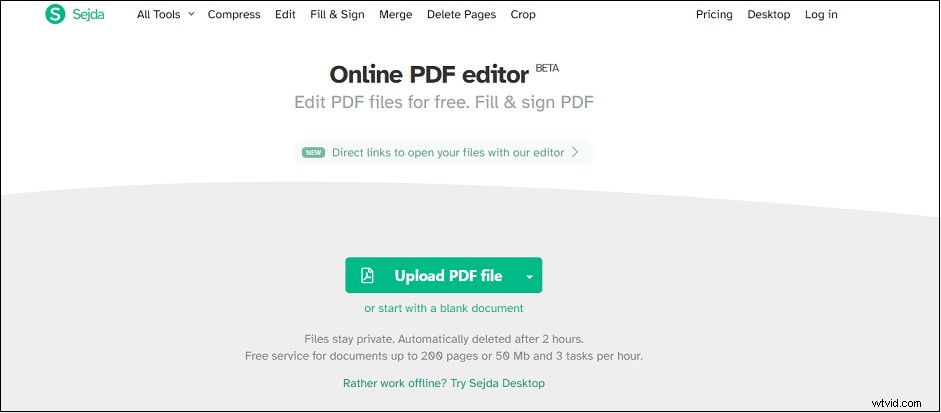
Step 1. Enter the Sejda website.
Step 2. Click on Edit a PDF document to open the PDF editor.
Step 3. Upload the target PDF from your computer by clicking Upload PDF file.
Step 4. Then click on Images > New Image to select the wanted image from the computer.
Step 5. Click on anywhere on the PDF, move the image to the right place, and change the size of the image.
Step 6. Click on Apply Changes and it will process the PDF file. Once done, hit the Download button to download the edited PDF file.
Solution 3. Add Image to PDF with Preview
Preview is a built-in image viewer on macOS. It not only can open images and PDF files but also can edit images and PDF files like insert image to PDF.
Let’s take a look at how to add image to PDF free on Mac.
Step 1. Launch Preview and click on File > Open to load the PDF file.
Step 2. Click on Edit in the top menu bar and choose Insert > Page from File… from the drop-down menu.
Step 3. Then export the PDF file.
Conclusion
This post offers 3 solutions for you to add image to PDF. Now, you can choose one of them and give it a try!