
You want to blow up a picture to poster size but have no idea about it. To solve this, this post will illustrate how to enlarge a picture for printing with 4 solutions. If you need to upscale your video from 720p to 1080p, try the free video enlarger - MiniTool MovieMaker.
Why need to enlarge a picture? The following reasons are:
- To enlarge a picture to poster size.
- To increase the resolution of a picture.
- To make it looks better on social platforms.
- …
In this case, we recommend 4 image enlargers to you. They are easy to use and watermark-free. Let’s see how they work.
Solution 1. Enlarge a Picture using Photoshop
Photoshop is widely used for photo editing. Besides enlarging a picture, it can crop, blur, sharpen, pixelate a picture and remove background from a picture.
How to enlarge a picture without losing quality? Take the steps below.
Step 1. Open the picture you want to enlarge with Photoshop.
Step 2. Tap on Image in the menu bar and click on Image Size from the drop-down menu.
Step 3. After opening the Image Size dialog box, check the Constrain Proportions box and enter the desired width and height in the boxes.
Step 4. Choose File > Save for Web to save the enlarged picture.
Related article: How to Unblur an Image in Different Ways
Solution 2. Enlarge a Picture using GIMP
Another image enlarger is GIMP. It’s free and open-source available for Windows, macOS and GNU/Linux. GIMP also is the best alternative to Photoshop. It offers you the ability to do image manipulation including picture enlarger.
Here gives a step-by-step guide on how to enlarge a picture for printing.
Step 1. Launch GIMP and navigate to File > Open… to import the target picture.
Step 2. Then open the Scale Image dialog box by choosing Image > Scale Image.
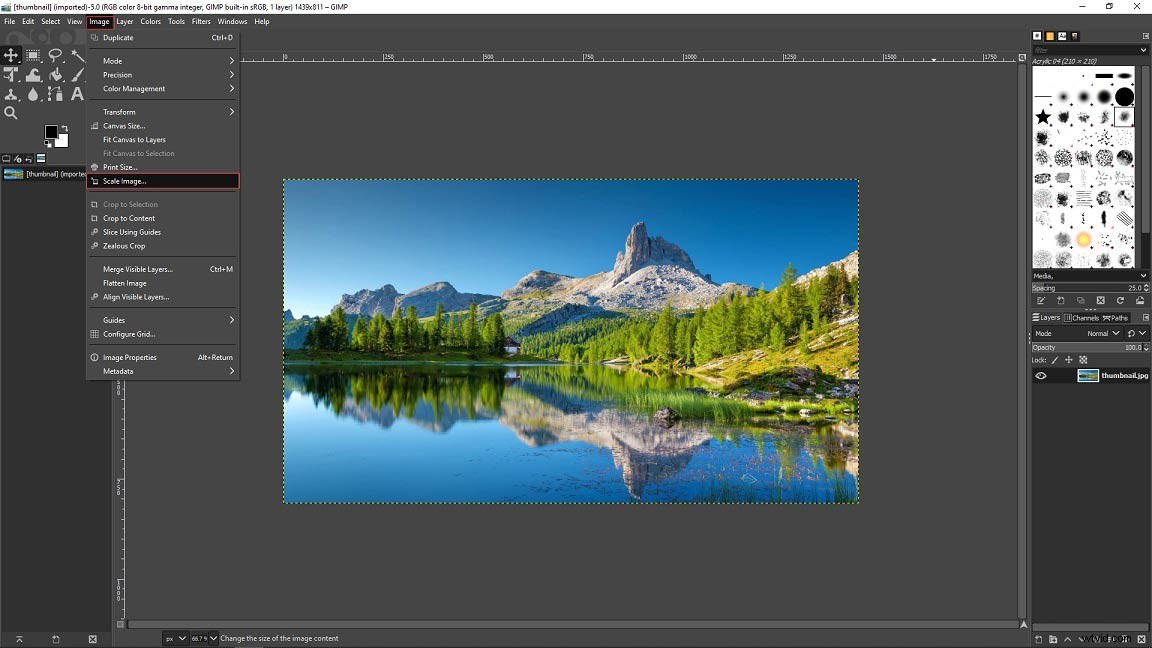
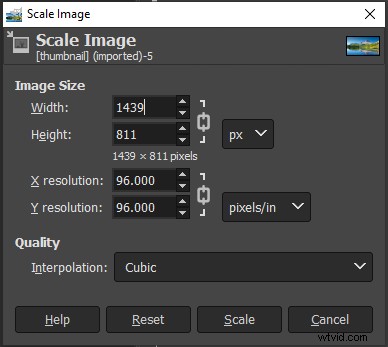
Step 3. In this dialog box, type the desired dimensions in the boxes and click the Scale button to upscale the picture.
Step 4. Go to File > Export As… to save the enlarged picture.
Solution 3. Enlarge a Picture using Paint
Microsoft Paint is a tool that allows you to resize, crop pictures, and add text on pictures. It also comes with some basic editing tools.
Below are the steps on how to enlarge a picture for printing.
Step 1. Find the image you want to enlarge and open it with Paint.
Step 2. Click on Resize to open the Resize and Skew window.
Step 3. Here you can enlarge the picture by percentage or pixels. Afterward, click OK to apply the change.
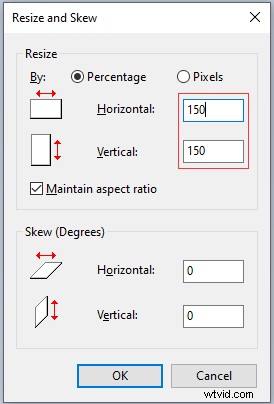
Step 4. Navigate to File > Save as to save the picture.
Solution 4. Enlarge a Picture using Image Enlarger
If you want to enlarge a picture to poster size without the need of software, try Image Enlarger. It’s a free online image resizer that can enlarge a picture to a specific size.
To make image larger, follow the steps below.
Step 1. Go to the Image Enlarger website.
Step 2. Tap Select Image to import the picture.
Step 3. Then move the slider to the right or enter the desired percentage (or dimensions) to enlarge the picture. Click Enlarge Image to continue.
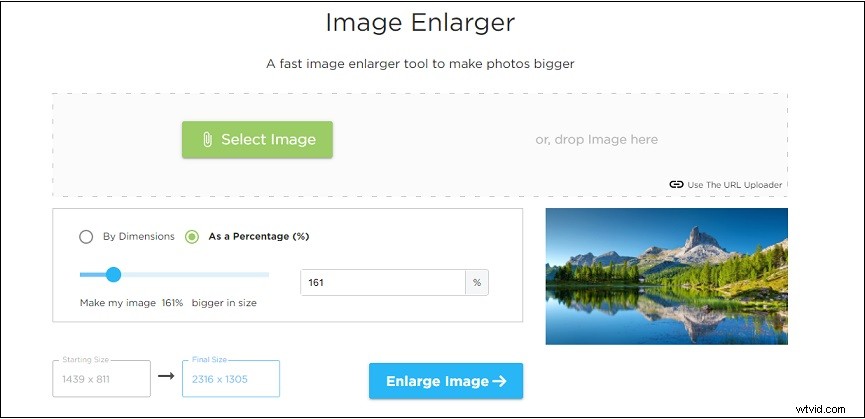
Step 4. Finally, click on Download Image to save the enlarged picture.
Conclusion
How to enlarge a picture? After reading this post, you must know the answer. Now, it’s time to make image larger on your own!