
How to fill in the vertical sides of a video with an image
So we grab our smartphone and press the record button – but we do not think we are recording the video vertically. As a result, we get a vertical video with black bars in the background instead of a widescreen video.
Of course, you can remake the video in a horizontal view, but it will not have the same emotions as a spontaneous first attempt, and not everything can be remade. However, you can "fix" vertical videos. Although removing the black bars will not be possible, you can make the sides of the video blurry, fill them with a different color or put a background behind a vertical video.
Do you think it would require some sophisticated editing? Not at all! Our tool makes filling in the sides of portrait videos effortless and quick. You only need an internet connection to start editing on any device.
Plus, the process is straightforward and simple; follow the steps below:
Add the video and background image
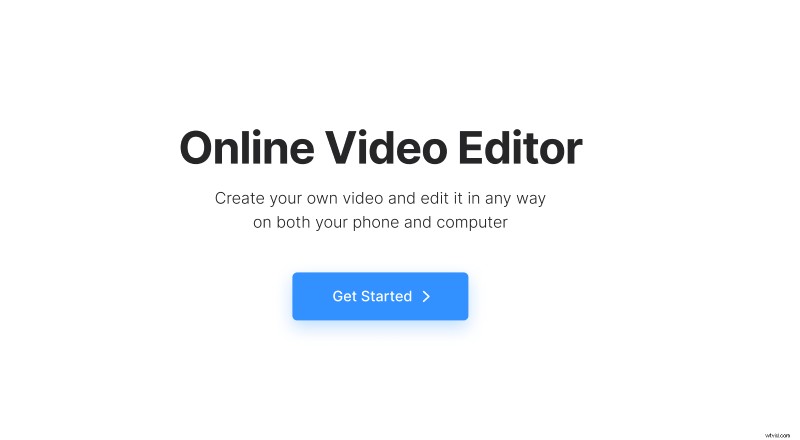
Open Clideo’s Online Video Editor and click "Get started".
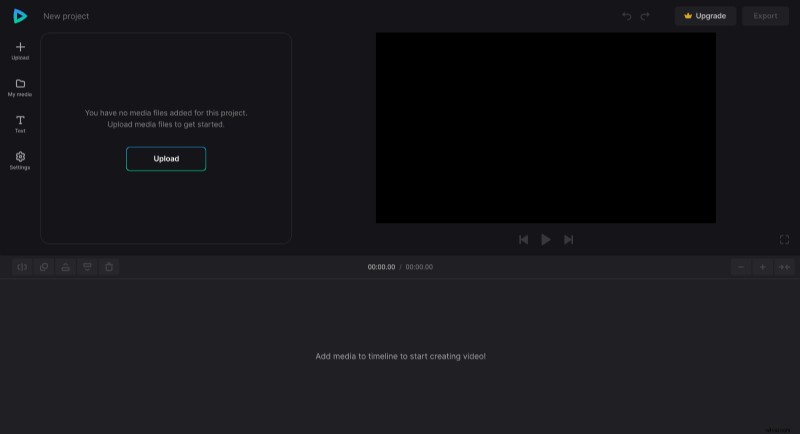
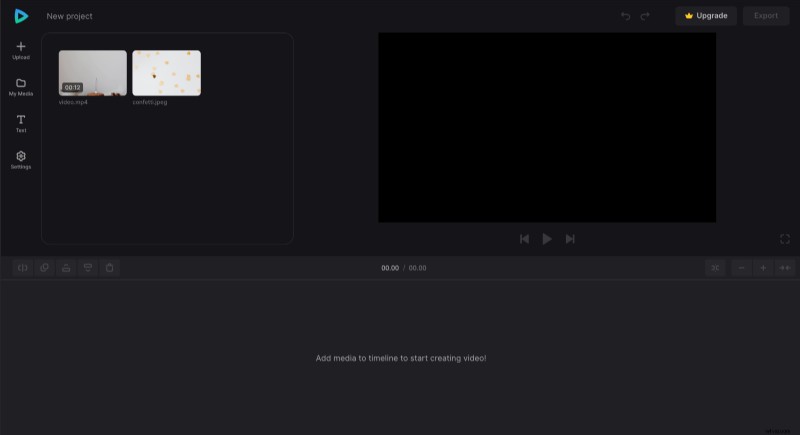
Click "Upload" to add the media files you need. You can upload them from the device or pick them from Google Drive or Dropbox.
Change the background of the video
Click the "+" icon on files or drag them directly from "My Media" to the preview area or timeline one by one. Ensure the image is at the bottom of the timeline so it doesn't cover your video.
To make the video horizontal, change the aspect ratio in the "Settings" tab and pick one of the widescreen options – the most common one is 16:9.
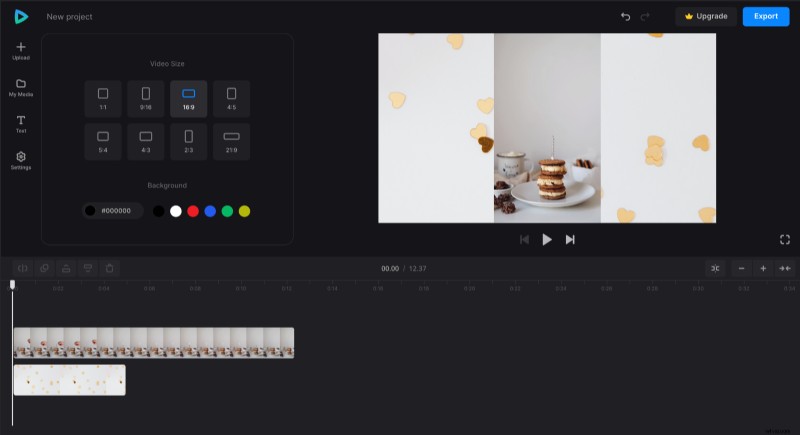
After that, select the video in the timeline or the preview area and apply the "Fit" option, then select the image and apply "Fill". You can adjust the position of both files directly in the preview if needed.
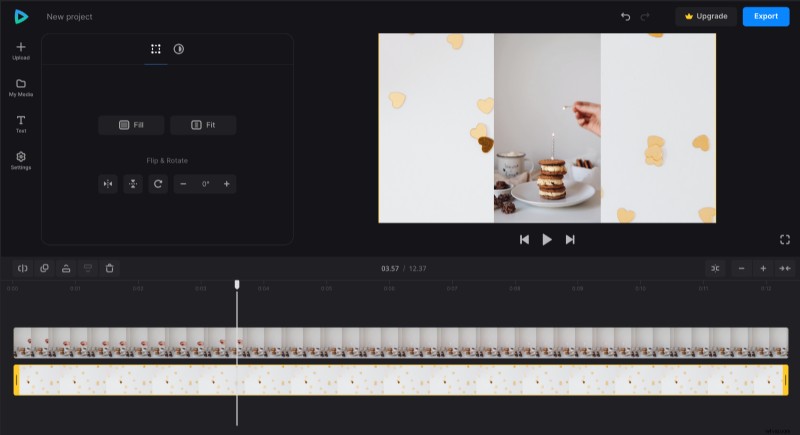
When the image is selected, drag the yellow handles in the timeline to match its duration to that of the video so that the background picture is visible from beginning to end.
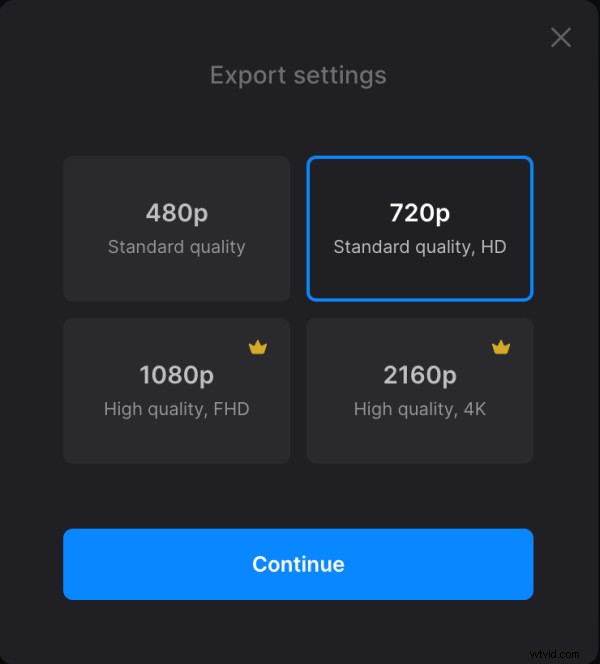
When you finish editing, click "Export" and choose the export option you like.
Save the result
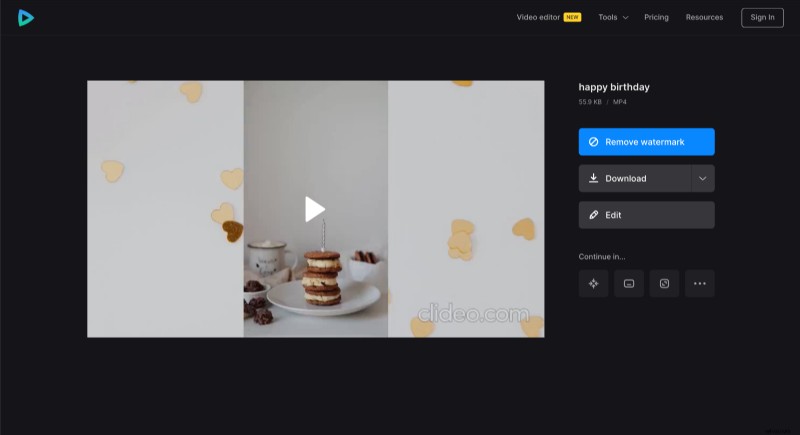
Watch the preview to see how the final video looks. If you need to improve anything, click "Edit". And if everything is good, click "Download" to save the video.
If you would like to learn more about our all-in-one video editor options and features, you can find more information in our Help Center.