
Blur the background of a video online
When you watch the video shot vertically, sometimes black bars appear on the vertical background, and often their large size distracts from the main shot. Of course, you can crop the video, but in some cases it may lose vital details. So, one of the solutions is to make the background blurry.
We have just a tool to help you with that! It works online on any device and is free for videos up to 500 MB in size. Also, if you want to make the video’s background blurred on an iPhone, you can download the Resize video app and it will work without an Internet connection too.
It’s also easy to use, just take a look at the steps below!
-
Upload a video
Open Clideo’s Video Resizer.
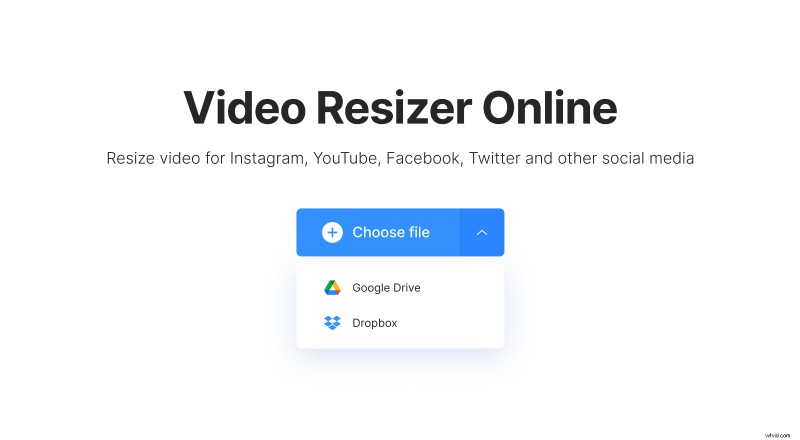
Click "Choose file" to upload a clip from your device or choose it from your Google Drive or Dropbox account by hovering over the arrow on the right side.
-
Edit the video
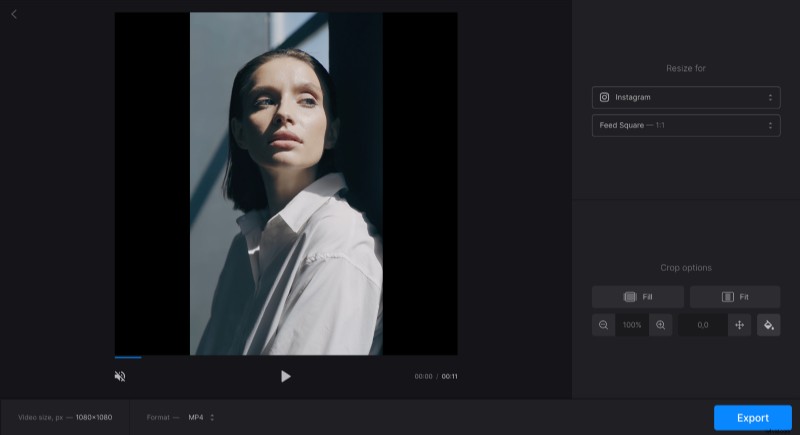
In the editor, select one of the preset or input custom dimensions in the "Resize for" section. There are presets for Instagram, Facebook, YouTube, and other social media posts and ad types available.
In the "Crop options" section, use "Fill" to crop the video so it takes up the whole screen. Alternatively, choose "Fit" so the video stays the same with the addition of the bars on the free space. Then, adjust the video using zoom and position selectors.
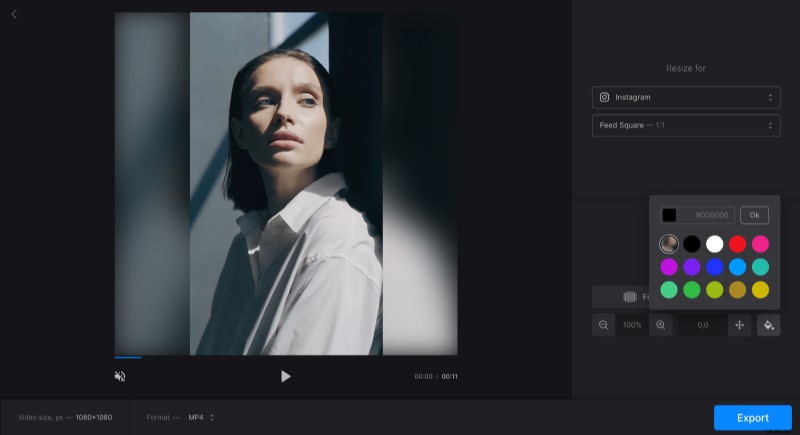
To match the bars with the video, click on the "paint bucket" icon. The first circle icon will blur the background, or you can apply one of the suggested colors. You can also input a hex code if you want to use a specific color.
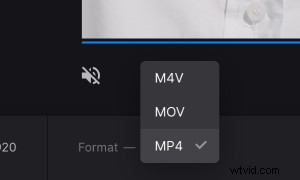
By default, the video’s format is MP4. Click on the “Format” option under the player to change it if you need to. Selection of the formats available will vary depending on the preset that you chose.
When you finish editing, click "Export".
-
Download the result
Watch the preview to make sure the video looks like you want. If you need to add some changes, click “Edit”. Otherwise, click “Download” to save the video on your device or upload it to your Google Drive or Dropbox account.
