Convert horizontal video to vertical online
Facebook, Instagram, and other social media have precise specifications for different post types. Check our Video Specs Guide to get the details. The point is, sometimes your recording doesn’t fit the platform where you're going to post it. Is there a solution?
Of course, there is.
There are three main video orientation types (also known as aspect ratios):
- Horizontal or landscape (16:9)
- Vertical or portrait (9:16)
- Square (1:1)
Sometimes you need to make horizontal video vertical or crop it. And here, the Clideo service comes in just handy!
Our tool works online in a browser, and you can upload and process files up to 500 MB for free. It is intuitive and user-friendly, but if you need additional help, you can avail of our brief and clear step-by-step manuals.
Keep reading and learn how to change a landscape video to portrait or another aspect ratio.
Upload a video for cropping
Open Clideo’s horizontal to vertical video converter in any browser. Make sure your internet connection is stable and sound, and you have your media at hand.
To upload a file from your device, just drag and drop it to the screen. You may also hit the "Choose file" button and select a visual from a folder.
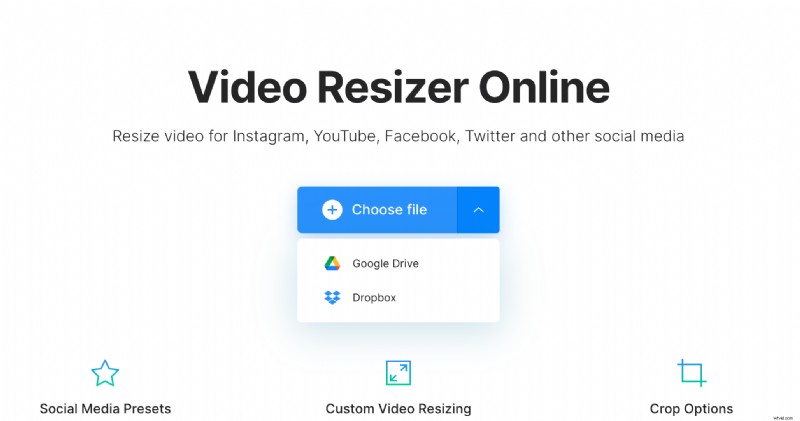
Another option is to call the menu on the same button and import videos from Google Drive or Dropbox.
Convert video to 16:9
Have a look at the "Resize for" section on the right of the player. Here you can select a social medium and post type to assign the needed aspect ratio to the video.
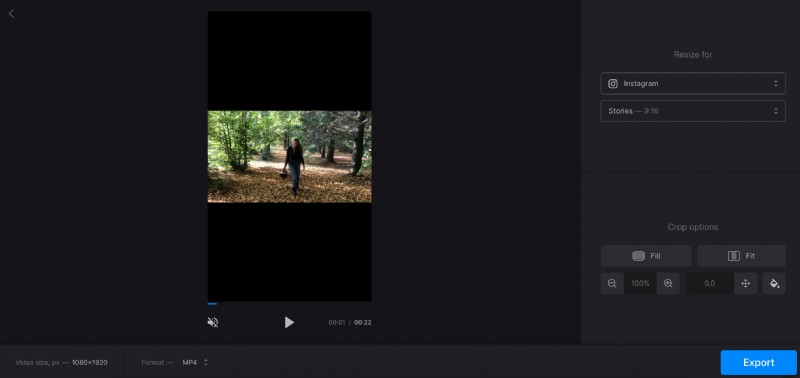
If you need something more specific than presets, hit the "Custom" option, choose the orientation, and insert either height or width. The second parameter will be set automatically according to the selected aspect ratio. If you want to go creative, untick the chain sign and enter arbitrary values to the corresponding boxes.
Then decide on the crop option. This section offers various settings, try different combinations to find the best, zoom the video in and out or move it inside the frame. You can also change the color for the black bars if you have any.
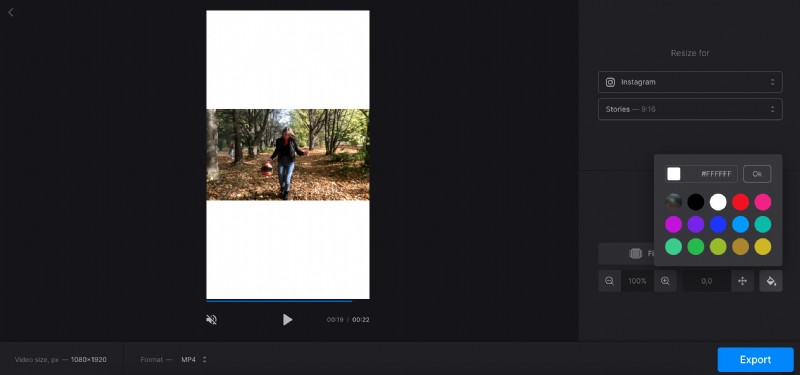
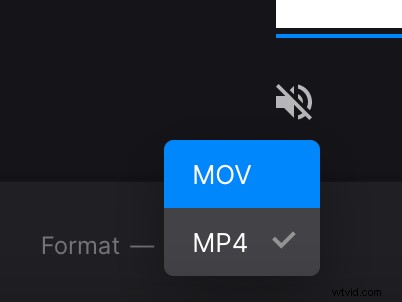
Don’t forget to choose the output format. You can easily turn your MP4 video into AVI, FLV, or any other type, just select the extension at the bottom of the screen.
When you are fully done, hit the "Export" button and let the tool do its job.
-
Save the project
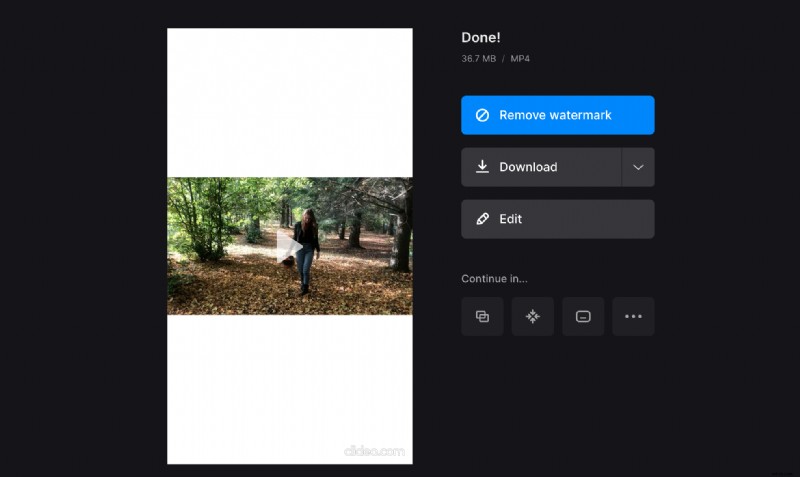
Download the altered video to your device or cloud storage. If you spot any imperfections, you can still edit the recording by hitting the "Edit" button. If you want to get rid of the Clideo watermark, update your account to Clideo Pro.