
If you want to know what people can see from your Facebook profile page, you can view your Facebook page as someone else. How to see what your Facebook profile looks like to others? This post offers a complete guide.
If your posts on Facebook are public, everyone can see whatever you share. Sometimes, you may want to check the content that you make public on Facebook. How to view your Facebook profile as someone else?
This post tells how to see what your Facebook profile looks like to others on computers and smartphones.
How to View Your Facebook Profile as Someone Else
On Facebook, you can share posts publicly, with specific friends, or just with yourself, and more. If your posts are public, anyone can view them.
If you want to see what your profile looks like to others (people who aren't your friends) on Facebook, just try the Facebook View As feature.
How to View Your Facebook Profile as Someone Else on Computer?
Step 1. Open the Facebook website in your browser and log into your account.
Step 2. Click the Your profile icon in the top left corner and then click it again to open your Facebook profile page.
Step 3. Click the three dots under Edit profile and then choose View As from the pop-up menu.
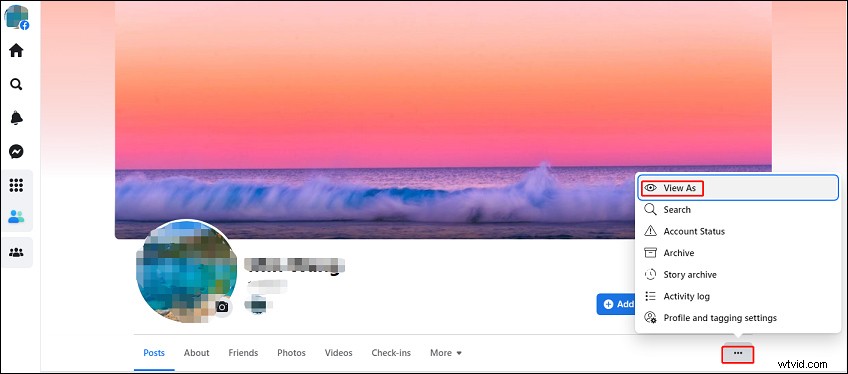
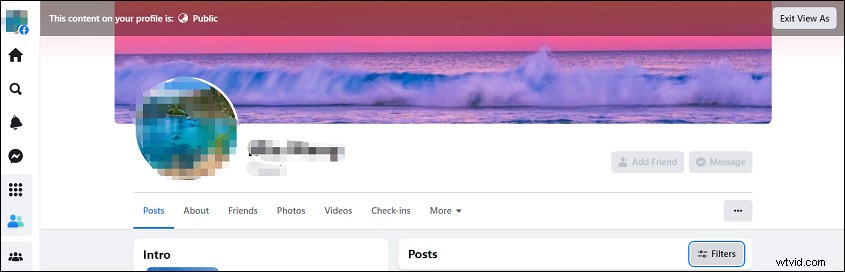
Step 4. Your profile will be shown to you as if you were viewing it as a visitor. You can click the Filters next to the Post to filter posts by year and month.
Step 5. To exit, click the Exit View As in the top right.
Related article: How to Make Your Facebook Private? The Complete Guide
How to See What Your Facebook Profile Looks Like to Others on Android/iPhone/iPad?
The Facebook mobile app also allows you to see what your Facebook profile looks like to strangers. Here’s the how.
Step 1. Launch your Facebook app and tap your profile icon to open your profile page.
Step 2. Tap the three dots icon.
Step 4. Click on View as in the Profile settings page. Then all publicly viewable content will display.
Note:
You can’t delete or edit a post while you’re viewing your Facebook pager as someone else.
Tip: How to See Who Viewed Your Facebook Profile?
Before answering this question, you should figure out if Facebook will tell you who viewed your Facebook profile.
No, Facebook does not allow users to track who visited their profiles. And there are no available third-party apps that let people view who viewed their profiles.
Therefore, it’s impossible to see who viewed your Facebook profile.
Conclusion
Using the Facebook View As feature, you can easily know what your Facebook profile page looks like to people who are not your friends. However, you can’t view your Facebook profile as a specific individual.