
Like Instagram Stories, Facebook Stories lets you share photos and videos that will disappear after 24 hours. How to create Facebook story? How to edit story on Facebook? All you want to know about Facebook Stories is in this post.
What is Facebook Stories? It’s a feature that allows you to share content with the audience. All stories will only be visible for 24 hours. To some extent, it protects your privacy. Also, Facebook Stories is a good place to promote business. Now, let’s dive into this post and see how to edit story on Facebook.
How to Create Story on Facebook
You create a photo story or video story on Facebook. Each photo story shows for 5 seconds and each video story lasts for 20 seconds.
To create a longer Facebook video, try MiniTool MovieMaker! It’s simple to use with a variety of filters, effects, animated text templates, and more!
Here’s how to create a Facebook story.
On Mobile
Step 1. Open Facebook and click + Create Story at the top of your News Feed.
Step 2. Under ‘Create Story’, select the type of story you want to create.
Step 3. Upload a video, or a photo and enter text.
Step 4. After that, adjust the story settings and save the changes.
Step 5. In the end, click Share to Story at the bottom right of your screen.
On Computer
Step 1. Go to the Facebook website and sign in to your Facebook account.
Step 2. Click + Create story. The web version offers you two types of stories: Create a Photo Story, Create a Text Story.
Step 3. Click on Create a photo story to upload a photo from your PC or click on Create a text story to continue.
Step 4. Click the gear icon to choose who can view your story.
Step 5. Add text to the photo story as needed.
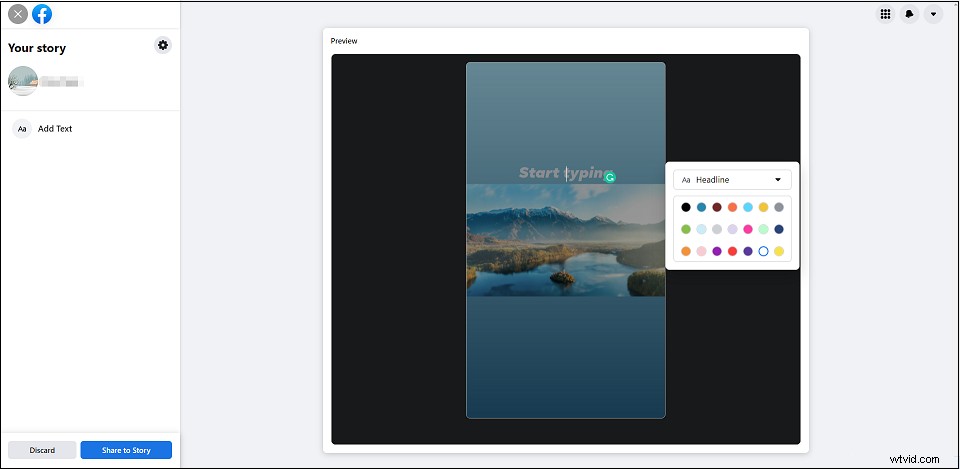
Step 6. Then click Share to Story to post your story on Facebook.
How to Edit Story on Facebook
On your phone, you can edit your Facebook story by adding music, sticker, effect, and text.
Here’s how to edit Story on Facebook.
Step 1. Create a story and import a video or a photo.
Step 2. Add music to Facebook story: Tap on the Stickers icon. Choose the Music sticker and add the song you want to use.
Step 3. Add text: Click the Text icon to enter the text and change its color, font, etc.
Step 4. Add effects: Click on Effects and select an effect for your story.
Step 5. Draw: Click on Draw to create scribble effects.
Step 6. Once done, publish the story.
How to Delete Story on Facebook
If you regret posting the Facebook story, follow this guide to learn how to delete story on Facebook.
On Mobile
Step 1. Tap the story you want to delete.
Step 2. Click the three dots in the upper right corner.
Step 3. Select the option Delete photo or Delete video.
Step 4. Confirm by clicking the Delete button.
On Computer
Step 1. Open your story on Facebook.
Step 2. Click the three dots and choose Delete photo.
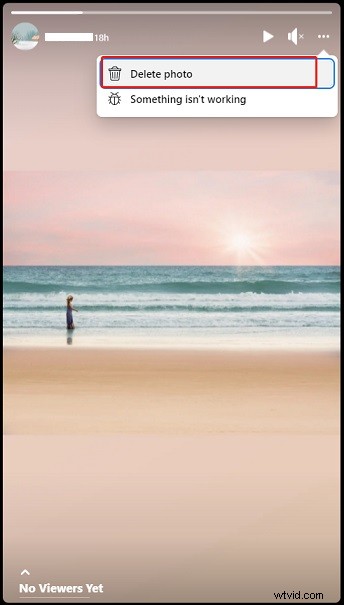
Step 3. In the pop-up window, click on Delete.
Conclusion
Now, create a fun Facebook story and share it with your audience!