
In the following, I’ll step-by-step show you how to easily edit or create an animated GIF on a PC without any professional image editing software like Photoshop or Gimp. Two free and easy methods will be introduced.
1. Best Free GIF Editor You Need2. How to Edit a GIF with FilmForth for Free
3. How to Make Your Own GIFs for Free
Additional Reading: How to Edit or Make a GIF Online
GIF is a bitmap image format, it made possible animated images encapsulated in a highly compressed image file. Despite the rich information granted by animations, .gif files are small in size and perfect for sharing on the internet.
In this post, we’ll talk about how to edit GIF images for free, to share with your family and friends GIF images that are created or made prettier and funnier by your very own hands.
Do Not Miss: Make PIP Video, Top 6 Meme Generators, Add Animation to Video
1. Best Free GIF Editor for Windows You Need
To edit animated GIFs free and fast, we highly recommend you try the best free GIF editing software FilmForth, it’s completely free, lightweight, and extremely easy to use. You can find it on the top of our list of best free video editors.
Additionally, FilmForth has many practical image/video editing features such as trimming, cropping, resizing, adding special effects, adding text, etc. FilmForth supports a wide scope of video and image formats including MP4, MOV, JPEG, BMP, and GIF.
FilmForth is available from Microsoft Store and is compatible with both Windows 10 and Windows 11, click the download button below to get it now.

2. How to Edit a GIF with FilmForth for Free
Step 1. Create a New Project in FilmForth
To edit your GIF picture, first launch FilmForth from Windows start menu and hit New Project button in the middle.
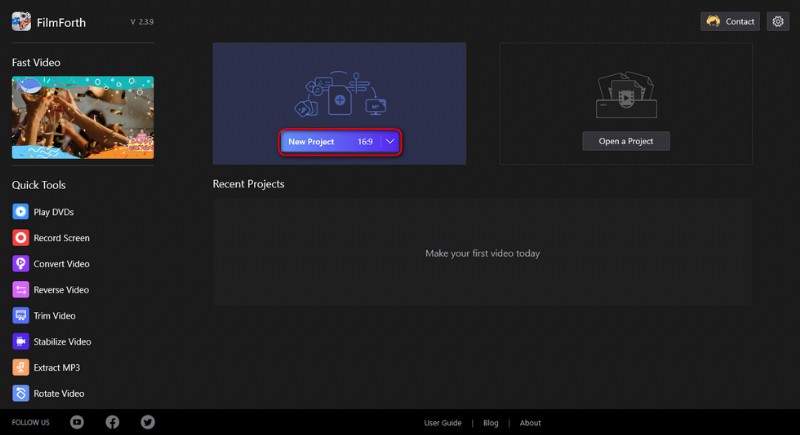
Create a New Project
Step 2. Import the GIF into FilmForth
Drag and drop the GIF into the program or click ADD VIDEO/PHOTO CLIPS button to import the GIF image you intend to edit into the program.
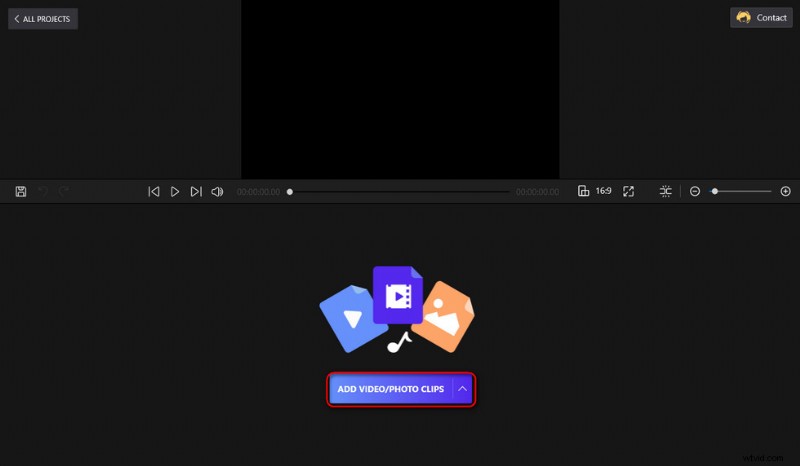
Import the GIF
Step 3. Edit Your GIF with FilmForth
Click to select the added GIF in the timeline, an operation panel will pop up from the bottom for further editing operations. By dragging to move the playhead of the GIF in the timeline, you get to edit your GIF image frame by frame.
The GIF editing features FilmForth has to offer include but not limited to:
- Trim or crop a GIF: Click the Trim or Crop button below to trim your GIF or Crop your GIF.
- Flip or Rotate a GIF: Click the Flip or Rotate button below to flip or rotate your GIF.
- Change the color of a GIF: Click the Effect button below to add filters to your GIF, for instance, there are effects to make your GIFs black and white (grayscale).
- Add music to a GIF: Click on the Audio track in the timeline and hit Add audio button to add music or your own voice to the GIF.
- Add GIFs or stickers to a GIF: Click Add and then Add GIFs/Stickers button to add GIFs and stickers to your GIF.
- Add text to a gif: Click on the text track in the timeline and click Edit Text button, you can add text of different fonts and alignments, even with speech balloons, to your GIF.
- Change the speed of a GIF: Click on the Speed button below to adjust the playback speed of your GIF in the range of 0.25x to 4x.
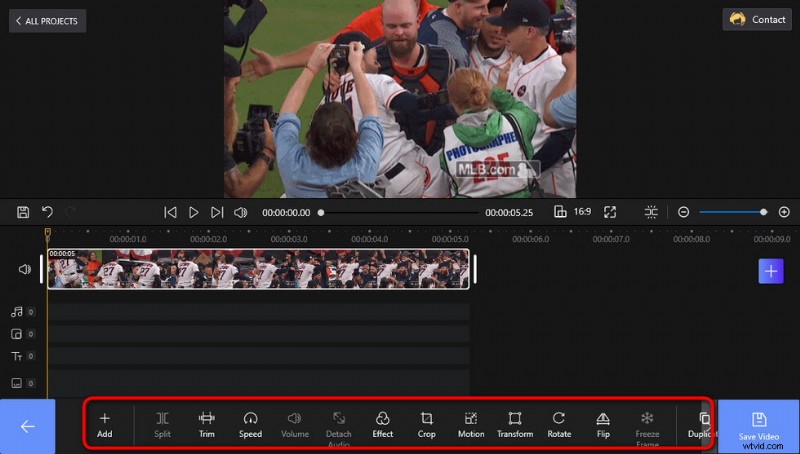
Edit Your GIF
Step 4. Save and Export Edited GIF
When you’re editing GIFs with FilmForth, you can always hit the play button in the upper video player window to preview your work. Whenever you’re ready, hit the Save Video button from the lower-right side to save and export your edited GIF image.
A dialog will pop up for export settings, here you can customize your GIF bitrate, resolution, frame rate, and audio sample rate. Then choose a destination path for your export file to save and export the edited GIF clip.
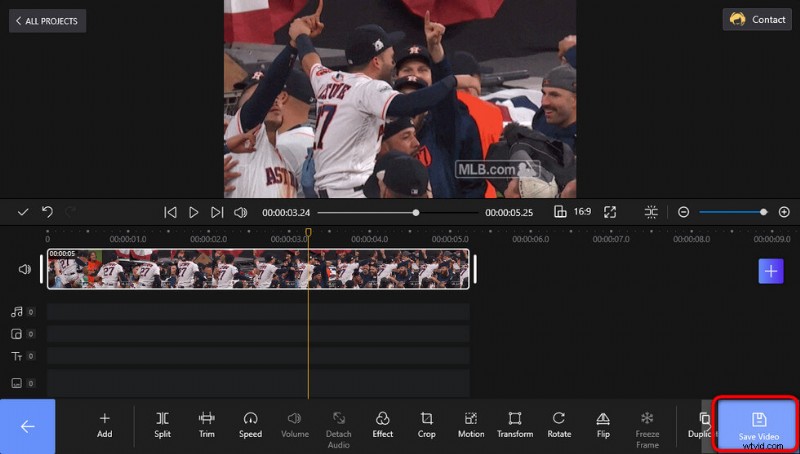
Save and Export GIF
3. How to Make Your Own GIFs for Free
What’s more, with FilmForth, you’re even allowed to create your own GIFs without cost.
FilmForth is a powerful video editor that offers free and high-quality video/GIF templates for ingenious creations, such as making YouTube intro videos, creating funny GIFs, creating memes, etc.
To create your own GIFs with FilmForth,
1. Launch FilmForth and create a new project.
2. Click the arrow on the ADD VIDEO/PHOTO CLIPS button to bring out the drop-down menu, and click Add GIFs/Stickers.
3. As you can see from the right box, there’re plenty of free and nice GIF templates available. Click to add a GIF/sticker to the timeline and you can preview it by pressing the play button from the upper window.
4. If you need to edit the GIF template, follow the steps from the GIF editing tutorials in the second part of this guide. You can trim unwanted parts, add special effects/text/stickers, change the playback speed of a GIF, etc. at will!
5. When you’re ready, save and export your self-made GIF, and now it’s time for sharing!
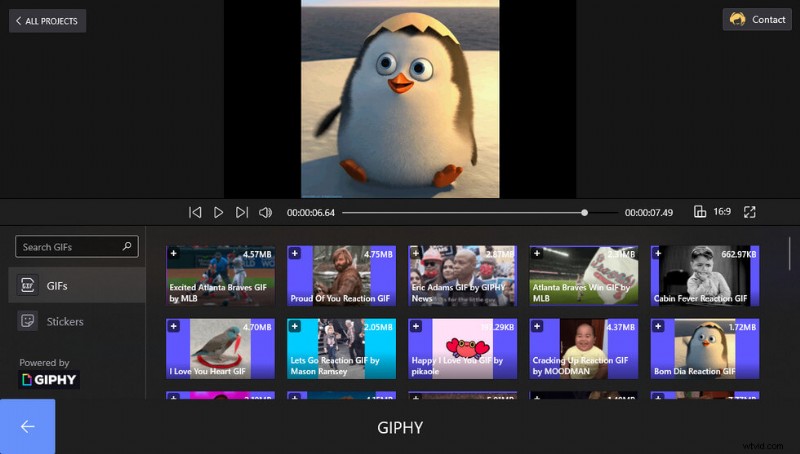
Create a GIF
Additional Reading: How to Edit or Make a GIF Online
Aside from the desktop solution, there’s also an online solution EZGIF. Ezgif.com is a web-based GIF maker application for basic animated GIF editing in a web browser, no installation is required. EZGIF’s basic functionalities include Video to GIF, GIF Resizer, Optimizer, and GIF Maker which are respectively to convert video to GIF, resize GIF, optimize GIF, and make your own GIFs.
In the following, you’ll learn how to edit GIFs or make GIFs online, with EZGIF.
Step 1. Navigate to EZGIF official website, and you can see four GIF editing options available. Depending on what you intend to do, enter the corresponding option. Let’s take GIF Maker, for instance, from which you can edit and make a GIF at the same time.
Step 2. Hit the GIF Maker button, and you’ll be led to the EZGIF GIF maker tool.
Step 3. Hit the Choose Files button in the middle to import the video you intend to create GIFs with. Then hit the Upload and make a GIF button. If you’ve uploaded multiple files, the files will be ordered alphabetically.
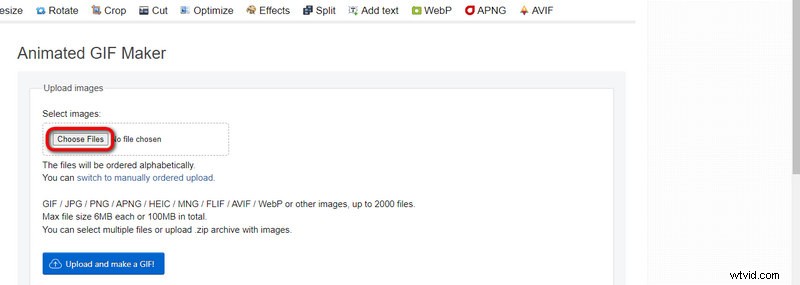
EZGIF Upload
Step 4. From the given buttons above, you can resize, crop, rotate, etc. the GIF. And the lower boxes are for you to manually adjust the Start/End time, size, FPS, and the encoding method.
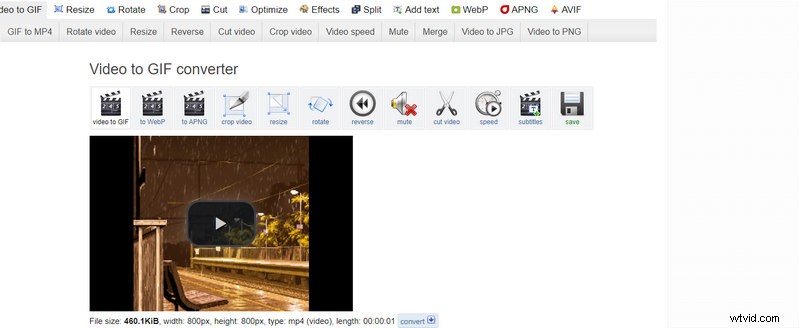
EZGIF Make GIF
Step 5. When you’ve done editing, hit the Convert to GIF! button to convert the video and save it to GIF.
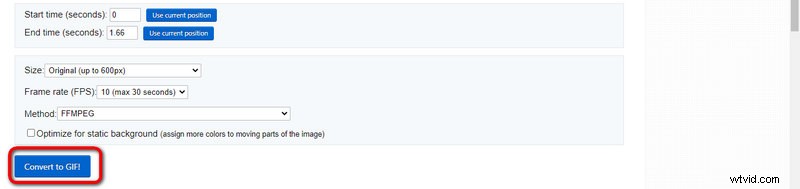
EZGIF Save GIF
To Sum Up
I hope you’ve learned how to edit and create your own GIFs with FilmForth. Again, it’s completely free, so don’t hesitate to give it a try! And now it’s time for you to use your imagination, think outside the box, and utilize FilmForth to create some awesome GIF pictures or hilarious memes to impress your friends and family and make their day!
More Related Articles
- How to Trim Videos on Windows 10
- How to Change Background on YouTube Channel on Phone
- Top 3 Apps to Convert YouTube to MP3 for iPhone
- How to Fade out Video on Windows 10
- How to Add Text to a Video for Free on PC