
From this guide, you’ll learn how to easily split a video with a great free tool.
Content Table
- How to Split a Video with FilmForth on PC (Illustrated Guide)
- How to Split a Video Online without Registration
- How to Split a Video on Windows with Photos
- You Can Do More with FilmForth
At times you may have a video you’d like to share with your peeps, yet you find that video of yours too long and it would be great if you can just cut it into two pieces so what’s left for your audience is not as tedious and is much more digestible. For instance, as we previously discussed how to make a good YouTube intro video, splitting overlong video clips is a necessary process for producing great video content.
The following are the detailed method to split videos into two and more parts without hassle, check out the snapshots below and you’ll find the steps not complicated and quite easy to follow. Let’s get your problem solved in less than 5 minutes! Three FREE methods will help you split videos on Windows and online.
I understand that you may not be some techie or video editing professional, no worries, with a decent video editing program, this can be implemented in a few clicks. Allow me to introduce FilmForth, one of the Best free video editors for Windows 10, it is completely free of charge, it’s geared toward video editing beginners so it’s extremely easy to use, and allows you to split your videos into two halves and in excellent quality.
Popular Posts: 22 Best Online Video Editors, Top 18 Slow-mo Video Editors, Top 16 Intro Maker Apps
How to Split a Video with FilmForth on PC (Illustrated Guide)
Step 1. Download and Install FilmForth
If you haven’t had it already, get FilmForth from Microsoft store, click the download button below, and hit Get in the store, it’s free, highly rated and it installs really fast! FilmForth is compatible with Windows 10 and Windows 11.

Step 2. Launch FilmForth and Start a New Project
After you download and install FilmForth, launch it from the Windows start menu, and hit New Project button in the middle.
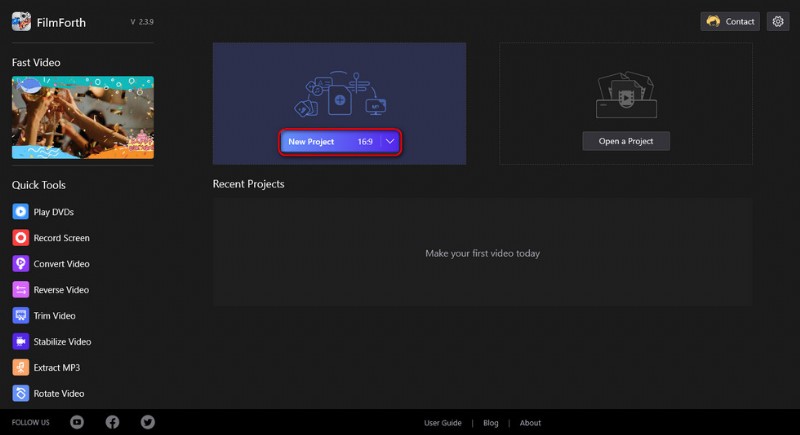
Create a new project
Step 3. Load Video into FilmForth Program
Drag and drop the video into the program or click ADD VIDEO/PHOTO CLIPS button to load the video you intend to cut into two halves into the program.
Please note that FilmForth supported media formats include JPG, JPEG, BMP, GIF, WebP, MP4, WMW, AVI, WebM, TS, 3GP, 3GPP, M4V, MOV, MKV, MTS, M2TS, WMV, WAV, M4A, and MP3.
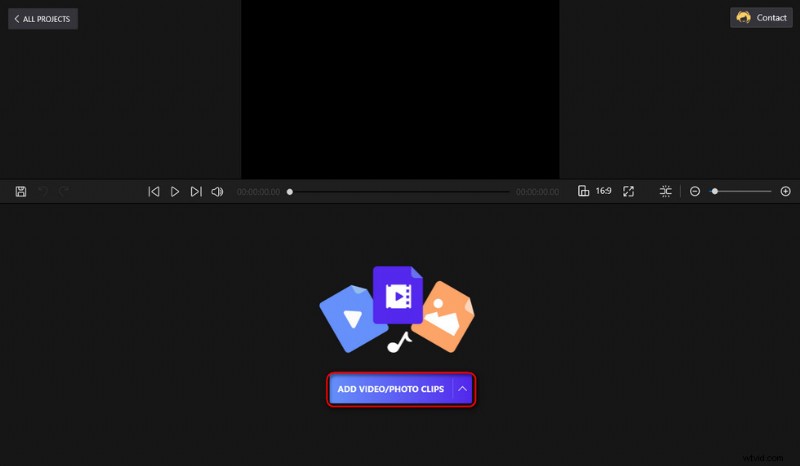
Load videos into the program
Step 4. Click to Select the Added Video
Then you’ll be led to FilmForth video editing screen where you can see the added video in the timeline, click to select it. As you can see from the screen, there are buttons in the operation panel underneath for various video editing purposes, we’ll get to that in a bit.
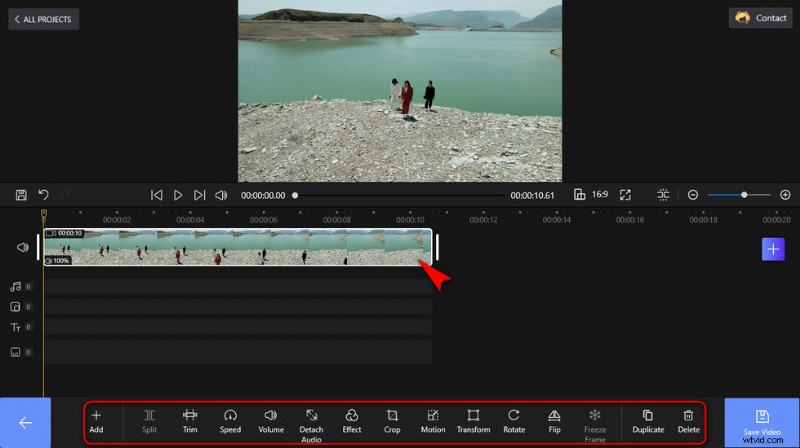
Click to select the added video
Step 5. Split the Video into Two Parts (or More)
Since we’re going to separate the video into two halves, first locate the yellow playhead from the left-most side of the timeline. Drag to move the playhead to the position where you want to split the video.
The buttons at the start/end of the clips allow you to add cool transition effects, and the blue Plus button on the right side allows you to add our built-in clips, color clips, stickers, and more.
If you want to split the video into more than two parts, click to select a split that needs further splitting, then repeat the operation introduced above.
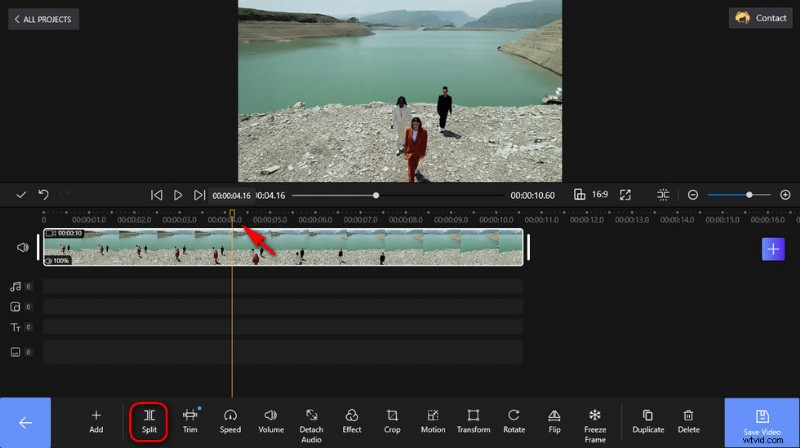
Split the video
Step 6. Save and Export Split Videos
Whenever you’re satisfied with your work, hit Save Video from the lower-right side and a dialog will pop up for export settings, here you can customize your video resolution, bitrate, frame rate, and audio sample rate. Then choose a destination path for your export file to save and export the split video clips.
Please note that to export different clips respectively, delete one of the splits in the timeline, export a split, and repeat the abovementioned operations for the other split.
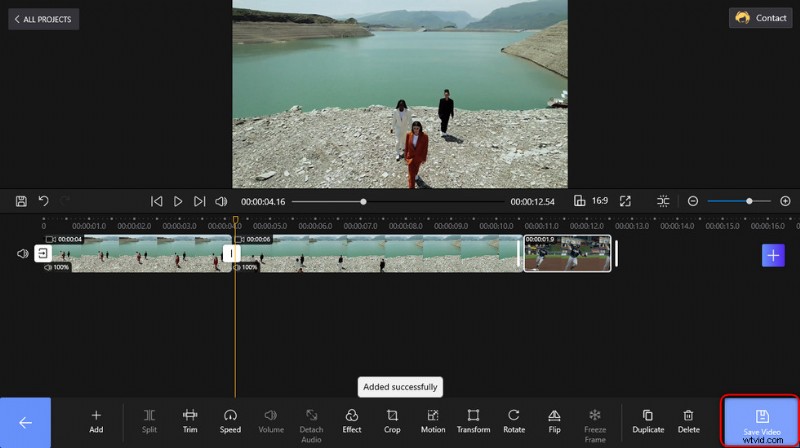
Click Save to export
How to Split a Video Online without Registration
Video splitting is a basic and common type of video editing skill that you can also find from online video editors. If you are to edit small-size videos, then these web-based online video editing applications can definitely be of help. And Veed.io is one of the best of them, in the following, you’ll learn from the step-by-step guide on how to split a video online with Veed, no sign-up is required.
- Navigate to Veed online video splitter, and hit the blue choose video button in the middle of the screen to upload the video you intend to split.
- From the main workplace, move the playhead from the video timeline to point to the place you intend to split.
- Hit the Split button from the lower-left side to split the video.
- Go to the upper-right Export button to save and export the split videos.
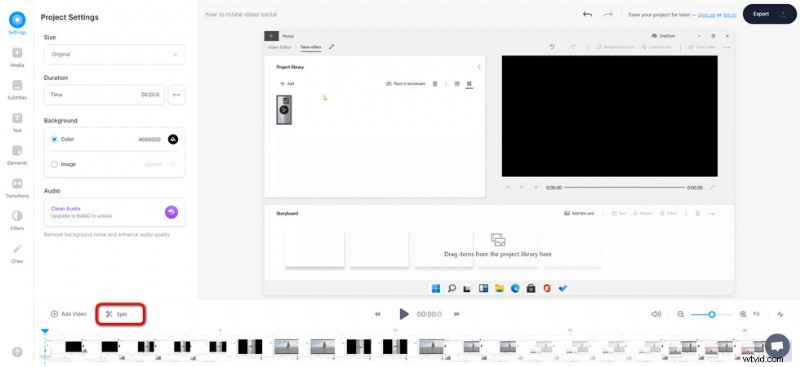
Split Video with Veed
How to Split a Video on Windows with Photos
For those who prefer installation-free and completely safe video splitting processes, we’ve also got something for you – you can natively split your videos with Windows Photos. Windows Photos is the pre-loaded application on Windows 10 and Windows 11 PC that serve as a simple video editing tool. It can be used for basic video editing needs such as video trimming, video rotating, and video splitting.
Follow the tutorials below to learn how to split a video on Windows 10 and Windows 11 with Windows Photos.
- Launch the Windows Photos program from the Windows start menu on your computer.
- Create a new Photos project, import your video clip to the project library, and then drag and drop it to the storyboard.
- Hit the Split button from the storyboard menu, from the Split screen, move the playhead on the timeline to define where you want to split the video
- When ready, hit the lower-right Done button.
- From Photos main workplace, hit the Finish video button to save and export the split videos.
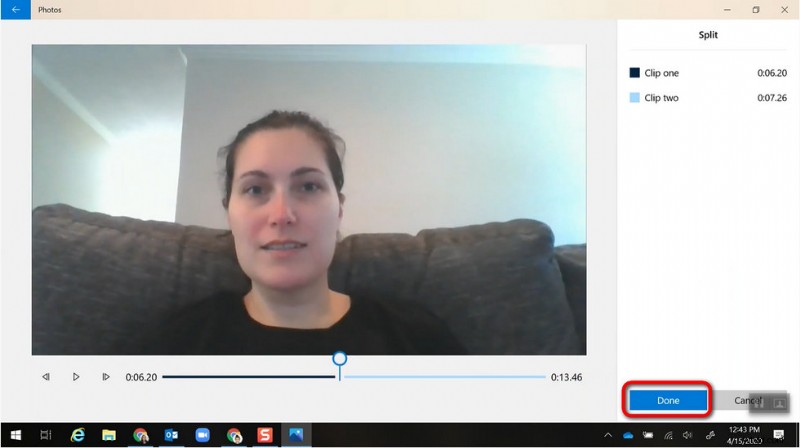
Split Videos with Photos
You Can Do More with FilmForth
Splitting is one of the skills you should acquire as a good video creator, and if you’d like to learn more, our ultimate FilmForth guide is always available.
Aside from cutting the video, its video editing features also include trimming, changing playback speed, adjusting volume, detaching audio, adding special effects, and plenty more. So get Filmforth right away and it’ll definitely blow your mind.
To Sum Up
Compared with splitting videos online, FilmForth presents a much bigger file size capacity, much faster video processing and exporting speed, and more video editing functionalities, thus we highly recommend you give it a try. Additionally, for YouTubers, splitting your video with YouTube studio is also a handy option.
Can you ask for more, you may ask, from a free video editor? Yes! FilmForth even empowers you to edit the video at will with its sufficient video editing features, to bring out the best in your creativity.
More Related Articles
- How to Trim Videos on Windows 10 >
- How to Change Background on YouTube Channel on Phone >
- Top 3 Apps to Convert YouTube to MP3 for iPhone >
- How to Fade out Video on Windows 10 >
- How to Add Text to a Video for Free on PC >