
Sometimes, you may want to view a video you watched on Facebook? How to see videos you watched on Facebook? How to find videos you watched on Facebook? This post will show you how to view and delete Facebook watch history.
You might have watched numerous videos on Facebook. Sometimes, you need to find a recently watched video on Facebook and you didn’t save it on your device. How to find recently watched videos on Facebook? This post explains how to view and delete Facebook watch history.
If you want to make a video for Facebook, you can try MiniTool MovieMaker.
How to Find and Delete Facebook Watch History
In fact, you can easily access your Facebook watch history through your profile. Here we’ll show you how to find recently watched videos on Facebook desktop or web app and the Facebook app for mobile and how to clear Facebook watch history.
Related article: How to View Your Facebook Profile as Someone Else [Solved]
#View and Delete Facebook Watch History on Desktop
Step 1. Open the desktop Facebook app and log in, or open your Facebook via a web browser.
Step 2. Click your profile picture at the top left to access your Facebook profile page.
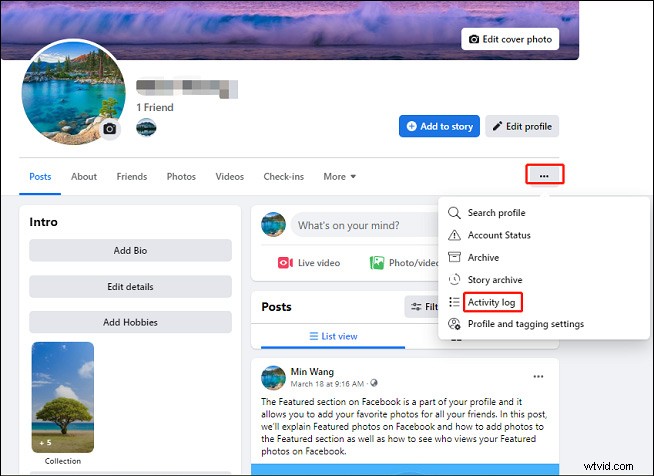
Step 3. Tap the three dots icon and then select the Activity log from the dropdown list.
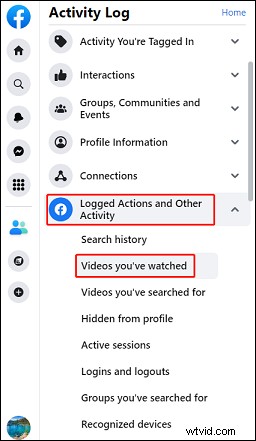
Step 4. Click the Actions and Other Activities option to expand it, and then choose the Videos you’ve watched option.
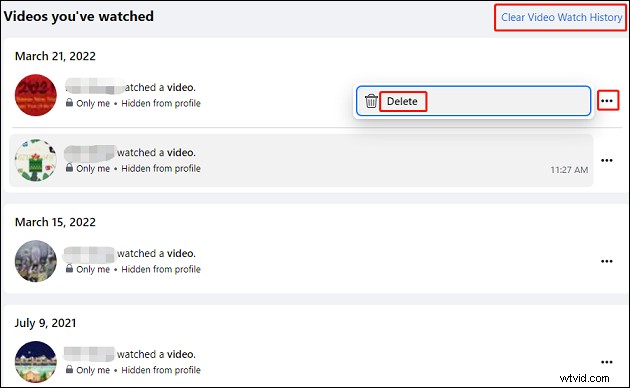
Step 5. Then you’ll see the whole Facebook watch history on the right side. You can click one video to watch it again.
To delete a watched video, click the three dots icon, and then click the Delete to remove it from the Facebook watch history.
To clear the entire Facebook watch history, just tap the Clear Video Watch History at the top right corner, and then click the Clear Video Watch History from the pop-up to confirm.
#View and Delete Facebook Watch History on Mobile
Step 1. Open the Facebook app on your smartphone and log in with your account.
Step 2. Tap the three lines icon, scroll down and click the Settings & Privacy and then Settings.
Step 3. Scroll down to go to the Your Facebook Information section, click Activity Log.
Step 4. Click the Filters and Categories, then select the Logged Actions and Other Activity, then select the Videos You’ve Watched. Then it will show a list of videos you’ve viewed recently.
You can click the video to view it or click the three dots icon next to the video and tap the Delete to remove it from your Facebook watch history.
Conclusion
Now, you can follow these steps to find your Facebook watch history on your computer or smartphone. Then you can view watched videos again or remove them from the Facebook video history.