
Instagram has enabled a feature automatically named activity status or active status. It shows when you were last on the app. If you do not want to show it, you can turn it off. How to turn off active status on Instagram? This post will offer you the solutions.
If you want to make an attractive video on PC and share it on Instagram, you can try the video maker – MiniTool MovieMaker.
Similar to the activity status we can find on Facebook Messenger and WhatsApp, Instagram’s Activity Status setting indicates whenever you are active or recently active on the platform. It is enabled by default on Instagram’s settings.
If you’re currently online, it will display. If you know how to turn off active status on Instagram, you can better protect your privacy and hide when you’re online. The following content will show you the solutions.
How to Turn Off Active Status on Instagram?
If you don’t want people to see when you are online in real-time, you do have the option to turn off this feature. Here is the step-by-step guide you can follow on how to turn off active status on Instagram.
You can change this setting both on the desktop website and mobile app. Let’s take a closer look at the steps!
How to turn off active status on the Instagram website:
Step 1. Go to the Instagram website or open the Instagram desktop app on your computer.
Step 2. Log into your account, then click your profile picture in the top right to open a dropdown menu. Click Settings.
Step 3. Within the Settings page, select the Privacy and Security button in the left panel.
Step 4. Find Show Activity Status from the right, and remove the check from the box. The change will save automatically and work immediately.
How to turn off active status on Instagram Android or iOS:
Step 1. Open the Instagram mobile app, and go to your Instagram profile from the bottom menu.
Step 2. Press the three horizonal line button in the top right, then choose Settings.
Step 3. Tap on the Privacy tab in Settings and then choose Activity Status on the following screen.
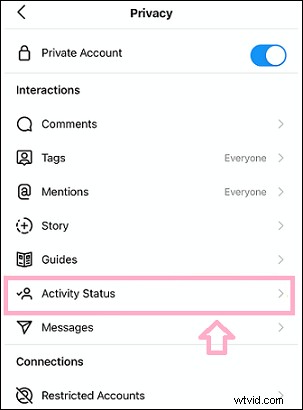
Step 4. By default, Show Activity Status is turned on, you need to toggle it. Click on it or toggle it to the right.
That’s it! From now on, your active status will not show to others.
Tips:
Other users will not be able to see when you were last active or if you’re currently online. That is to say, if you turn it off for yourself, you will also not be able to see the activity status of other users.
Who Can See When You're Active on Instagram?
Only people you follow or have previously had direct conversations (DMs) with will see how many minutes or hours ago you were online. Your followers cannot see when you were most recently on Instagram.
How to Know Others’ Active Status on Instagram?
There are several ways to see when someone is online or active:
- You will see a green dot near their username and photo in your Direct inbox.
- You will see a green dot near their username and photo elsewhere on Instagram.
- In your direct inbox, you will see their most recent activity status.
You may also like How to View Instagram Posts and Stories without Account.
Conclusion
This post introduced how to turn off active status on Instagram. You can change this setting on your desktop or your mobile phone.