
Google Chrome added a feature called Live Caption. It can automatically generate real-time captions for any video playing on Chrome. This post will tell you how to turn on and turn off Live Caption on Chrome.
The Live Caption feature will display captions on the screen in real-time when a video or an audio file playing in Chrome, which offers a better experience for viewers, especially for those who have hearing loss. However, Live Caption supports transcribing speeches in English. Now, let’s take a look at how to turn on and turn off Live Caption on Google Chrome.
To add subtitles to your video, try MiniTool MovieMaker. It offers you a wide range of animated texts.
How to Turn off Live Caption on Chrome
Here’s how to disable Live Caption on Chrome.
Step 1. Launch Google Chrome.
Step 2. Click the three dots and select the option Settings from the drop-down menu.
Step 3. Head to Advanced > Accessibility and disable Live Caption.
Alternatively, you can click the Media control and turn off the Live Caption feature.
Tip: How to turn off live caption on Android.
Step 1. Open the Settings app.
Step 2. Go to Accessibility > Live Caption.
Step 3. Then turn it off.
How to Turn on Live Caption on Chrome
Live Caption is disabled by default. If you want to use Live Caption on Chrome, you need to enable it.
Here are two ways to enable live captions for your video/audio on Chrome.
Option 1.
Step 1. Open Google Chrome.
Step 2. Click the three dots and choose Settings.
Step 3. In the left sidebar, click on Advanced > Accessibility.
Step 4. Then enable Live Caption. If you want to customize the live captions’ size and style, click Caption preferences and you are able to change the color, size, style, effect, transparency of the captions.
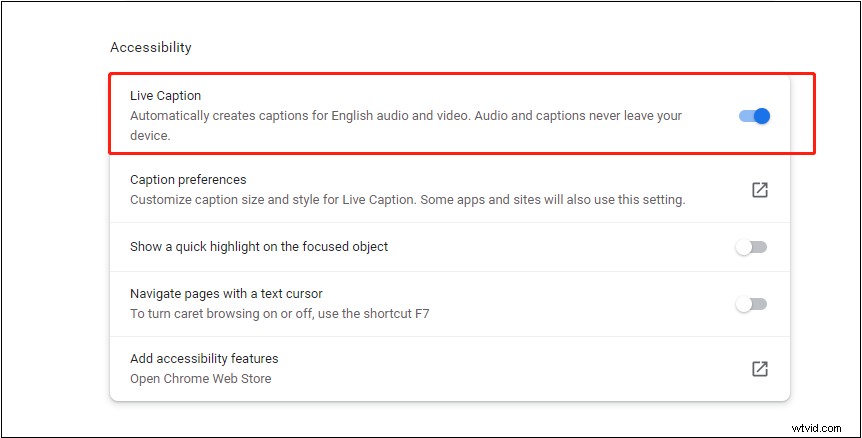
Step 5. Open the video that you’d like to watch with real-time captions.
Option 2.
Step 1. Open Google Chrome. Go to the target website and play the video that lacks captions. Or drag and drop a video or an audio file from your computer into Google Chrome.
Step 2. Click the Media control and turn on Live Caption.
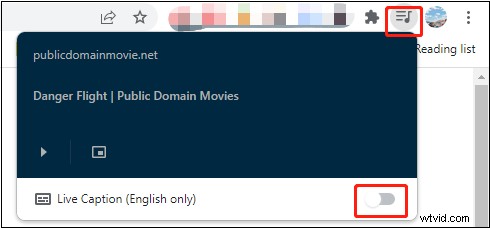
Step 3. If it’s your first time enabling Live Caption, Live Caption will download some speech recognition files. After that, it will generate captions for the video in real-time.
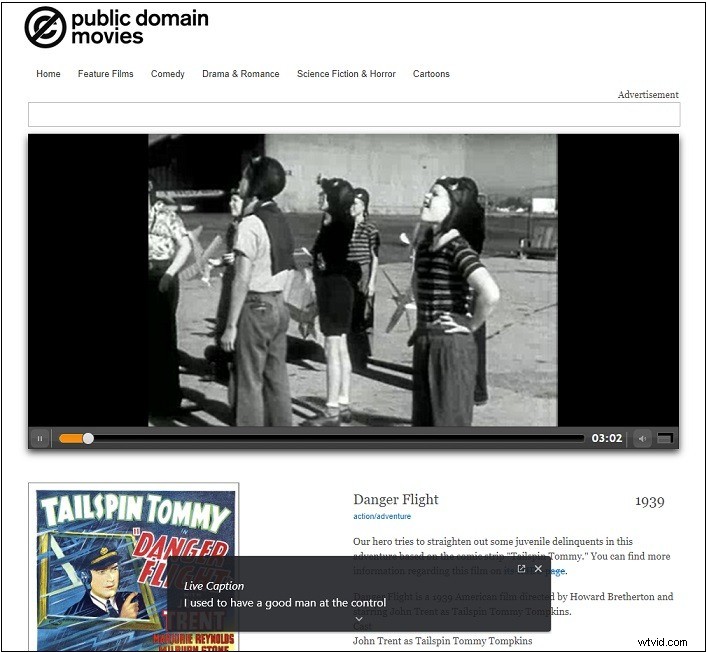
Further Reading: How to Add Captions to Video
Do you want to add captions to your video? MiniTool MovieMaker is a simple video editor that allows you to add animated texts to a video and edit it by splitting, trimming, merging, etc.
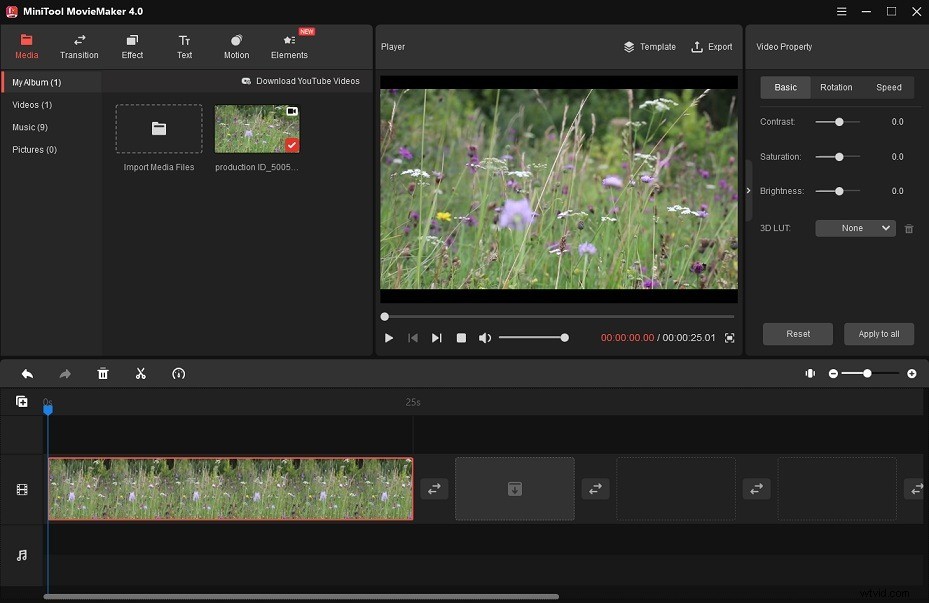
Here’s how:
Step 1. Download, install and open MiniTool MovieMaker.
Step 2. Import video and music and add them to the timeline.
Step 3. Click on Text and select a text template for your video.
Step 4. Enter the text and adjust the text settings.
Step 5. In the end, export the video.
Conclusion
Follow this guide to turn on or turn off live captions for your videos on Google Chrome.