
Facebook will display captions when available, including closed captions on Facebook Live videos. When you don’t want them, these captions would be annoying. This post will explain how to turn off live caption on Facebook Live videos and how to turn off captions on Facebook uploaded videos.
Facebook allows users to upload their captions after they post a video. The captions will always display if this feature is enabled. And Facebook can show video captions on the desktop and iOS devices, and the Facebook Android app doesn’t show captions. When you don’t need these uploaded captions while watching a video, just follow the steps below.
How to Turn Captions off for Videos on Facebook
This part will show you how to turn off captions on Facebook on desktop and the iPhone/iPad.
On Desktop:
Step 1. Open Facebook in your web browser.
Step 2. Click the Your Profile icon in the top left corner, and then click the Settings & privacy option.
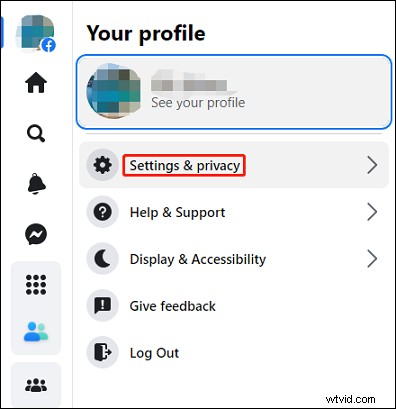
Step 3. Select Settings in the Settings & Privacy menu.
Step 4. On the Settings page, scroll down to the Videos option, and click it to open Video Settings.
Step 5. Go to the Always Show Captions, click the drop-down menu, and choose Off.
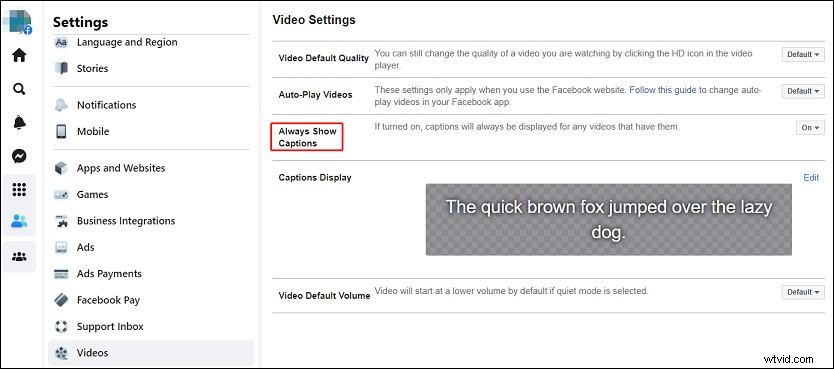
You can also make changes to the video default quality, video volume, and others. Facebook will automatically save your changes.
On iPhone/iPad:
Step 1. Open the Settings app on your device, and select the General option.
Step 2. Tap the Accessibility, scroll all the way down and choose Subtitles & Captioning.
Step 3. Tap the button next to Closed Captions + SDH to turn off captions for videos.
Note:
After turning off this option, your Facebook app and other apps that display captions won’t show captions.
How to Turn off Live Caption on Facebook Live Videos
Currently, Live video is an increasingly engaging form of content on Facebook. And it can automatically generate captions on Live videos.
When the sound is muted, Facebook shows live captions. If the video is unmuted, the captions will disappear. And viewers also have the option to turn on captions when the sound is on.
However, auto-generated captions may cause problems occasionally. In this situation, you might want to disable or turn off Facebook live caption. How to turn off auto captions on Facebook? Follow the steps mentioned below.
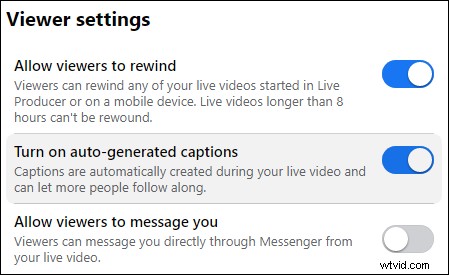
Step 1. Go to the Facebook Live Producer, and choose the page you want to manage captions for.
Step 2. On the right side, click Settings and choose Viewer to open Viewer settings.
Step 3. Toggle the Turn on auto-Generated Captions option to disable it.
How to Turn off Captions on TikTok
In April 2021, TikTok introduces the auto captions feature that enables users to transcribe the speech voice in the video into text.
When the captions featured is enabled on TikTok, captions will appear automatically on videos when available. You can choose to hide these captions while you’re watching a video. But how to turn off captions on TikTik in 2022? Below is a complete guide.
How to turn off captions on TikTok?
While you’re watching a video, tap the grey text box and choose Hide captions.
If you want to turn off captions for all videos on TikTok, just follow the steps below.
Step 1. Open your TikTok app and click the Profile.
Step 2. Tap the menu icon in the top right, and choose Settings and privacy.
Step 3. Scroll all the way down and select Accessibility.
Step 4. Toggle the Always show captions option to grey to disable this feature.
To make TikTok more accessible to everyone, TikTok introduces a text-to-speech feature, too. Check this post: Text to Speech TikTok: How to Do Text to Speech on TikTok to get more details.
Conclusion
That’s all about how to turn off captions on Facebook and TikTok. With the abovementioned steps, you can easily turn off video captions on Facebook and TikTok. Before you upload a video to Facebook and TikTok on PC, you can also try MiniTool MovieMaker to add subtitles to your video.