
Facebook is a social media platform where you can share videos with your friends and watch videos. If you find an interesting video and want to embed it into your presentation, or website, this post will detail how to embed Facebook videos.
This post will teach you how to embed Facebook videos (To make a Facebook video, try MiniTool MovieMaker) into website, WordPress, Email, and Google Slides step by step! Let’s dive into this post now!
Embed Facebook Video into Website
Before embedding a video into your website, the first thing you need to do is getting the embed code. Here’s how to get the embed code of a Facebook video and embed it into your website.
Step 1. Open your web browser and go to the Facebook website.
Step 2. Find the Facebook video that you want to embed and click the three dots above the video. From the drop-down menu, select the Embed option.
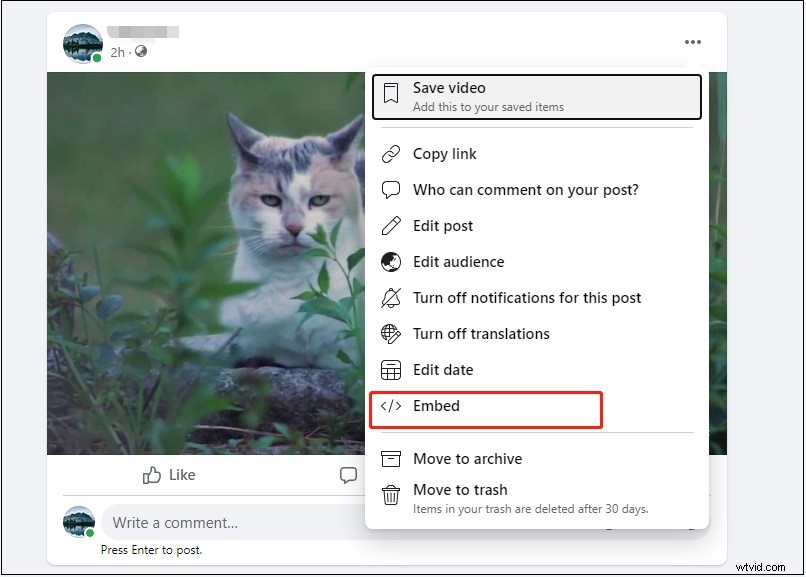
Step 3. On the Embed Video window, tap on Copy Code to get the embed code of the Facebook video.
Step 4. Go to your website and paste the embed code on your website or web page.
Embed Facebook Video in WordPress
Here’s how to embed a Facebook video in WordPress.
Step 1. Copy the embed code of the desired video on Facebook.
Step 2. Open the post that you’d like to embed the Facebook video and choose the Text editor. Paste the embed code in the Text section.
Step 3. Then switch back to the Visual editor and click the Save button to apply the change when you’re done.
Related article: Solved - Facebook Videos Not Playing on Phone/Chrome
Embed Facebook Video into Email
Want to share a large Facebook with your friends via email? Here’s how:
Step 1. Find the Facebook video you want to share and click the timecode icon.
Step 2. Copy the video link in the address bar.
Step 3. Open the Gmail app and click on Compose.
Step 4. Enter the recipients’ email addresses and the subject. Then click the link icon or press “Ctrl + K” to insert the link.
Step 5. Paste the link in the second box and click OK.
Step 6. Press the Send button to send the video to your friends.
Embed Facebook Video into Google Slides
Below are the steps on how to embed a Facebook video into Google Slides.
Step 1. After getting the Facebook video link, open Google Slides.
Step 2. Open your presentation and select a slide that you wish to insert a Facebook video.
Step 3. Click where you want to place the video link. Click Insert link or press “Ctrl + K”, then paste the link and enter the text you want to display.
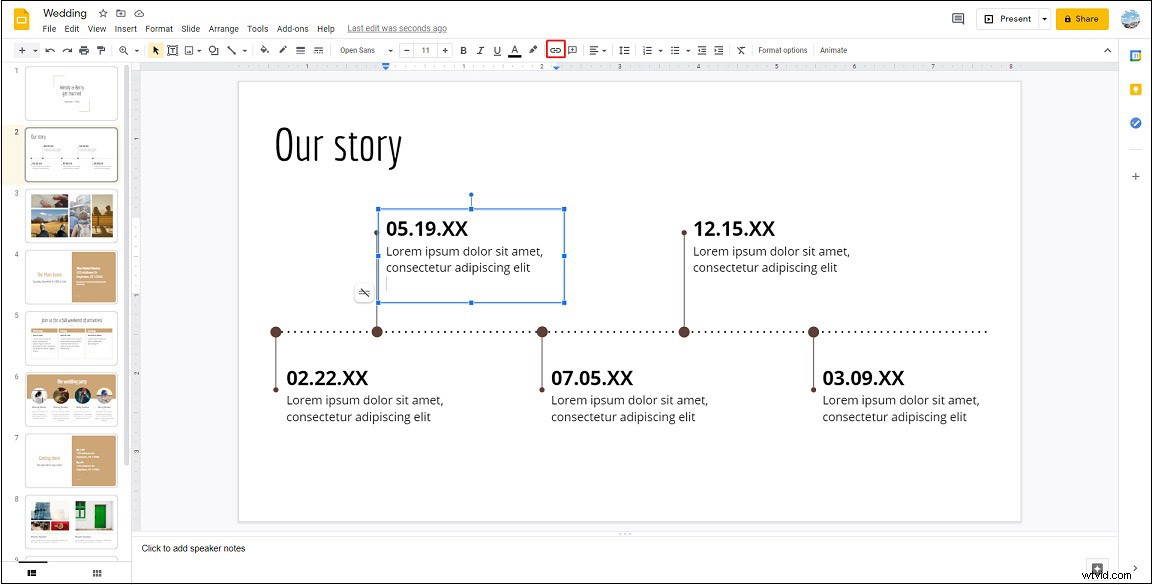
Step 4. Click on Present in the top-right corner and click the video link to check if it works.
Conclusion
Now, you’ve learned about how to embed a Facebook video into a website, WordPress, Email, and Google Slides. If you have other suggestions or questions about this post, please contact us via admin@wtvid.com or leave your comments below!