
You might have created many playlists of your favorite songs on Apple Music. If you want to share many songs with your friend, you can share an entire playlist with a few clicks. How to share a playlist on Apple Music? Just check this post.
Apple Music is one of the best music streaming services to enjoy songs. To organize your favorite songs, you might have created many playlists. And sometimes you may want to share an Apple Music playlist with friends and family.
Can you share Apple Music playlists? How to share Apple Music playlis? Before jumping into that section, you should know how to have a profile on Apple Music. Or you can’t share Apple Music playlists.
How to Create Your Profile on Apple Music
On iPhone/iPad:
- Open the Apple Music app, and click the photo icon in the top right in the Listen Now
- Tap the Set up Profile, follow the on-screen instructions and complete settings.
- Once done, click the Done. Then choose which playlists that can be public in your profile.
On Mac:
- Open the Apple Music app and click the Listen Now
- Tap the My Account button (a photo-like icon) and then click the Get Started.
- Then follow the on-screen prompts to create your profile, and click Done.
In iTunes:
- Open iTunes, select Music, and click For You. (To see this option, make sure you’ve signed in to Apple Music.)
- Tap the My Account button, click the Get Started, and follow on-screen instructions. Click Done.
If you want to make a video with your favorite music, you can try MiniTool MovieMaker, a simple video editor without watermarks.
How to Share a Playlist on Apple Music on Mobile Device
If you subscribe to Apple Music, you can share a song, album, or playlist from Apple Music to your Facebook, Instagram, Snapchat stories, Messenger, and more if you’ve installed these apps on your device.
Here’s how to share an Apple Music playlist on your iPhone, iPad, or Android device.
Step 1. Open the Apple Music app on your device, and go to Library > Playlists.
Step 2. Choose and open the playlist you want to share, and click the three-dot icon in the top right.
Step 3. Click the Share Playlist from the pop-up screen, and select an available option to share the playlist.
Related article: How to Put a Song on Repeat on Apple Music [2022]
How to Share a Playlist on Apple Music on Computer
You can also share an Apple Music playlist on your PC or Mac using the Apple Music website. Here’s how to share playlist on Apple Music website.
Step 1. Go to the Apple Music website and sign in with your Apple ID. Alternatively, open the Apple Music app on Mac, iTunes, or Windows.
Step 2. Click the Library, and then find the playlist you want to share in the Music Playlists section.
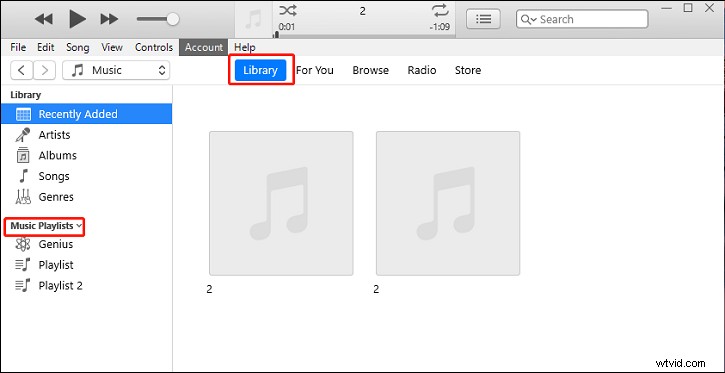
Step 3. Open this playlist, then click the three dots icon above the song list, click the Share, and choose the desired app for sharing.
Conclusion
That’s all about how to share a playlist on Apple Music. If you want to share a playlist on Apple music, just follow the above steps.