
If your iPhone is charging, using your PC or laptop to play Apple Music is a good idea to give your phone some rest. How to play Apple Music on PC? This post is going to talk about the 2 best ways to listen to Apple Music on PC. Check them out and see which way do you prefer!
If you also need a free video editor to make music videos or add music to videos, MiniTool MovieMaker is the top recommendation here.
Apple Music is available across Apple and non-Apple devices. If you subscribe to the streaming service, you can listen to music on your Apple device like iPhone, Mac, or iPad for spatial audio with dynamic head tracking on supported devices, lossless audio, downloadable tracks, and voice control. You can also play Apple Music on PC Windows equally. This post will present you with how to achieve that.
To access Apple Music on PC, you need to pay for the subscription plan at $9.99 per month. It lets you stream over 60 million songs and access playlists, albums, artists, and favorites.
Method 1: Listen to Apple Music on PC with Web Browser
Apple has created a web-based music player with an interface similar to iTunes that runs directly in your browser. You can listen to your favorite songs via web browser, not just on iPhone or iPad. Let’s see how.
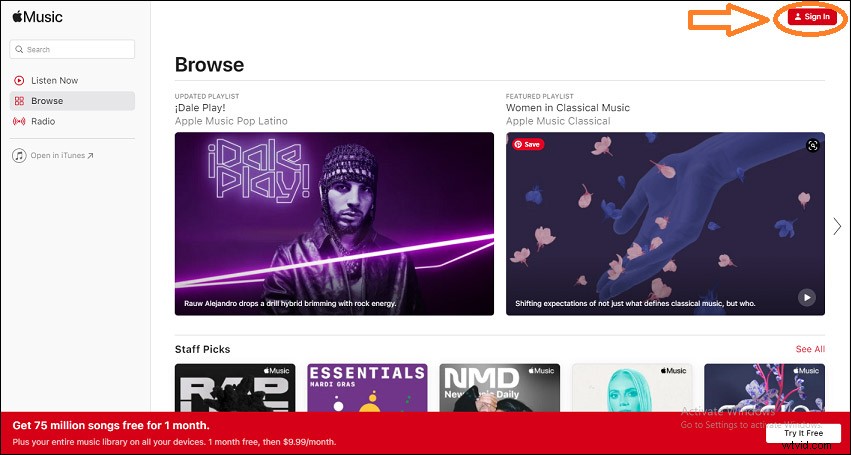
1. Open your browser and visit the Apple Music Player website(https://music.apple.com/us/browse). Click the Sign In button on the top right of the window to log in using your Apple account information.
2. Enter the Apple ID and password for your Apple Music subscription. Hit Enter or the arrow to the right of your password.
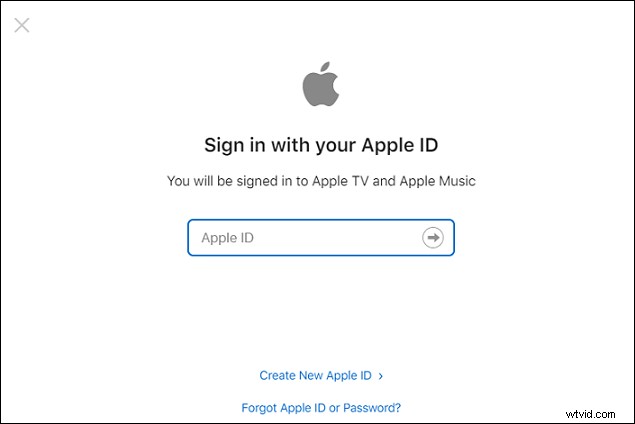
3. Have your Apple device handy as you might need to authenticate your login with a passcode. Enter the code you receive on that device and into the prompt in your browser.
4. Once you’re logged in, you’ll see the navigation on the left. You can jump to your Library or a Playlist. You can also search, browse, or play music just as you would in iTunes or the Apple Music app.
Tips: When you finished listening, bookmark the site and close your browser. The next time you want to listen, click the bookmark and you will be right back in where you left off. And don’t forget: the web player works on Mac and Linux as well!
Method 2: Listen to Apple Music on PC with iTunes
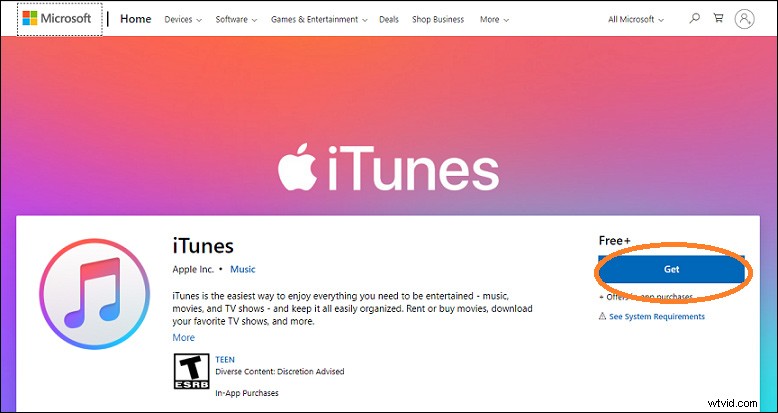
You can also access the Apple Music service from iTunes. If you don’t have iTunes yet, you can go to the iTunes official website or Microsoft Store and download the latest iTunes on your PC.
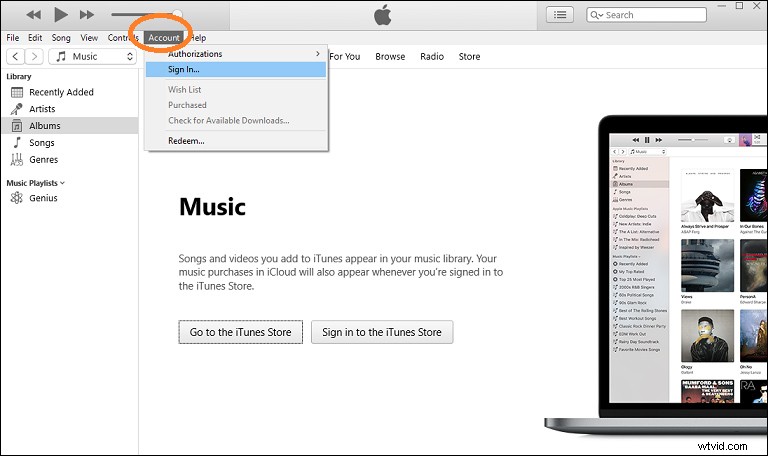
1. Open iTunes and sign in once you installed it. Head to the menu bar and click Account > Sign In.
2. Enter your Apple ID and password and click Sign In.
3. Access your iCloud music library and your Apple Music subscription after logging in.
4. Choose Music to view your music library from the pop-up menu at the top left, then click Library.
In the Library, you can find your playlists and purchased music.
For You is a section you can go to when you don’t know what to listen to and Apple Music will randomly recommend songs to you based on your past listening history.
In Browse, you can find the most trending music and hit songs right at the moment, no downloads are required
Happy listening!!
You may also be interested in 3 Useful Ways to Add Music to iPhone Without iTunes.
Conclusion
To sum up, this post offered 2 effective methods to play Apple Music on PC: via the web browser and through iTunes. Which one do you prefer? Hope you enjoy the music!