
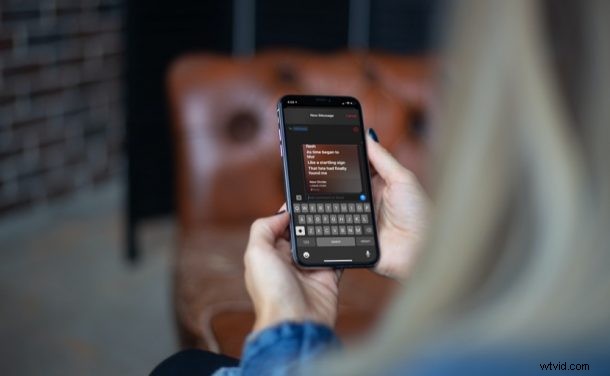
Have you ever wanted an intuitive way to share song lyrics from your iPhone and iPad? In that case, it’s safe to say the time has come, at least if you’re an Apple Music subscriber. And, the way Apple has implemented this can’t get any better.
You might be familiar with a feature called Live Lyrics that allows users to view the song lyrics in real-time while it was being played. With recent iOS versions, Apple has taken this feature to the next level. You can now share a part of these lyrics with your contacts. But, the best part about this feature is that you’ll also be sending a clip of the song which includes these lyrics too.
So, want to share some song lyrics and a clip of music? Then read along and you’ll be doing this in no time with Apple Music from your iPhone or iPad.
Sharing Lyrics with Apple Music on iPhone & iPad
You will need a modern version of iOS / iPadOS, and Apple Music to have this capability:
- Launch the stock Music app and start playing the song that you’re looking to share. Enter the playback menu and tap on the lyrics icon located right below the volume slider.

- Now, you’ll be able to view the live lyrics for the song as it’s being played. Tap on the triple-dot icon to access more options.
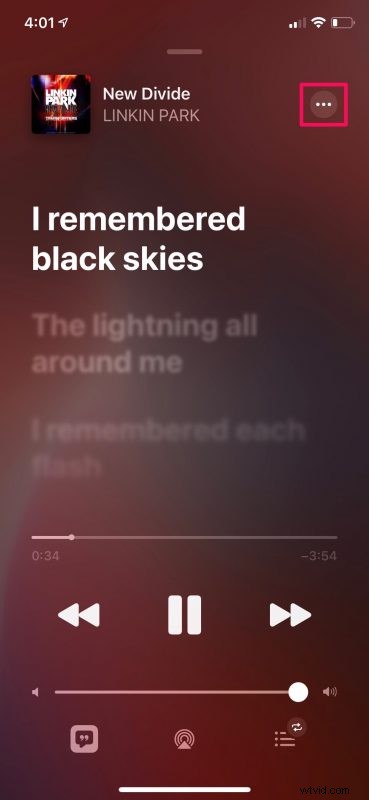
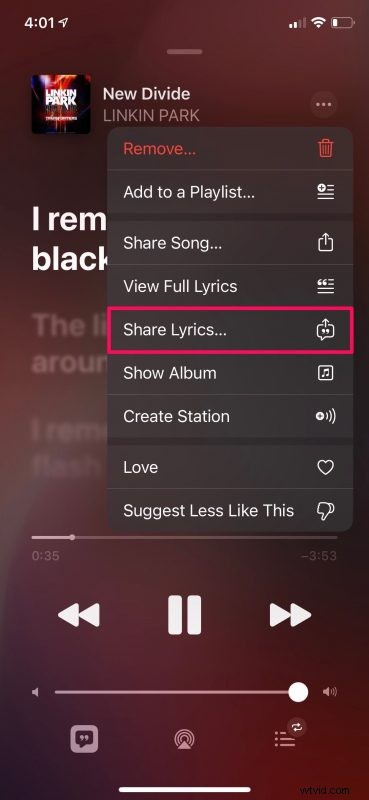
- Choose “Share Lyrics” from the context menu to proceed. You can access this options even if you don’t start playing the song or enter the live lyrics mode. All you need to do is just tap on the triple-dot icon next to the song name.
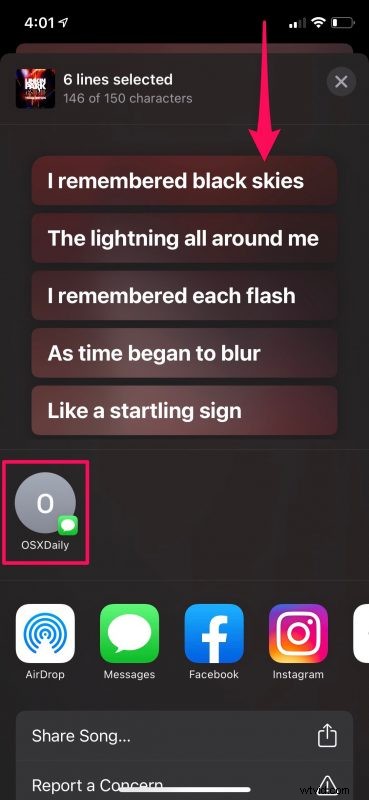
- Now, you’ll get access to the lyric selector. You’ll be able to tap and select a part of the lyrics that you want to share. Note that you can only select up to a maximum of 150 characters. Once selected, select the contact that you want to share the lyrics with. Or, simply tap on the Messages app.
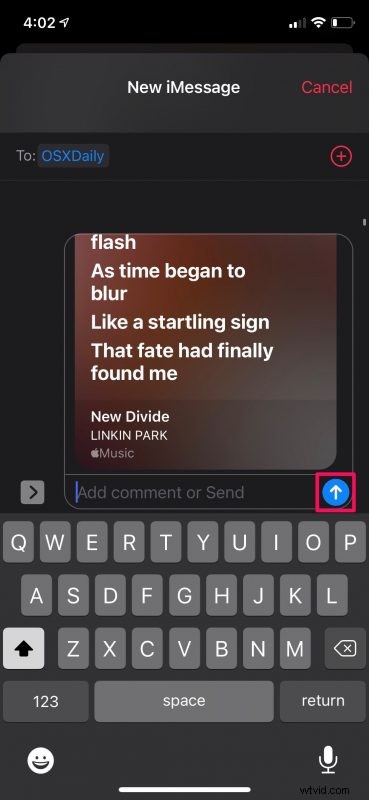
- You’ll get a preview of the message you’re about to send. Tap on the blue arrow icon to confirm and send the message.
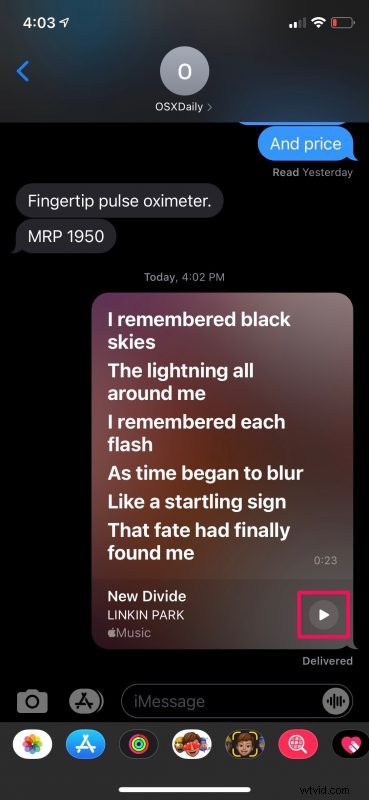
- The receiver can simply tap on the play option to start listening to the clip with the attached lyrics.
That’s pretty much all there is to it. Can it get any better than this?
This new feature makes it easy to share the best part of your favorite song with your friends and impress them with your music taste. It’s worth pointing out that the receiver doesn’t have to be an Apple Music subscriber to listen to the song clip, since it’s just a preview that lasts no more than 30 seconds.
If you’ve been an Apple Music subscriber for a while, you probably already know that not all songs that are available on the platform feature live lyrics. Therefore, if live lyrics aren’t available for a specific song, you won’t be able to share them in such an intuitive way. This mostly affects a lot of regional songs on Apple Music.
Likewise, you can also share these song lyrics as Instagram stories or Facebook stories and let your friends know what they’re missing out on. You also have the option to AirDrop lyrics with a nearby contact using an iPhone or iPad.
Are you putting this lyric sharing feature to good use on your iPhone and iPad? What are your first impressions of this addition to Apple Music? Can this feature tempt more users to join the platform? How can Apple improve this feature even further? Do share your personal opinions and sound off in the comments section down below.