

Twitter may not have the massive user base that Facebook has, but it’s still one of the most popular social networking platforms out there. If you ever wanted to see all the data that you’ve shared with Twitter since you created your account, you can do it right from your iPhone or iPad.
In the wake of the Cambridge Analytica and Facebook data leak that occurred in early 2018, social media companies like Twitter have changed their privacy practices to provide users with insight into the type of information stored for their accounts. The kind of data that Twitter has access to includes your tweets, media, advertising topics you’re interested in, and quite a bit more. If you want to get a copy of this data from Twitter, you can download a copy directly from your iPhone, iPad, or the Twitter website.
How to Download a Copy of Your Twitter Data
Getting access to your Twitter data is a lot more easier than you think. Before you go ahead, make sure you’re signed in to Twitter on your mobile browser.
- Open “Twitter” on your iPhone or iPad. (you can also use the Twitter.com website)

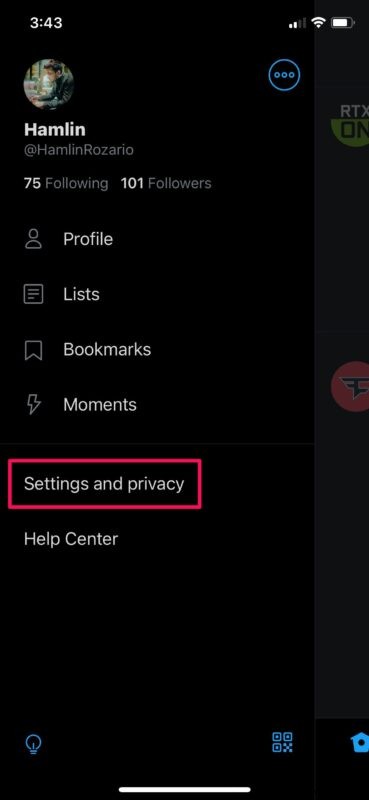
- Tap on your profile icon at the top-left corner to get started.

- Next, choose “Settings and Privacy” as shown in the screenshot below.
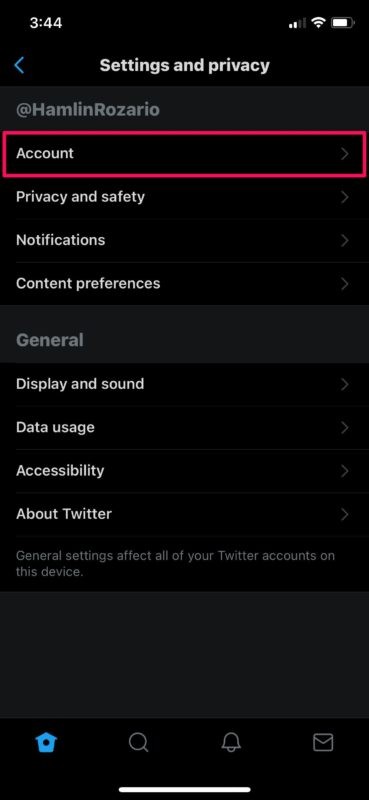
- In the settings menu, tap on “Account” to proceed further.
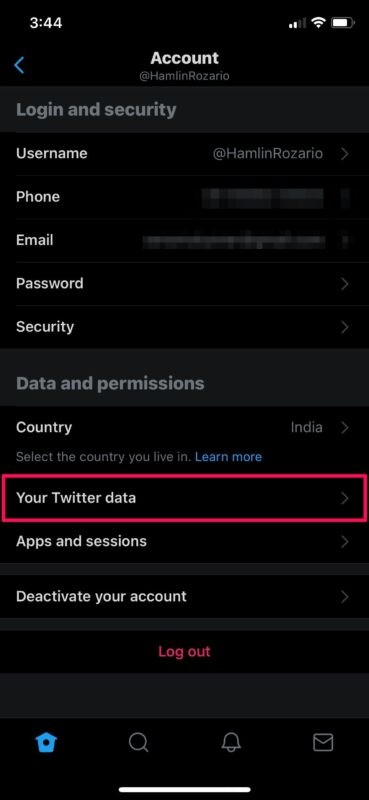
- Now, tap on “Your Twitter data” under “Data and permissions” to go ahead with the data request.
- This will open Twitter in your browser. If you haven’t signed in, you’ll be asked to type in your login credentials. Tap on “Download an archive of your data” to request your data from Twitter.
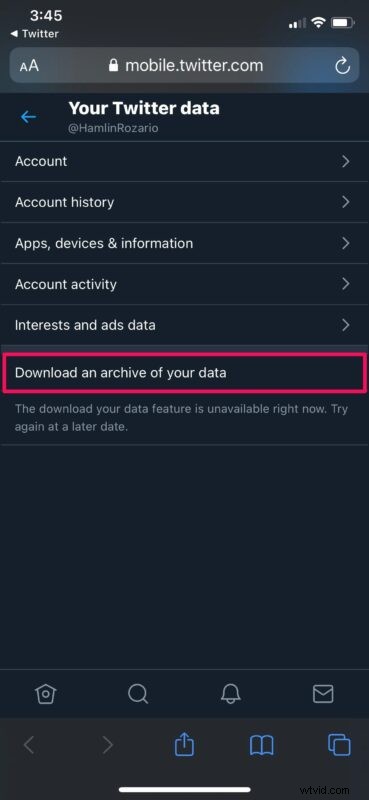
Now you just need to tap on the “Request data” option and wait for Twitter to send an email to your connected email account.
Once you receive the email from Twitter, you can head back to the same settings menu and choose the “Download data” option under the “Download data” section.
The data you download from Twitter will be a ZIP file. Therefore, you’ll need to unzip this compressed file using the Files app before you’re able to actually view all the data.
Although we were focusing primarily on the Twitter app for iPhone and iPad, you can follow the above steps to get a copy of your twitter data from your Android smartphone, Mac, or Windows PC as well.
Are you planning on taking a break from Twitter? Fortunately, you have the option to deactivate your Twitter account, if needed. You will be able to restore your account within 30 days of deactivating your account. After 30 days, your account will be permanently deleted.
If you use other popular social networks to stay connected with your friends and followers, you’ll be pleased to know that you can grab a copy of the data you’ve shared with social networking platforms like Instagram or Facebook in a similar way, which also makes for a simple way to download all your pictures from those services.
We hope you were able to grab a copy of all the data you’ve shared on Twitter, without any issues. What’s your reason for accessing this data? Do you plan on deleting your Twitter account? Make sure to share your valuable opinions and experience in the comments section down below.