
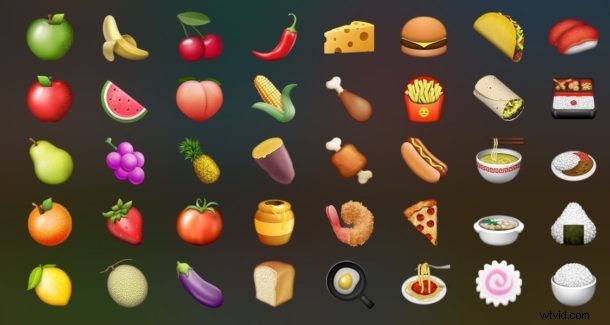
Just about everyone loves knows and loves using Emoji on their iPhone, but did you know you can search Spotlight in iOS with emoji characters too? That may sound a little pointless, but it offers a fun way to search for food and restaurants, amongst other things too.
Use Emoji to Find Restaurants with Spotlight on iPhone
Want to search Spotlight for Emoji based matches? It’s easy and kind of fun, here’s how it works:
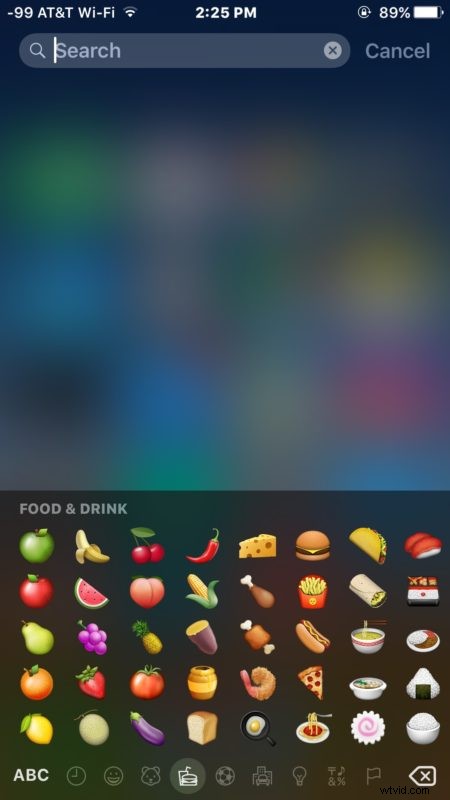
- Open Spotlight as usual on iPhone by pulling down on an icon at the Home Screen, then access the Emoji keyboard
- Enter your Emoji, a single character at a time, to search for related restaurants, locations, or other matches
- Tap a result as usual to open the location in maps or to access it through another app
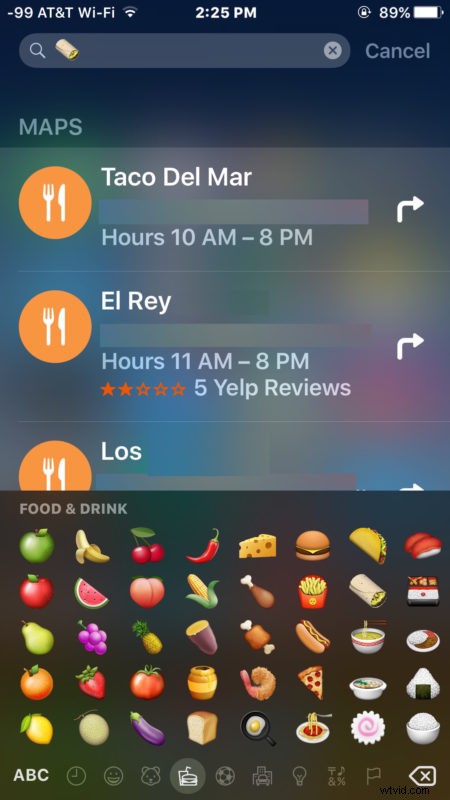
For example, you can type in a hamburger Emoji icon and you’ll find… places that serve hamburgers. Pizza locates pizza joints, tacos will find tacos and Mexican food, ramen finds ramen (and pho sometimes), and so on. You’ll see Yelp reviews in stars and an address for the restaurants when available.
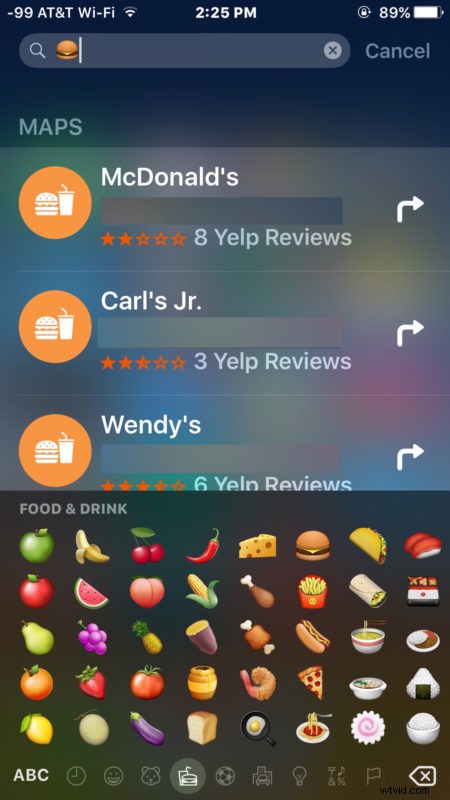
This is mostly entertaining and it certainly offers a creative way to look for a place to eat. It actually works with other emoji icons too, so if you search for an apple emoji you’ll find info about Apple Inc, our favorite computer company, and so on.
For those wondering how this works, it seems to search in Spotlight based on the Emoji definitions available in iOS and in Mac OS X, there doesn’t appear to be any deeper magic or complexity than that.
So, the next time you can’t decide where to eat? Open up Spotlight on the iPhone, browse through your Emoji icons, and pick a place based on what looks good! Kind of silly, but kind of fun.