
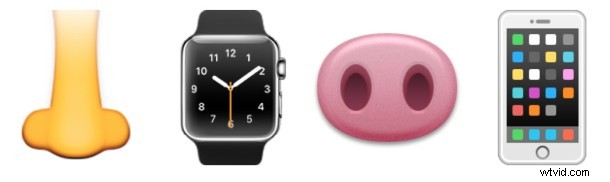
Did you know you can use your nose to control the touch screen on iPhone, iPad, and even Apple Watch? While many iPhone users have discovered the nose trick to unlock their device, open apps, and perform functions in iOS, but who really nose (knows, nose, get it? OK show me the door) how many Apple Watch users do too?
Well, now that you’re aware that nosing your Apple Watch or other iOS device is possible, give it a try, or at least have it in the back of your mind for the next time you’re in such a situation. The nose works to control on screen actions, whether replying to messages, starting and stopping a timer, or just about anything else, and it works surprisingly well, which is particularly helpful when your hands are tied up, busy, or are dirty and soiled. This is largely the basis of a sort of funny Wall Street Journal article (the source of the picture below) which discusses the alternative Hands-Free method of using your own nose to interact with Apple Watch. In fact, the WSJ references a survey where nearly 50% of 10,000 Apple Watch users surveyed say they have interacted with their Watch by using their nose, and another quarter plan to try it. While that number sounds pretty high, it’s not too surprising, as we mentioned the nose method a few winters ago when discussing taking a picture hands-free in cold weather and many others have discovered the nose as a pointing device as well.
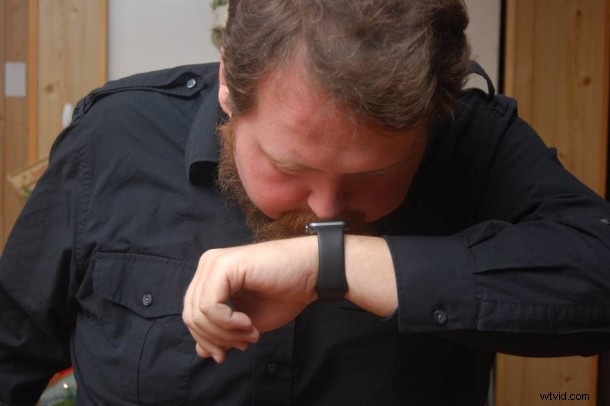
(WSJ image of a guy using his nose to interact with Apple Watch)
Using 3D Touch (once called Force Touch) is a little bit more challenging with your nose since you have to press against the screen particularly hard and may give yourself a sneeze in the process, but indeed the nose-based force click works as well as simple tapping functions.
A stylus, pointing device, toes, fingers, and the nose are not the only options out there. The venerated Wall Street Journal notes that some have discovered using the elbow works as well, though it’s obviously less precise, and our enterprising friend over at MacKungFu found that one can use, uhh, well, some specific other body parts as well, though that’s probably not the best of choices for obvious reasons. I’ve even seen a person use their tongue once, but maybe they were trying to lick ice cream off their iPhone screen, I didn’t ask, because did I really want to know?
Me personally? I use the nose trick sometimes when I have to for both iPhone and Apple Watch, but I think I’ll stick with Hey Siri whenever I can for either device.
Thanks to our friends up North at iPhoneInCanada for the fun find. A bit goofy, but seriously, it works.