
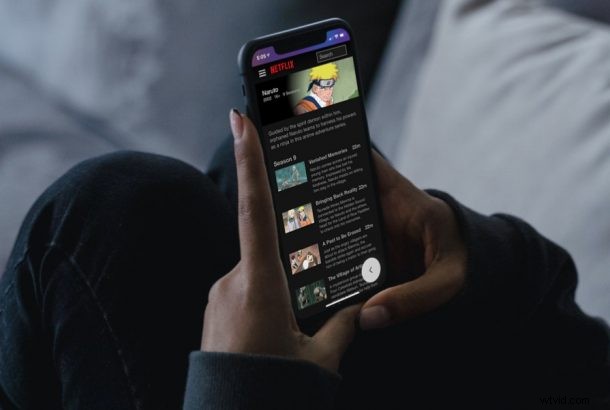
Have you ever wanted to watch Netflix with friends or family, but you’re not in the same house? Maybe you want to watch Netflix with someone who you met on the internet? Or maybe, you just want to chill with your co-workers while you’re at home? Either way, you can now start a Netflix watch party right from your iPhone with a third party app called Rave.
Although Netflix doesn’t have an official watch party feature in the app, there’s a third-party app that lets you start one easily. If this sounds appealing to you, then read read along as we’ll be guiding you on how to start a Netflix watch party on your iPhone.
How to Start A Netflix Watch Party on Your iPhone with Rave
We’ll be making use of a third-party app called Rave to set up a watch party. It’s completely free and integrates with your Netflix account to make this possible. Here’s what you need to do:
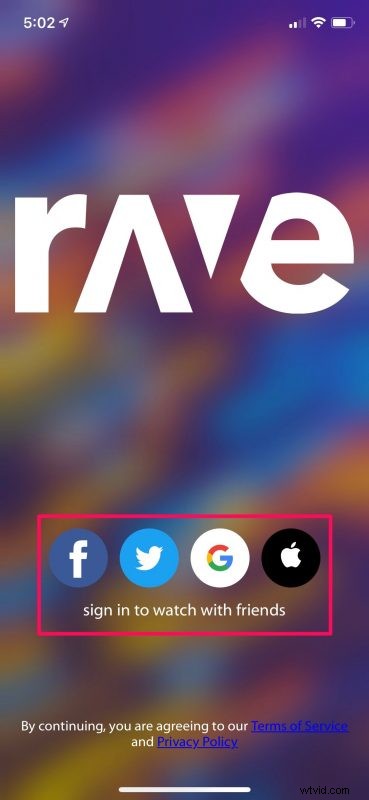
- Install the Rave app and open it on your iPhone. Upon launch, you’ll be prompted to sign with your Facebook, Twitter, Google, or Apple accounts.
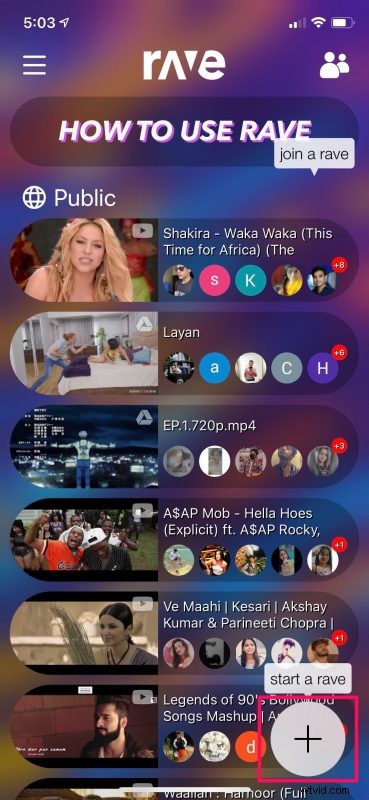
- Once you’ve logged in, tap on the “+” icon located at the bottom-right corner of the home page as shown below.
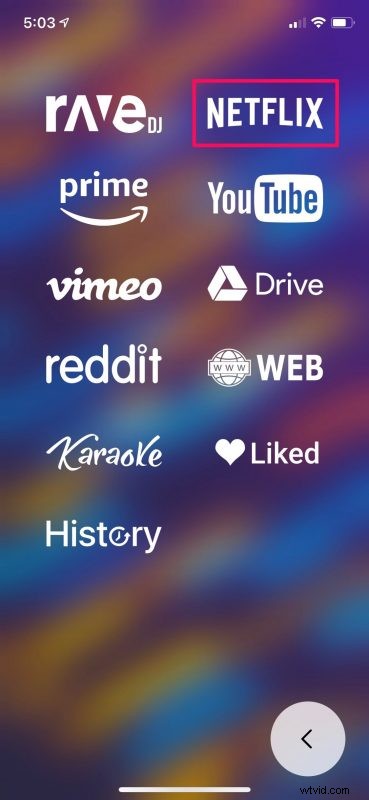
- Now, you’ll find the option to link your Netflix account. Tap on the Netflix logo to proceed.
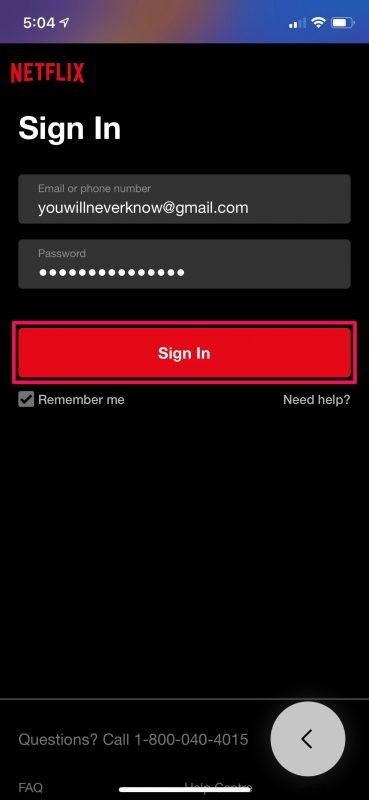
- Enter your Netflix account details and tap on “Sign In”.
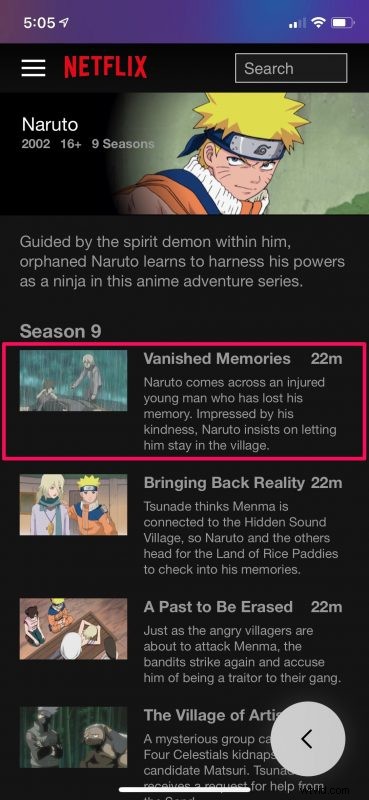
- Select the show and episode that you want to watch with your friends on Netflix.
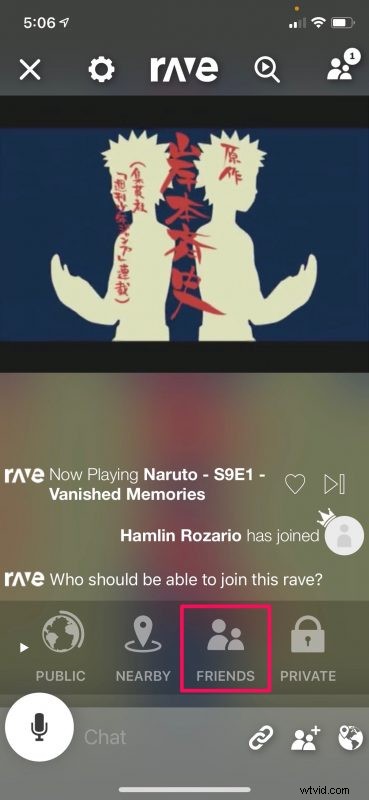
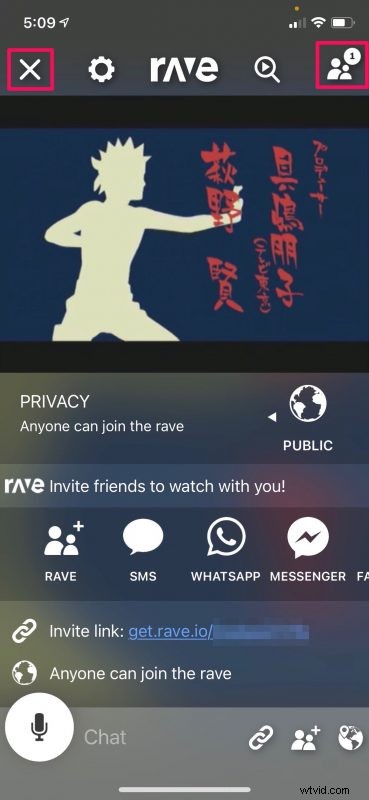
- The video will start playing within the Rave app. You’ll see the privacy options at the bottom of your screen. By default, the watch party you created is public and anyone with a link can join the party. However, to limit this, simply select the “Friends” option.
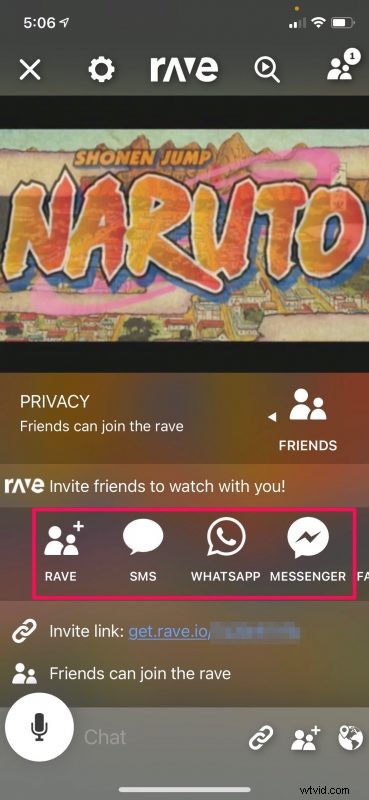
- Now, you’ll be able to invite friends via text message and social networking platforms. Or, you can share the watch party link with your friends.
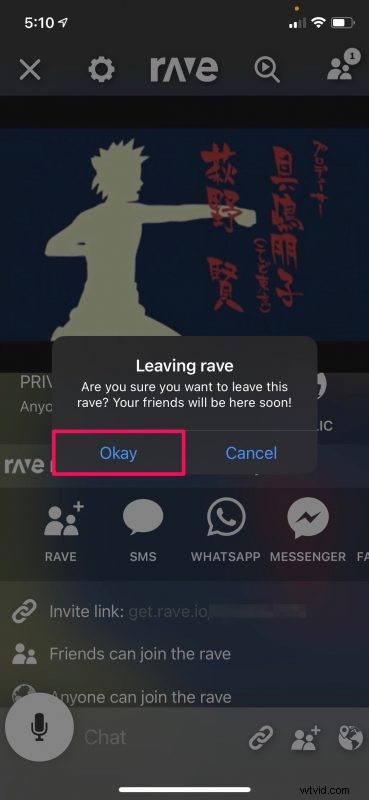
- The entire screen below the video is for chatting as you watch the content. Here, you’ll be able to see who’s joining your watch party. You can tap on the users icon at the top-right to view the participants list. If you want to leave the watch party at any time, tap on the “X” icon.
- When you’re prompted to confirm, select “Okay” and you’re pretty much done.
That was all you needed to know about using Rave to start and configure a Netflix watch party on your iPhone.
There’s no limit on how many people can be in a watch party at a time, so feel free to invite as many friends or family members as you’d like. If your watch party is public, keep in mind that random users who use the Rave app will be able to view your party on the home page and join if they like.
It’s not just Netflix watch parties that you can start with the Rave app. As you may have noticed, you can link major streaming services like Amazon Prime Video, YouTube, and other content platforms like Reddit, Vimeo and watch videos with your friends.
If you ever used Rabb.it back when it existed, you’ll be pleased to know that Rave works very similarly and the content that you watch is in perfect sync with the rest of the participants, so you don’t have to worry about any delay.
We hope you were able to watch your favorite Netflix shows and movies with friends who’re stuck at home and other people who’re just far away using the Rave app. What are your first impressions of the Rave app? Do you want Netflix to add an official watch party feature? Let us know what you think and sound off in the comments section down below.